USM Content
The anatomy of the asset modal
USM Content
To open the asset modal, hover over an asset and select View. At the top of the asset modal, you can find the main tabs for navigation, details, and usage instructions.
Overview Tab
The overview tab highlights basic information about the asset(s). The attachments and how to download them are on the right side.
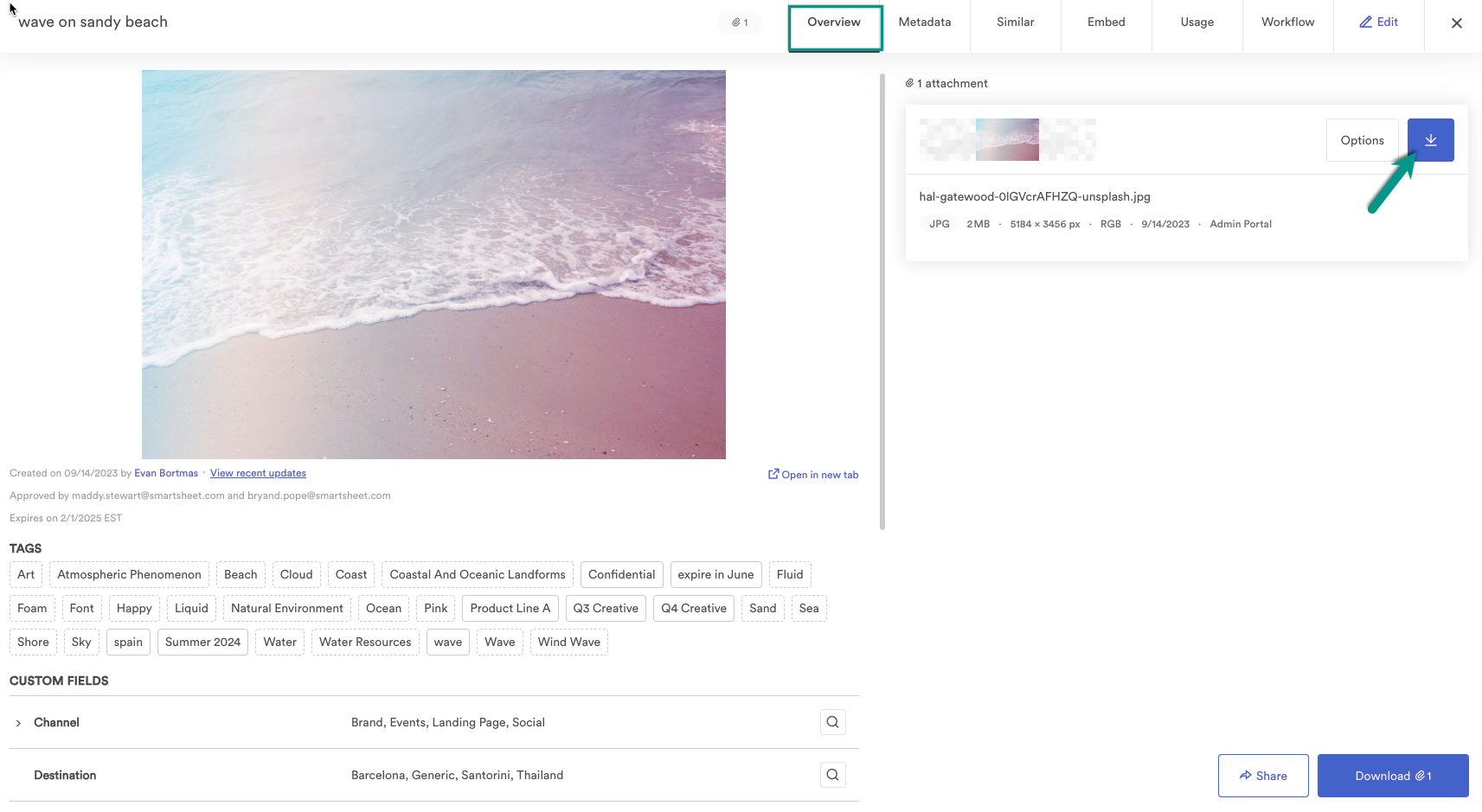
Below the asset preview on the left, you'll find a few fields indexed by Brandfolder that can be searched by any user. For example:
- The asset creation date.
- The user who created the asset.
- The date for the last time the asset was updated.
- The date the asset will be published (if asset availability is enabled).
- The date the asset expired (if asset availability is enabled).
- The user who approved the asset (if approvals are enabled).
Metadata tab
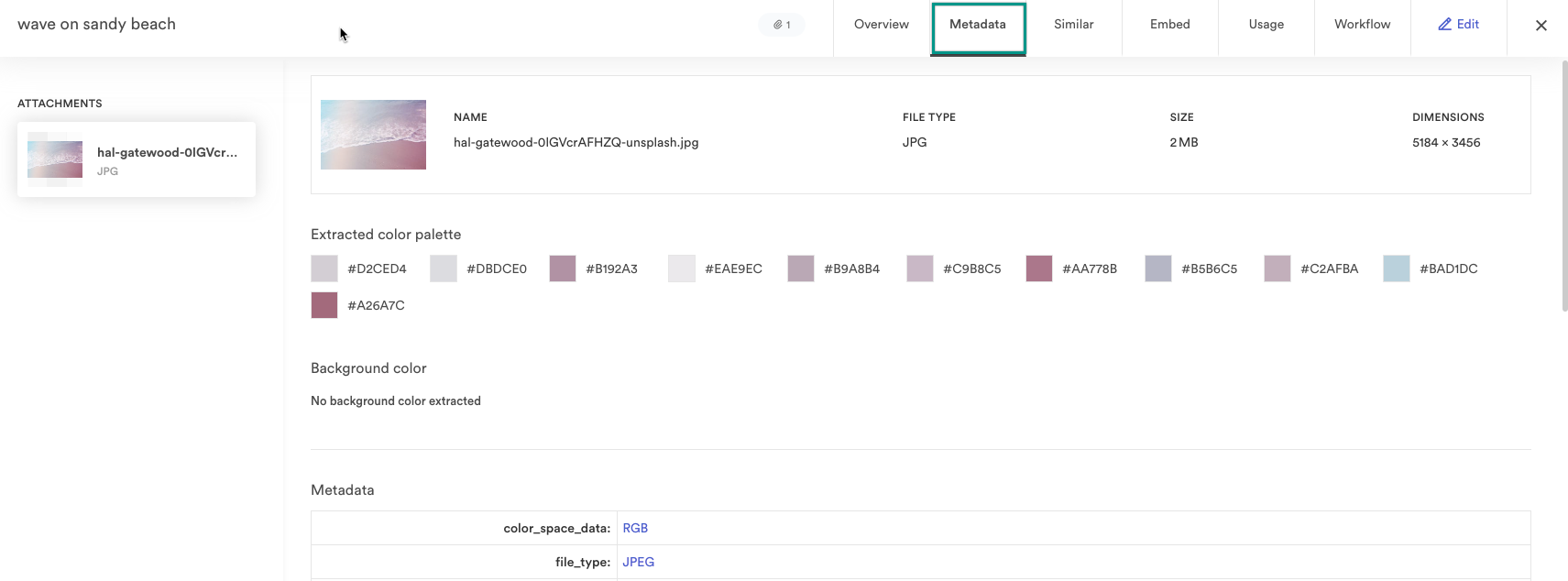
Here, an end-user can quickly see all associated EXIF metadata and additional details like text from images for each file or attachment. All the information on this tab is indexed by Brandfolder and can be searched by any user.
Similar tab
This tab allows users to see all assets within that Brandfolder or Collection that are similar to the selected asset and any duplicates.
- Duplicates show other files that are exact duplicates of the attachment selected.
- Visually Similar attachments come from tags and pixel-level data. They show the most overlapping attachments, showing visually similar works at the attachment level. This section will be blank if attachments don't have tags.
- Suggested Assets come from user behavior. They work at the asset level and show the assets most often accessed in the same user session, but across all users in that Brandfolder. For example, if users often use the same set of assets to build a brand-compliant PowerPoint, these assets would all be surfaced as suggested for one another. Suggested assets are the same across all users in a Brandfolder and for all attachments on an asset.
Embed tab
This tab allows users to embed the asset using Brandfolder’s CDN functionality.
Usage tab
The usage tab gives an admin an overall view of how this asset is being shared and used with the Brandfolder Embed CDN functionality. This tab also shows the Brandfolders and collections it's associated with on the left-hand side.
Workflow tab
This tab allows an editable user to make annotations and comments, track version history, and check out assets. Owners and Administrators can review the Asset’s History.
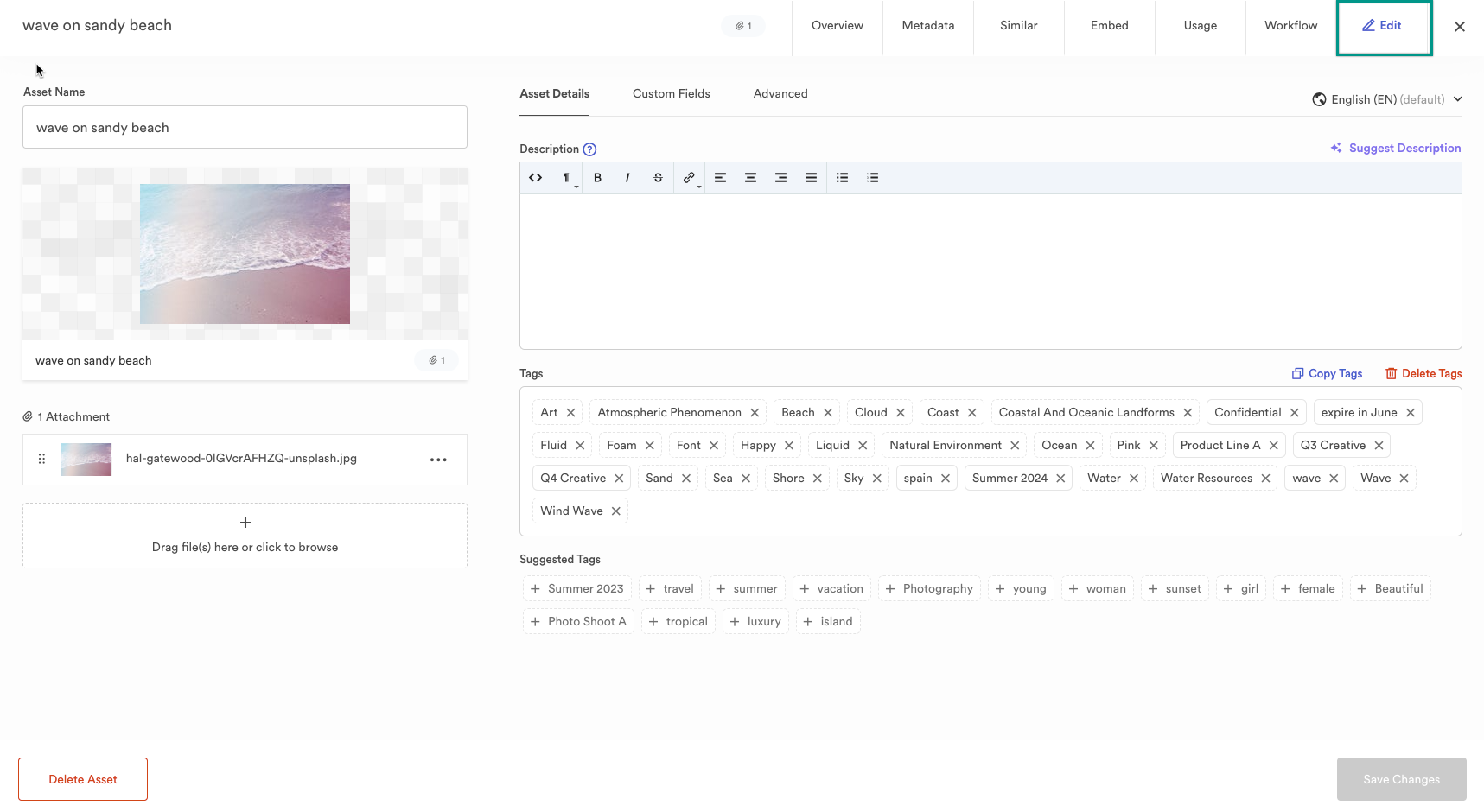
Edit tab
The Edit tab is where Administrators and Collaborators can edit an asset on the Edit tab. To learn more, visit the Edit Assets knowledge base article.