USM Content
Sheet Summary enables you and your team to spend less time tracking down key information, ramping up on projects, and reporting on critical metrics so you can execute and make better decisions, faster.
When mission-critical information is hard to maintain directly in your sheets, Sheet Summary provides a standard, robust way to organize and report on that information. Located in the right panel, you can customize sheet summary fields and include text, symbols, images, links, and high level formulas aggregating data across your sheet.

Define your work with sheet summary
USM Content
Use the sheet summary feature to organize key metrics from your sheet or summarize data from different sheets, making it easier to filter and sort in one location.
You can also present overall project metrics and tag sheets with custom metadata for improved searchability, among other features.
Access the sheet summary
There are different ways to access the sheet summary.
- If you're in grid, Gantt, card, or calendar view, select the Summary icon
 from the right feature bar of your sheet.
 - If you're in table view, select the Summary icon
in the toolbar.
Create new sheet summary fields
The sheet Owner and Admin can add new sheet summary fields, edit field properties, and type in existing locked or unlocked fields.
- To add a new field:
- In grid, Gantt, card, or calendar view, select the New Field button at the bottom of the sheet summary.
- In table view, select Add at the top of the sheet summary.
- Choose the field type for the information you want to display.
- Type a name for your field and select either OK or Apply. A new, blank field appears on the sheet summary.
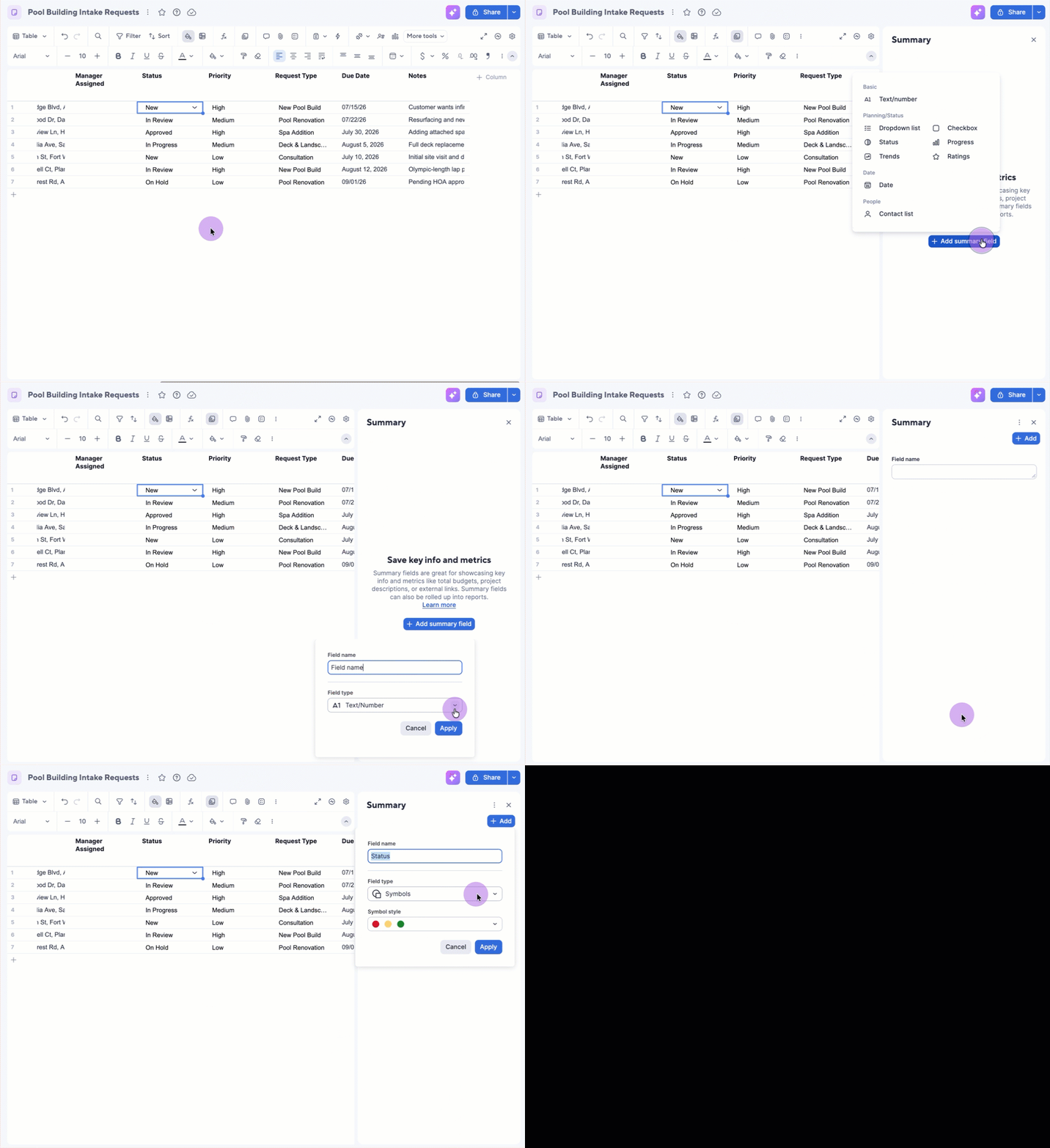
Copy your sheet summary fields to another sheet: Open the sheet summary, select the three-dot menu next to Summary, and select Copy all fields to another sheet. Follow the instructions to complete the action. Learn more about how to copy summary sheet fields.
Edit your sheet summary fields
You can edit your sheet summary fields at any time.
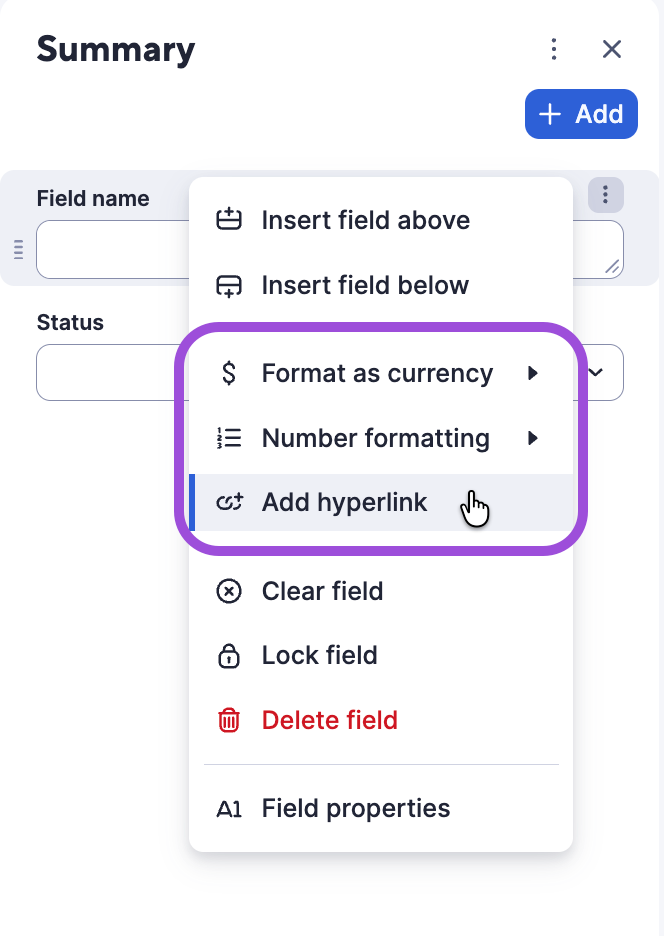
Access the sheet summary and select the More
 icon to the right of the field you want to change.
Edit a field to add hyperlinks, format currencies, lock fields, delete fields, and more.
Summary field types
| Field type | Description |
|---|---|
| Text/Number | Text descriptions, numbers. For example, project summary and overall budget. |
| Contact List | Display someone from your available contacts. For example, the project manager or a point of contact. |
| Date | An important date. For example, the start or finish date of a project. |
| Dropdown List | Choose a dropdown option from a custom list. For example, department name, project type, and project status. |
| Checkbox | A checkbox that can be checked or unchecked. |
| Symbols* | Collections of visual icons. For example, Harvey balls, stars, and signal bars. In table view, you can find them as Status, trends, progress, and ratings. |
*With boolean symbols (flag, star, and checkbox), write the formula in a text field first, then change the field property to the symbol you want to use.
Sheet summary limits
The sheet summary supports:
- Up to 200 fields (does not count against sheet columns).
- Field Names up to 50 characters.
- Field values equal to cell sizes.
- Up to 500 dropdown options.
Best practices
Depict key project details using formulas or symbol columns
Embed formulas in sheet summary fields to see critical metrics whenever you open your sheet summary.
See Calculate key project metrics with sheet summary formulas for more information.
Make search easier by categorizing sheets
Create sheet summary fields that contain key values that you can easily search.
For example:
- Label the department using a Dropdown List or Text/Number field.
- Add keywords to a Text/Number field. For example, construction, electrical, or engineering.
See Use search to find Smartsheet items for more information.
Create a legend to explain how to use symbols
Build a legend in the sheet summary to describe the meaning of each icon or symbol on your sheet.
To create a legend:
- Add a Text/Number field at the top of your sheet summary with a description of the legend.
- Add Symbol fields to the sheet summary, one for each symbol. In the field name, type the purpose of the symbol. Select the group of symbols used on the sheet for each field.
- In each Symbol field, set the icon that matches your description.
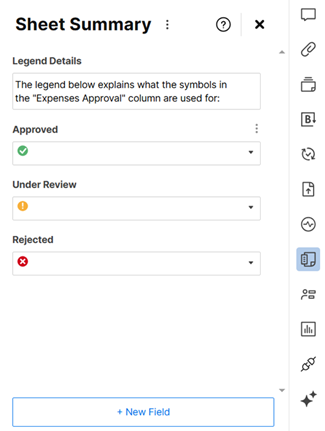
Learn more in Provide context to symbols with a sheet summary legend.
Standardize sheet summaries across sheets
USM Content
Maintain consistency with your metadata and portfolio data by copying the sheet summary structure, formulas, and other content up to 20 existing sheets at once.
Copy the sheet summary
In the sheet summary that contains the fields that you want to copy:
- Select the menu icon
on the right side of the sheet summary.
- Now, choose:
In table view, Copy all fields to another sheet.
In grid view, Copy.
Select up to 20 sheets to copy to. The field names are copied automatically. To copy the field values, check the Include field values box in table view or the Field names, values, and formulas in grid, gantt, card, and calendar view.
Brandfolder Image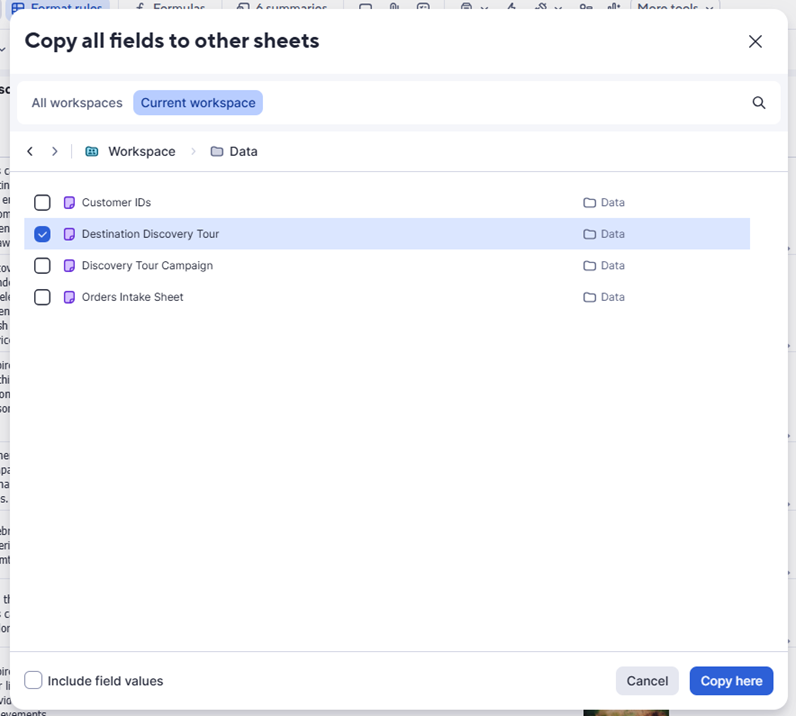
- Select Copy.
Copying a sheet summary to other sheets is a permanent process, which you can't undo. If there's a risk of overriding data, a prompt appears before the batch copy process starts.
Calculate key project metrics with sheet summary formulas
USM Content
Sheet summary formulas let you pull live calculations, like total budget, task counts, or project health, directly into your sheet summary, so key metrics are always visible without digging through rows.
Create a sheet summary formula
In your sheet summary: Type the equals sign (=) and the desired function in a sheet summary field.
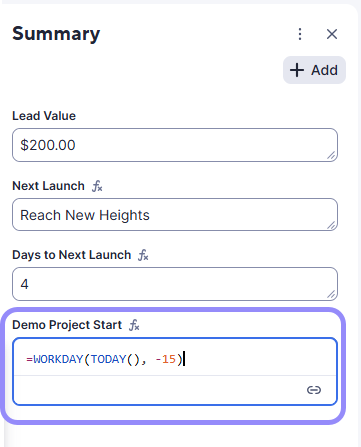
Note that you can’t enter formulas in checkbox fields.
Sheet summary formula examples
The table below has some sheet summary formula examples.
| When you reference | Use this syntax | Example formula |
|---|---|---|
| Other summary fields (same sheet) | [Field name]# | =SUM([Budget 2024]2, [Budget 2025]2) |
| Cells in the sheet | Column name + row number | =SUM(Expenses1:Expenses3) |
Sheet summary field references ([Field Name]#) for formulas can be used both within Sheet Summary Fields and Sheet Cells. For more information, see Formula basics.
For a complete list of functions, see functions.
Cross-referencing other sheet data in formulas
In sheet summary field formulas, you can cross-reference data from other sheets.
Learn how at Create cross-sheet references.