Automatically calculate budget summaries, aggregate project status and project health, and more, using formulas in sheet summary fields.
USM Content
Sheet summary formulas let you pull live calculations, like total budget, task counts, or project health, directly into your sheet summary, so key metrics are always visible without digging through rows.
Create a sheet summary formula
In your sheet summary: Type the equals sign (=) and the desired function in a sheet summary field.
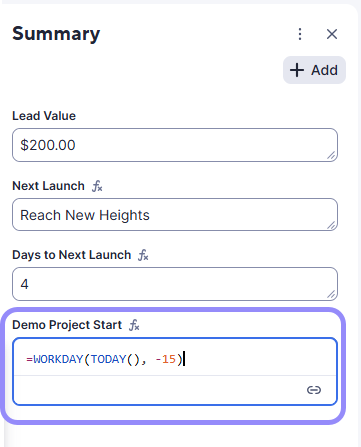
Note that you can’t enter formulas in checkbox fields.
Sheet summary formula examples
The table below has some sheet summary formula examples.
| When you reference | Use this syntax | Example formula |
|---|---|---|
| Other summary fields (same sheet) | [Field name]# | =SUM([Budget 2024]2, [Budget 2025]2) |
| Cells in the sheet | Column name + row number | =SUM(Expenses1:Expenses3) |
Sheet summary field references ([Field Name]#) for formulas can be used both within Sheet Summary Fields and Sheet Cells. For more information, see Formula basics.
For a complete list of functions, see functions.
Cross-referencing other sheet data in formulas
In sheet summary field formulas, you can cross-reference data from other sheets.
Learn how at Create cross-sheet references.