The intake sheet is the starting point and central storage location for critical project information and details. It facilitates prioritization and approval processes for all your projects.
Create an intake sheet to
- Manage when to create projects
- Enable an approval workflow
- Facilitate an archive process
- Enable reporting on project creation, status, and other key metrics
Key profile data columns for intake sheets
Brandfolder Image
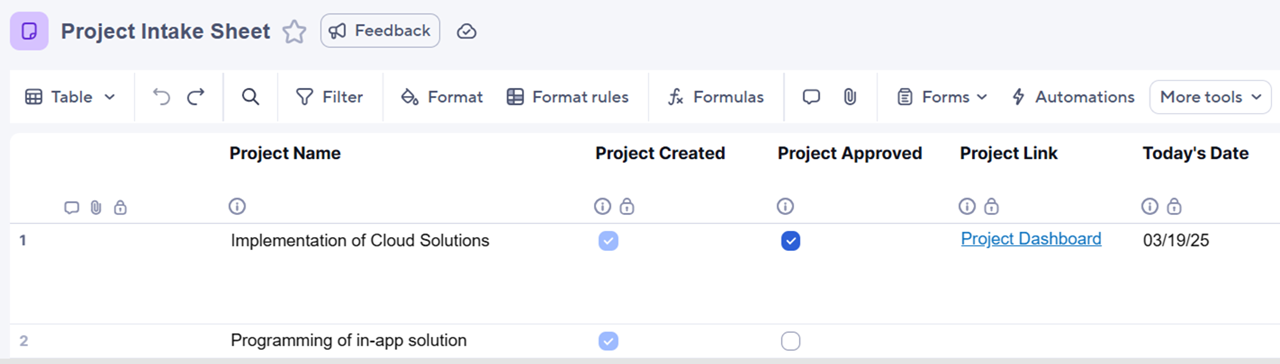
Profile data can help optimize scalability, automation, and efficiency. As a best practice, include the following columns in your intake sheet:
| Column | Column type | Intended use |
|---|---|---|
| Project name | Text | This column contains the project names. |
| Project approved | Checkbox* Other values** | Use this column to determine when/if a project is approved to be created. |
| Project created | Checkbox* Other values** | This columns helps identify when you've already created a project to prevent duplicates. |
| Project link | Text | This column displays the link connected to the created project. In the Project settings page, you can select which template this link redirects to. |
| TODAY's date | Text | Use the TODAY function to record the current date, and use the today’s date automation to ensure the date updates regardless of whether you open the sheet. |
*If you're using a checkbox, select true as the value.
**If you're using other values, always test your logic.
Formatting and design guidelines
Formatting tips
- Use color coding for complex solutions to highlight input areas, missing data, and areas requiring attention.
- Reduce administrative burden by including column descriptions that explain their usage directly in the sheet.
- Determine which profile data columns are one-time writes and don’t require ongoing cell links.
- Lock any columns that Control Center automatically updates to prevent accidental changes or deletions.
- Don’t include special characters ([, /, ]) in the column linked as the project’s name. This could cause provisioning errors during cell link creation.
Permissions and automations
- To minimize direct interaction with the intake sheet, limit stakeholders' access to a small subset of users, give editor-level permissions, or use tools like update requests, approval workflows, and Dynamic View.
- Simplify the project request process using forms to gather project details without granting access to the intake sheet.
- Configure automations to alert users and approvers about key actions, reducing the need for manual follow-ups.
- Notify approvers when a new project request is submitted.
- Create archiving alerts for completed projects if no current process exists.
- Build sheet filters and reports to locate and act on specific project requests or statuses.