Maintain your program

Manage changes in projects 

Best practices

  • Before implementing changes, always provision a test project to validate that all ranges, links, and automations function correctly.
  • Maintain a record of all change requests, including:

    • Who requested the change
    • When you implemented the change
    • How it impacts projects

    Use the + Create icon on your left sidebar or the Let's start a new project, program, or process button in the Home page to find a template that could help you track change requests. 

  • Don’t rename columns in the intake or summary sheets. This causes a silent failure, and projects may not provision correctly without an error message appearing. If changes are necessary, walk through the blueprint builder in Control Center and reselect the affected columns.
  • Don’t rename sheets, reports, or dashboards. This leads to silent failures in project creation. Always update the blueprint builder if an item needs a name change.
  • Don’t rename Control Center-created items (projects, workspaces, folders, sheets, reports, or dashboards) after provisioning, as Control Center doesn’t track these changes.

Delete a blueprint

Only Primary or Additional Leads can delete blueprints. Before you delete a blueprint, you must delete the associated projects:

  1. In Control Center, go to Manage Program.
  2. Hover over the blueprint tile to access the More menu.
  3. Select Delete blueprint.

This action is permanent and can’t be undone.

You can apply this action to single- and multi-tier programs. In a multi-tier setup, it deletes all child blueprints and associated archives, updates, automation, and blueprint WorkApps. However, it doesn’t delete associated projects.

Move an existing blueprint to another program

Moving the blueprint to another program isn’t a best practice if it has active projects. If there are no active projects, work with the Control Center team to assess feasibility and update the configuration sheet if needed.

Renaming workspaces and project folders after provisioning

End users can rename project folders, sheets, dashboards, and reports without breaking their connection to Control Center. However, Control Center always displays the original project name.

Rename your program or blueprints

Keep in mind

  • A program represents a collection of projects managed together.
  • You can change program and blueprint names after provisioning projects without affecting those existing projects.
  • The Control Center configuration sheet maintains the history of these changes.


Transfer ownership

Reasons to change the Primary Lead

  • The current Primary Lead moved to a new role, and a new lead must take over.
  • The Smartsheet account of the existing Primary Lead got deactivated or had its user removed.

Primary Lead requirements

  • Also considered the program Owner.
  • They must have an active Smartsheet account and at least Admin permissions for all key items.
  • They should ideally be the Owner of these items.
  • The Primary Lead should be a service account.

Best practices

  • Use a Control Center program service account as the Primary Lead to minimize frequent ownership transfers.
  • Consider using a separate Primary Lead for each program to prevent a service account from accumulating too many items, which can degrade performance over time.
  • Review program information and remove unnecessary users to maintain security.
  • Don’t wait until after deployment to transfer ownership, as this can lead to broken dashboard widgets on deployed projects.
  • Don’t unshare dashboards from the original owner immediately after an ownership transfer, as this can break report-based widgets.

Use global updates

Brandfolder Image
Global Updates in Control Center


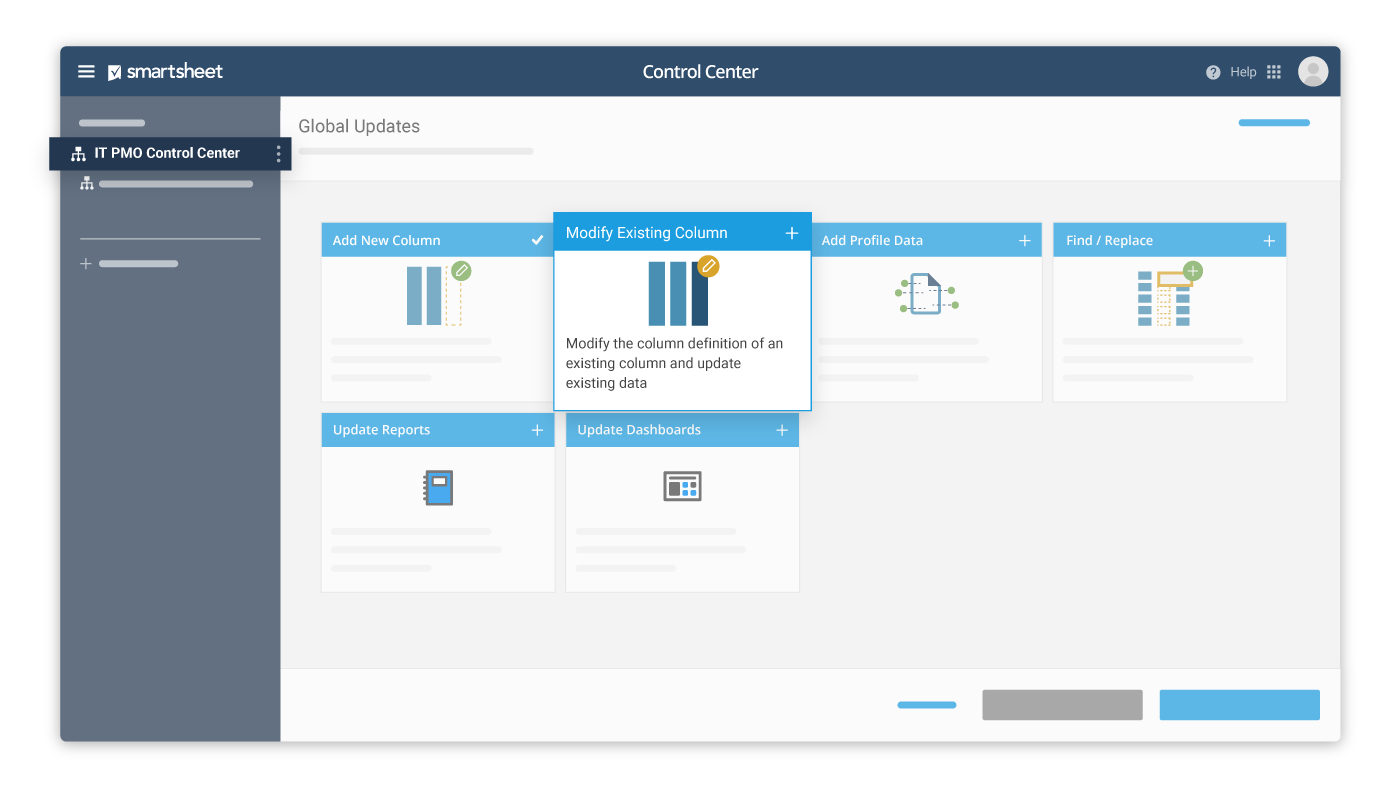
Global updates enable Project Leads to efficiently update project templates and cascade changes automatically across new and existing projects across your programs.

When to use global updates

Use global updates to manage projects at scale by making bulk changes across all existing and future projects, reducing manual effort and ensuring consistency. 

Global updates help you to:

Enhance data structure

  • Add new columns across all projects without modifying each individually.
  • Modify existing columns to improve usability. For example, updating colors, repositioning, or dropdown options.
  • Change values across all projects, such as updating department names.

Improve project insights

  • Add profile data fields to the summary section of project templates.
  • Use Find/Replace to update cell values and formulas across multiple projects.

Streamline workflows

  • Modify a formula in a column to incorporate a newly added column.
  • Update dashboards and reports.

Limitations

Add columns:

  • Avoid providing multiple values to insert.
  • Columns don't support conditional formatting.

Modify existing columns:

  • Don't add values and formulas to system columns.
  • Don't move columns between the Primary column and the column immediately to the right since this is where the system stores profile name/value pairs.
  • Don't add formulas to Contact List column types.

Dashboards:

  • If you update the template dashboard, this removes any customization, overwrites all existing widgets, and replaces them with new ones from the template dashboard.
  • Don’t update dashboards with metrics referencing sheet summary data points or containing multi-contact values.

General constraints:

  • Global update visibility is restricted to the creator/owner (Primary and Additional Leads can’t see each other’s updates).
  • You can complete a maximum of 30 global updates per hour.

Best practices

Do

  • Maintain an updated blueprint source folder, as global updates rely on these items.
  • Test on a single project before applying changes globally. For example, ensure cross-sheet references don’t result in #INVALID REF.
  • Ensure the person running the update is listed under Filter Projects by User, or remove the filter before execution.
  • Add new columns:
    • Use @row notation when specifying formulas to reference cells in other columns in the same row.
    • If you want to add multiple values into a new column, use Find/Replace to add different formulas to different cells.
  • Modify existing columns:
    • To push new cell links to the summary rollup sheet, use Add Profile Data with an existing data field. This forces updates without making changes.
    • When using Find/Replace on profile data, ensure you've selected Row is profile data.

Don’t

  • Don't leave reports blank. Always include a placeholder row in the primary column and filter it in reports.
  • Don't reference sheet summaries in dashboards.
  • Don't include sheet summary reports in dashboards.
  • Don't make multiple changes in one update—apply each change type separately.
  • Don't insert columns between the Primary column and the column to the right since this is where the system stores profile data name/value pairs.
  • Don't use relative row references in formulas as you can't correct them, and they might give you incorrect results, for example, [Cost]12 + [Markup]12). Instead, use [Cost]@row + [Markup]@row.