USM Content
User permissions
USM Content
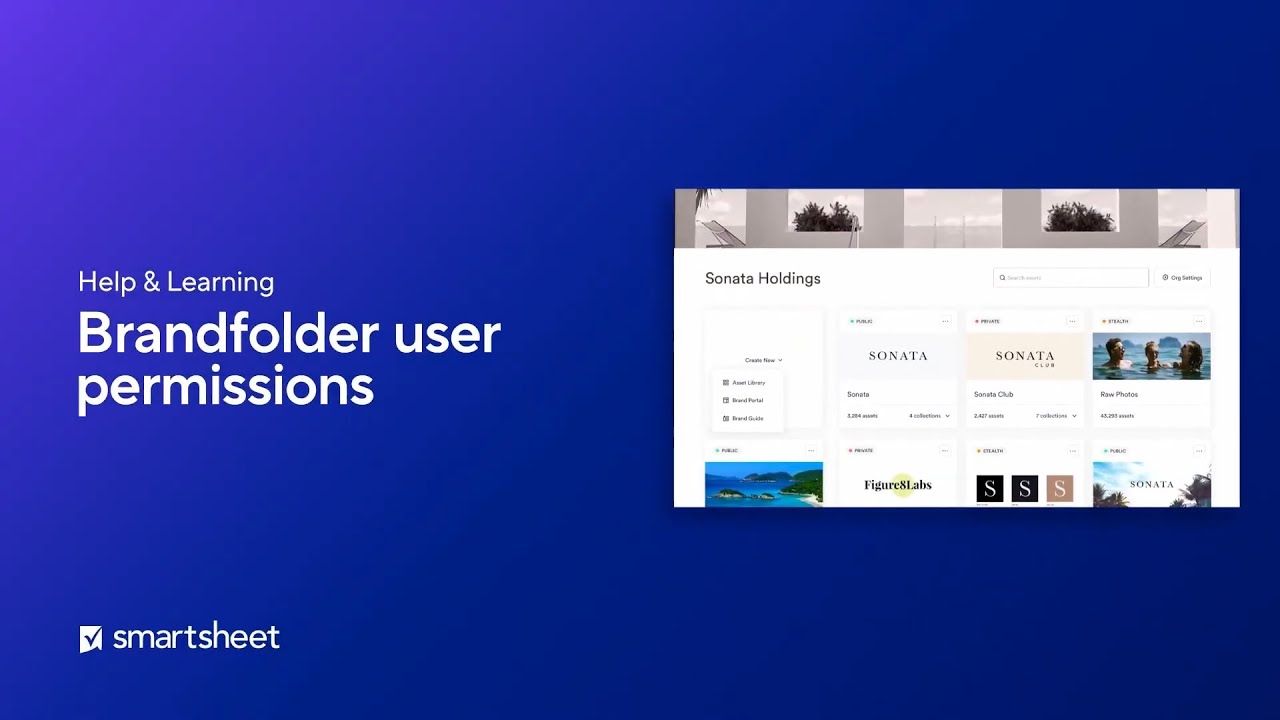
User roles in Brandfolder
There are five types of user roles in Brandfolder:
- Owners: upgrade & manage billing
- Admins: add/remove users
- Custom: Administrators and owners can name it and select its capabilities from the permissions list available
- Collaborators: editable users
- Guests: view & download only
Permissible objects in Brandfolder
There are five types of permissible objects in Brandfolder:
- Organizations
- Brandfolders
- Collections
- Portals
- Brandguides
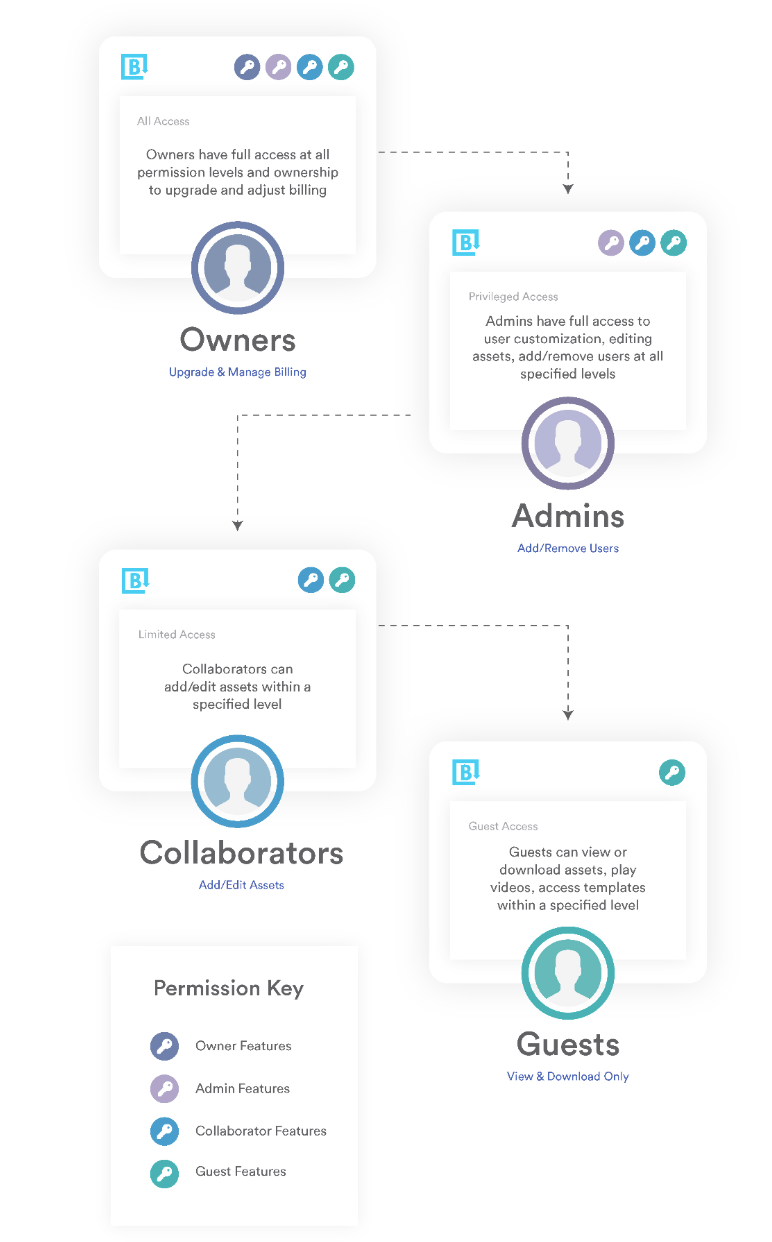
User permissions flow downward. For example, an organization's owner automatically has access to each Brandfolder and Collection within the Organization. The same is true for Admins, Collaborators, and Guests.
You can maintain high permissions by granting access to the entire Organization or Brandfolder, or you can fine-tune permission levels by creating multiple collections.
Owners
Owners are users with full access and are available at the Organization level:
- Manage subscription, update credit card info
- Create new Brandfolders
- Create new Brandguides
- Create new Portals
- Name people’s faces
- Manage people’s tags
Admins
- Add/view/remove users
- View/cancel outstanding invitations
- Create notifications
- Approve assets
- Set approval workflows
- Update Brandfolder name & Brandfolder URL
- Create/rename sections
- Create/rename pinned searches
- Add/edit/delete assets
- Set default sort and search options
- Merge assets into one asset container
- Create/edit/delete Collections
- Change the Brandfolder privacy
- Upload assets
- View insights, analytics, & activity feed
- Set Google Analytics ID
- View/add comments
- Request assets from guests
- Set availability & expiration for assets
- Change file type & size (width & height; maintaining aspect ratio)
- Video: edit, play, clip, add a watermark, change file type & resolution
- Upload/access templates, edit form fields, edit template settings
- Customizations - header image, favicon, hero image, asset background color, URL slug, Description, brand color, email image, card image, text extraction, and auto-tagging
- Manage Brandfolder user agreement
- View/restore deleted assets
- Set controlled custom fields
- Create and manage share links (edit, delete)
- Manage and edit Portals
- Access the bulk management page
- Add, delete, or edit share links
- Add, delete, or edit Guest upload links
- Add, delete, or edit tags
- Add, delete, or edit custom fields
- Add, delete, or edit metadata conversions
- Add, delete, or edit labels
- Add SFTP connections
- Add metasheets
- Add asset automation
- Add and delete custom cropping presets
- Manage Brandguide users
- Create, modify, and delete custom user role
- Name people’s faces
- Manage people’s tags
Custom user role
Administrators at the organization level can create one custom user role. It includes the same capabilities as collaborators, plus the ones selected from the following capability list:
- Approve or reject assets.
- View, add, and remove assets to share links.
- View usage tabs for asset insights.
- Edit a Brandguide.
Collaborators
- Get Brandfolder embed code
- Create/rename sections on the Brandfolder level
- Create/rename/delete pinned searches
- Add/edit/delete assets
- Merge assets into one asset container
- View/add comments
- Set availability and expire assets at the Brandfolder level (doesn't apply at Collection level)
- Change file type and size (width and height; maintaining aspect ratio)
- Video: edit, play, clip, add a watermark, change file type, and resolution
- Access templates, edit form fields, edit template settings
Guests
- View, download, and share assets
- View embed codes
- Change file type & size (width & height; maintaining aspect ratio)
- Video: Play, clip, add a watermark, change file type, and resolution
- Access templates
- Upload assets via Guest upload