USM Content
Invite users
USM Content
All invitations expire after 30 days. If the user you invited doesn’t accept within this period, you must send a new one.
Invite users to the Organization
You can add users at the Organization level to give them access to all Brandfolders, Brandguides, Collections, Workspaces, and Portals.
- Select Settings > Manage Users.
- In the Send New Invitations box, enter the email address(es) for the user(s) you want to add—separate multiple email addresses with commas.
- Add a personal message if necessary.
- Select the user permission for the invite.
- Select Send.
Invite users to Brandguides, Workspaces, and Portals
In the organization-level user management page, use the menu on the left to find the specific Brandguide, Workspace, or Portal. Then, invite users using the same steps above.
Invite users to the Brandfolder, Collection, or Subcollection
You can add users at the Brandfolder level to give them access to that specific Brandfolder and its associated Collections. You can also add users to a collection. These users can only see the assets in the Collection they are in. They cannot access the Brandfolder that houses the Collection (unless invited at the Brandfolder level).
User permissions are cascading. Inviting users to the Brandfolder level will grant them access to the entire Brandfolder and its Collections. Users invited to individual collections can only see the individual Collection.
- Next to Settings, select Users.
- In the Invite Users box, enter the email address(es) for the user(s) you want to add—separate multiple email addresses with commas.
- Add a personal message if necessary.
- In the Resource dropdown, select the other Brandfolders, Collections, Portals, or Brandgduides within your Organization to which you want to give them access.
- Select the user permission for the invite.
- Select Send.
Tips and troubleshooting
- You must input a user's full email if sending invitations for the first time.
- You need to separate multiple emails with a comma.
- If the user is already in the system and is a part of your Organization, you can start typing their email, which populates automatically.
- Use the arrow keys to locate the correct user and select enter. Alternatively, you can click on their email in the list to choose them.
- Once you select a pre-existing user for an invite, you can hover over their name to reveal their entire email.
- Users can select x next to their name or backspace to remove an email from the invite list.
Users in pending user invites and access requests will not appear in the dropdown list of pre-existing users.
Reusable invite link
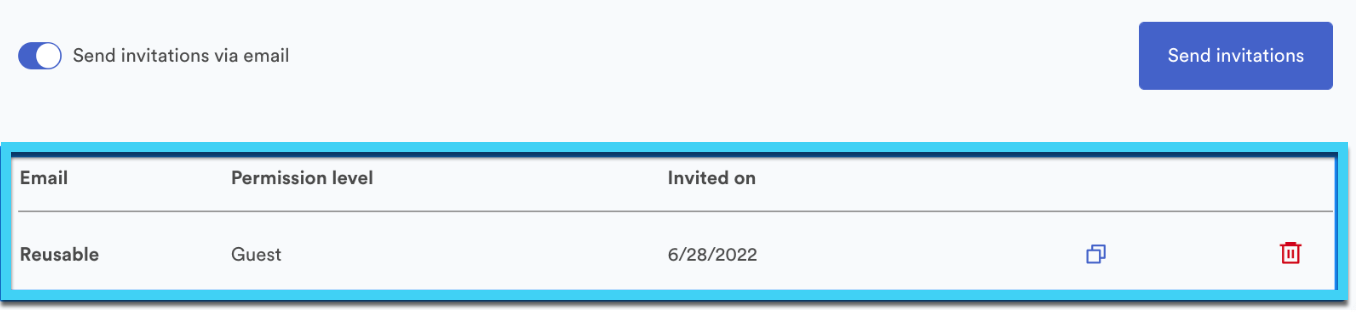
If you want to create a link to hyperlink in an email or be able to distribute universally to invite users to your Brandfolder or Collection, create a reusable invite link.
- Enter an asterisk* in the invite box for the appropriate resource(s).
- Select the user permissions the link will grant.
- Select Send invitations.
- Select the copy invitation link button to grab the link you can distribute to other users.
User management
USM Content
You can manage users at the Organization, Brandfolder, and Collection levels.
Organization-level user management
At the organization level, navigate to Settings > Manage Users. There are a few essential capabilities:
- Invitations must come from the organization-level user management modal to give users access at the organizational level. When you invite users at the Organization level, their permissions will automatically cascade down to all Brandfolders and Collections within your Organization.
- Account owners can download a CSV that lists all users associated with their Organization. This CSV is below the invitations area next to # [Your Organization’s Name] Users.
- If you want to remove a user from all resources across the Organization, you must do so at the organization level. Once you locate the user at one of the resource levels, select All under the Remove All column.
- You can manage SSO Presets at the Organization level through the Default Permission Level dropdown in the top right-hand corner.
- The Default Permission Level dropdown grants users access. If you select a Guest in the dropdown, then if any user logs in through SAML, they automatically have access to that specific resource as a Guest.
- Be sure to navigate to the Brandfolder or Collection level where you want to set the Default Permissions; otherwise, users have default permissions at the Organization level.
Brandfolder-level user management
You can manage individual users at the Brandfolder level. At the Brandfolder level, select Users in the top right corner.
On the left-hand side of the User Management page, you will find an all-encompassing list of your resources, including Brandfolders, Collections, Brandguides, Portals, and Workspaces.
Access request
At the top of the page is an area for Access Requests.
To approve requests, select the check box next to the user’s email, select their permission level from the dropdown, and select Grant access.
To deny requests, select the red button to the right of their email address.
Plan limits
Below access requests, there is an area for Plan limits. Plan limits are an overview of the number of Administrators and Collaborators in your plan and the number of seats in use.
Within each Administrator and Collaborator box, there is the option Set limits. Selecting Set Limits opens a new modal window to change the limits set on each Brandfolder, Portal, and Brandguide.
When setting limits, consider the following:
- Must exceed current usage error message. The error message appears when you input a limit smaller than currently used. For example, if a Brandfolder uses three collaborators, you can’t adjust the limit to two collaborators.
- You allocated less than your current limit. This error message shows up when the sum of all Brandfolder limits is lower than the Organization’s limit. If you have 20 Admins, you must allocate them. You can’t assign only 15 of them.
- You allocated more than your current limit. This message displays when the sum of all Brandfolder limits exceeds the Organization’s plan limit.
Brandfolder counts total seats, not total unique users. For example, if the same user has admin-level permissions on two separate Brandfolders in your Organization, they occupy two Admin seats.
Manage users
Within User Management, there is an area that lists all of the users associated with a particular resource. Here, you can make the following adjustments to the user:
- Adjust their permission level by selecting a new level of access from the dropdown.
- Remove from this Brandfolder (Collection, Workspace, Brandguide, Portal) will remove the individual user’s access to the selected resource.
- Remove from all removes access to the current resource and its nested resources.
- View user Insights data. This page shows the user’s Asset Views, Downloads, Shares, and Activity.