Organize, share, create, and find items in your workspaces with the workspace panel.
USM Content
Think of workspaces as shared storage where you can:
- Organize items: Organize folders, sheets, reports, forms, dashboards, collections, and scenario plans for easy team access.
- Centralize content: Search, review, and collaborate on project documents, media, and anything your team needs in one place.
- Simplify sharing: Share a workspace once to grant access to all items, or apply permissions to specific items if needed.
- Manage access: Control user permissions and workspace access.
Learn more about sharing a workspace and managing items within it.
Create a new workspace
There are multiple ways to create workspaces.
From the left navigation bar
- On the left navigation bar, select the +Create button to display the menu of options.
- Select Workspace.
Alternatively, you could select a new item to create and use the Location dropdown to select New workspace. This creates your new item in a net new workspace.
- Once in your workspace, the workspace panel displays to the left of your screen.
- Use the +Add to workspace button at the top of the workspace panel to add items.
From Home
- Select Home and use the +Create button on the top-right corner to display the menu of options.
- Select Workspace.
Alternatively, you could select a new item to create and use the Location dropdown to select New workspace. This creates your new item in a net new workspace.
Build a workspace with AI
Describe your project in plain language and get a structured, ready-to-use workspace built for you.
- Use the Create button on the left panel or go to Home to select the Build a workspace with AI option.
You must be on a Pro or Business plan to build a workspace with AI.
Find your workspace
To access your new workspace, go to Home and use the Workspaces or Favorites tab to find your workspace by name.
In the workspace panel, select the Star icon at the top to favorite your workspace. This helps you find it under the Favorites tab in Home as well.
Work with the workspace panel
When you open an item in a workspace, the workspace panel
 appears on the left.
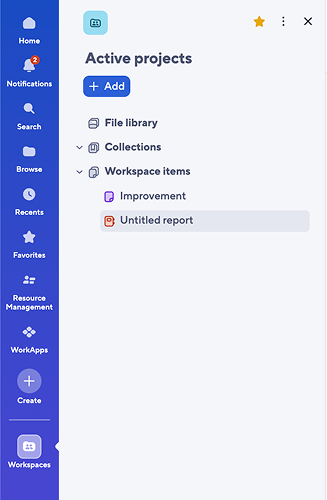
In the workspace panel, you can:
- Open the file library
- Create new items.
- Rename your items or your workspace. To rename the workspace, select the workspace name and start typing.
- Favorite items or remove items.
- Import data to create a new sheet.
- Drag and drop items between folders to relocate them within the same workspace.
- Share your workspace.
- Select Open in browse to access attachments, comments, and other workspace-wide features.
- Select the Workspace panel
icon to collapse it.
- Right-click items to take extra actions.
Things to know
- If you navigate away from the workspace, the workspace panel icon
disappears from the left navigation bar.
- Hover over the workspace panel's right edge, then drag it to narrow or widen it.
- Save and refresh the page to see any changes in the workspace.
- Navigating to a workspace through a direct URL directs you to the workspace's landing page.
- To find who shared a specific workspace with you, go back to your email and search for the workspace name. The email notification shows you who shared it with you.
- If you copy a workspace using the Save as New… option from Browse, the modal states that copying Sharing Options applies only to the workspace, not to the unique permissions of its internal collections. Anyone with access to the new workspace can access its collections.
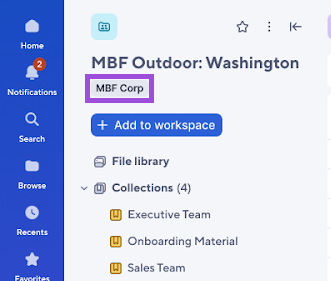
- If you belong to more than one plan, the grey chip at the top of the workspace panel tells you which plan that specific workspace belongs to.