USM Content
Understand how to combine duplicate user accounts or update email addresses in bulk with the User Merge feature.
Combine profiles with user merge
LCM Content
Use user merge to:
- Merge two user profiles in your plan belonging to the same person. One of these profiles may have been created due to an email or domain change.
You can update a user's primary email address in your plan if it isn't already associated with.
If an entered email address already exists as its own Smartsheet user profile, that user profile must be added to your plan in order to be in-scope for user merge capabilities.
- Update the user email domains in your plan. The domain update could result from a merger, acquisition, divestiture, branding, or consolidation exercise.
Before you begin
Validate all domains
User merge requires domain validation for all the email domains associated with the email addresses you want to merge.
Learn how to validate a domain.
The System Admin running the user merge can't be one of the accounts being merged. Another System Admin must perform a user merge of a System Admin's account.
The user profile may already exist or be part of another plan. To merge this user, invite them to your plan and have them accept the invitation to appear as an active member. If you receive an error that the user is already part of another plan, work with the other plan’s SysAdmin to remove the user before adding them to your plan.
Remove Premium App roles
If either of the profiles you want to merge has Premium App roles enabled, remove these user entitlements before you merge them. You can re-assign Premium App roles after you've merged the profiles.
Remove users from groups in another plan
If either of the profiles is a group member outside the current plan, you must request to remove them from those groups before merging them. Contact support to complete this action.
Additionally, you can request to re-add those profiles after you've merged the profiles.
Download and configure the user merge template
- Sign in to Admin Center using your current Smartsheet account credentials.
- Select the Menu icon in the upper left corner and navigate to Users and Groups > User Roles and Reports.
Select More Actions > Merge Users.
Brandfolder Image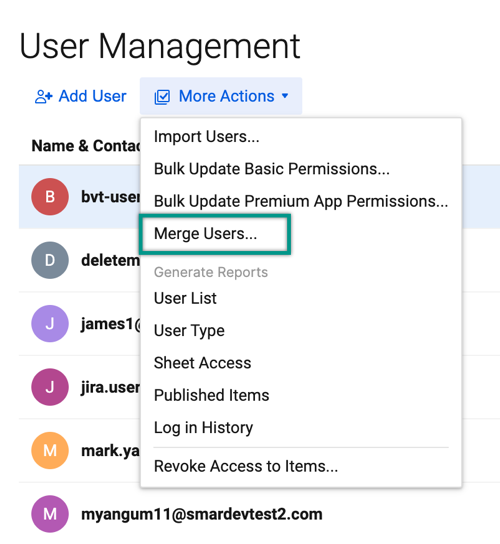
Select Download to download the template file you want to use for the user merge.
Brandfolder Image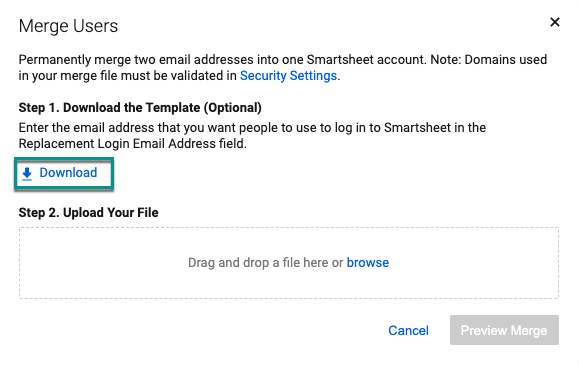
- In the downloaded template, enter the following:
- In the Current Login Email Address, enter the email addresses of the corresponding profiles to merge and close.
- In the Replacement Login Email Address column, enter the primary email addresses of the profiles you want to keep.
- Save the completed file and keep it in CSV format.
Make sure the email addresses in each pair belong to the same person.
After the merge, the primary email address of the kept profile becomes the value in the Replacement Login Email Address column. The value in the Current Login Email Address column remains as an alternate email address on the profile.
You can update up to 500 pairs of email addresses in one file. You must upload additional merge files if you have to update more than 500 pairs of email addresses.
Preview and apply the merge
- Sign in to Admin Center using your current Smartsheet account credentials.
- Select the Menu icon in the upper left corner and navigate to Users and Groups > User Roles and Reports.
- Select More Actions > Merge Users...
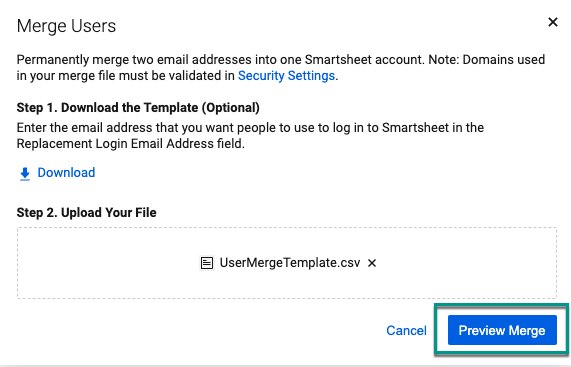
- Upload the updated file, and select Preview Merge.
The Preview Merge option validates the email addresses for issues such as invalid email addresses, duplicate entries, unvalidated domains, and more. Entries that don’t appear as Ready for Merge aren’t applied, and the Recommendation column shows an actionable fix.
- When you're ready, select Apply Merge. The confirmation message indicates the user merge process is in progress.
- When the user merge process is complete, the affected users receive a confirmation email to notify them of the changes. You also get an email with a link to the user merge results report, which includes:
- Current Login Email Address: Merged email address.
- Replacement Login Email Address: Retained email address.
- Result: Shows if the merge was successful for a given user.
- Metrics to display: A count of roles, items owned, items shared, and group memberships for the retained profile.
Items included in a user merge
Smartsheet follows this logic:
- If a user has both licensed and unlicensed accounts, Smartsheet closes the unlicensed account.
- Smartsheet transfers all items from the unlicensed account to the licensed account.
- If a user has two licensed accounts, Smartsheet keeps the older account and closes the new one.
Upon completion, Smartsheet transfers the following items from the closed profile into the retained profile:
- All sheets, reports, workspaces, and dashboards that the user has access to
- Groups owned by the user
- Group membership
- Roles
- Alternate email addresses
- Profile information
In the user merge process, the system moves workspace items to the Transferred From folder.
Things to know
Smartsheet prompts a non-Smartsheet user to create an account if they received:
- An invitation to edit or view a Smartsheet item
- An alert from an automation workflow or other triggers
To prevent losing Connector workflows and API tokens when you merge accounts, make sure:
- The account you want to keep is licensed
- The account you want to close is unlicensed
Items not included in a user merge
- Automation workflows
- Contacts
- Connectors
- Favorites
- API tokens *
* API tokens are used for integrations and Premium Applications such as Control Center and Calendar App. Users may need to re-authenticate these apps to use them.
Undo a user merge
To undo the user merge, highlight the rows in the user merge file that you want to undo and contact Smartsheet Support. Be sure to attach the user merge file to the support request.
Smartsheet Support contacts you to confirm the request before making the changes. You can only roll back the user merge if you completed it within the last seven days.
A rollback can only partially return a user profile to its original pre-merged state. You can only restore merged items. Users may need to re-authenticate to Premium Applications, fix Automated Workflows, or take other action.
User merge considerations (Directory Integration/SCIM)
The user merge tool might not work in the following scenarios:
- If both the Current Login Email Address and the Replacement Login Email Address are users managed by external directory. In this case, the merge fails with the error: "You cannot merge email addresses belonging to users in your directory service."
- If the Current Login Email Address is a directory managed user and the Replacement Login Email Address is a Smartsheet user (you don’t manage the user profile via DI/SCIM). In this case, the merge fails with the error: "To merge email addresses of a user in your directory service with their existing Smartsheet user account, set the Current Login Email Address to the current primary Smartsheet email address and Replacement Login Email Address to their directory service email address."
If the Current Login Email Address is a Smartsheet user (you don’t manage the user profile via DI/SCIM) and the Replacement Login Email Address is a directory user, the merge can proceed.
USM Content
Use user merge to combine two Smartsheet accounts belonging to the same person into a single account. When you merge accounts from the Seat types and true-up page, Smartsheet transfers sheets, reports, dashboards, workspaces, and sharing access from the account you close to the account you keep.
Use user merge to:
- Consolidate duplicate accounts created when someone signs up with both a personal and a corporate email address.
- Clean up accounts after a domain migration, such as a rebrand or an IT-driven change.
- Convert a contractor's account to an employee account.
- Fold users into your primary directory after an acquisition.
- Update a user's primary email address if the new address isn't already linked to an account outside your plan.
Before you begin
Confirm the following before you start a merge:
- Both accounts belong to the same organization or the same plan.
- You aren't one of the accounts being merged. Ask another System Admin to run the merge if your account is involved.
- Remove any Premium App roles, such as Control Center or Calendar App, from both accounts. Reassign the roles after the merge completes.
- Validate the email domains associated with both accounts in Security settings.
Merge two user accounts
- Sign in to Admin Center and select the Menu icon to open the left panel.
Navigate to Users and Groups > Seat Types and True-up.
The Seat types and true-up page displays.
Select More actions > Merge users.
Brandfolder Image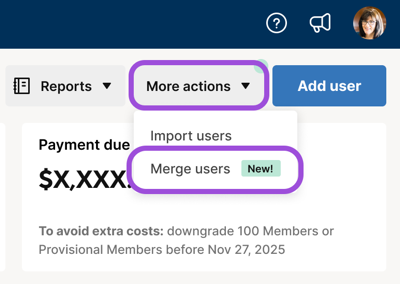
In Current user account, search for and select the account you want to close.
Brandfolder Image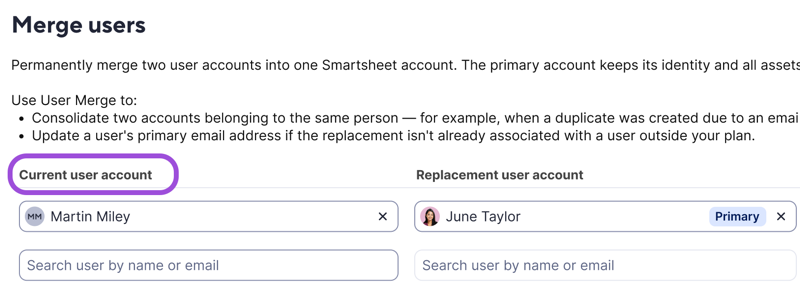
In Replacement user account, search for and select the account you want to keep. By default, Smartsheet keeps the replacement account as primary and closes the current account. To keep the current account as primary instead, select Keep current as primary.
Brandfolder Image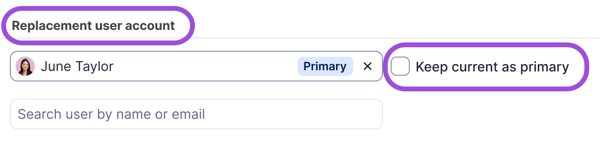
Select Merge to review the impact summary for items, sharing, groups, alternate emails, and seats reclaimed.
Merging is permanent for the account you close. You can't reverse a merge yourself. See Undo a merge.
Select Confirm to complete the merge.
Brandfolder Image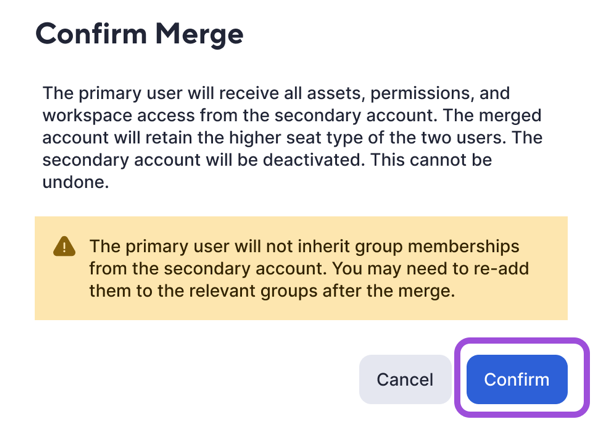
After you confirm, Smartsheet deactivates the closed account and moves its items to the account you kept. Both accounts receive an email notification, and Smartsheet adds an entry to your organization's audit log. If the merge fails, Smartsheet displays an error and makes no changes to either account.
Merge multiple accounts in one session
To merge more than one pair of accounts at once, add each additional pair of current and replacement accounts before you select Merge. When you review the impact summary, Smartsheet shows a separate card for each pair. If one pair has an issue, remove that pair and merge the rest without starting over.
Things to consider
What transfers to the primary account
When you merge two accounts, the primary account keeps its identity and receives the following from the account you close:
- Sheets, reports, dashboards, and workspaces
- Groups the closed account owns
- Roles
- Alternate email addresses
- Profile information
What doesn't transfer
The following don't move to the primary account. Plan to re-authenticate or reassign these separately after the merge:
- Automation workflows
- Connectors and API tokens (used for integrations and for Premium Apps such as Control Center and Calendar App)
- Contacts
- Favorites
- Group membership
The primary account doesn't automatically inherit group memberships from the closed account. If the closed account belonged to any groups, add the primary account to those groups manually after the merge.
Seat type and billing
The merged account keeps the higher seat type of the two accounts. If the closed account held a paid seat, the impact summary shows that seat as reclaimed.
Undo a merge
You can't undo a merge yourself. To reverse a merge, contact Smartsheet Support.
User merge and Directory Integration (SCIM)
User merge might not work in the following scenarios:
- If both accounts are managed by your directory service, the merge fails. Smartsheet displays: You cannot merge email addresses belonging to users in your directory service.
- If the current account is managed by your directory service and the replacement account is a standard Smartsheet account, the merge fails. Smartsheet displays a message directing you to set the current account as the Smartsheet email address and the replacement account as the directory service email address.
If the current account is a standard Smartsheet account and the replacement account is managed by your directory service, the merge can proceed.