USM Content
Explore the range of advanced features for user management, including reporting, ownership transfers, and group management.
Access additional user controls
LCM Content
The User Management page in Admin Center allows you to perform various user actions, such as transferring Owner permissions, managing group membership, and generating detailed reports on user activity and sheet access.
To access User Management:
- Sign in to Admin Center.
- Select the Menu
 icon in the top left.
 Navigate to Users and Groups > User Roles and Reports.
The User Management page displays.
You can also access the User Management page from the Smartsheet app by selecting your account icon and then User Management.
User actions
To access additional actions for the user:
Hover over the row of the user account you want to manage and select the row.
The Edit User form displays.
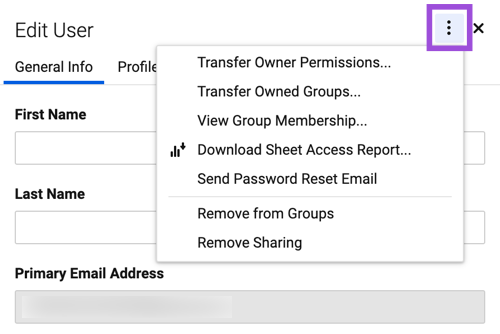
- Select
 at the top right of the Edit User form.
| Use this option | To do this |
|---|---|
| Transfer Owner Permissions... | Transfer the user's Owner permissions on Smartsheet items to another user in your plan. For more information, see Change Owner permissions of a sheet, report, or dashboard. |
| Transfer Owned Groups… | Transfer the user’s Owner permissions on groups to another user in your plan. |
| View Group Membership... | See the names of all contact groups the user is part of. You can also remove them from specific groups or view the group details. |
| Download Sheet Access Report... | Download a CSV of all the sheets that the user is shared to within your Smartsheet account. |
| Send Password Reset Email | If you have Email + Password authentication enabled, send the user a link to reset their password. |
| Remove from Groups | Remove the user from all groups in your account. |
| Remove Sharing | Remove the user's sharing access to all sheets, reports, dashboards, and workspaces in your plan on which they don't hold Owner permissions. |
| Deactivate User | Revoke a user's access to Smartsheet. Content managed by the user is retained within its existing sharing structure and System Admins can transfer Owner permissions of items as needed. See Admin Center: Deactivate or reactivate users. |
| Remove User | Remove a user’s access to your Smartsheet plan. System Admins should transfer Owner permissions of items as needed. See Admin Center: Remove users. |
User reports
Select More Actions in the top left and scroll down to the Generate Reports section to do the following:
| Use this action | To do this |
|---|---|
| Generate Reports > User List * | Creates and emails a report of all users and their associated roles in your account. |
| Generate Reports > User Type | Download a report of all users associated with your plan who have signed in to Smartsheet at least once. |
| Generate Reports > Sheet Access | Creates and emails a report of all users shared to sheets in your account, including their sharing permission levels. This includes external collaborators not found in user management. |
| Generate Reports > Published Items | Creates and emails a report of all published items in your account. |
| Generate Reports > Log in History * | Creates and emails a report of the last six months of login history for all users in your account. |
| Revoke Access to Items... | The System Admin can remove an email address from sharing on all items in your account. This can be a member of your account or an external collaborator. This action doesn’t impact any sheets where the collaborator has Owner permissions. |
* Last login reports the time a user initiated the session.
You can search for users or apply filters using the options at the top-right of the User Management page. You can sort the user list by name in alphabetical ascending or descending order by selecting the Name & Contact column header.
USM Content
The Edit user panel's More actions menu covers tasks such as transferring Owner permissions on Smartsheet items and managing MFA, in addition to editing roles and profiles.
To open More actions:
- Sign in to Admin Center.
- Select the Menu
icon in the top left.
Navigate to Users and Groups > Seat Types and True-up.
The Seat types and true-up page displays.
In the user's row, select the kebab
icon, then select Edit user.Brandfolder Image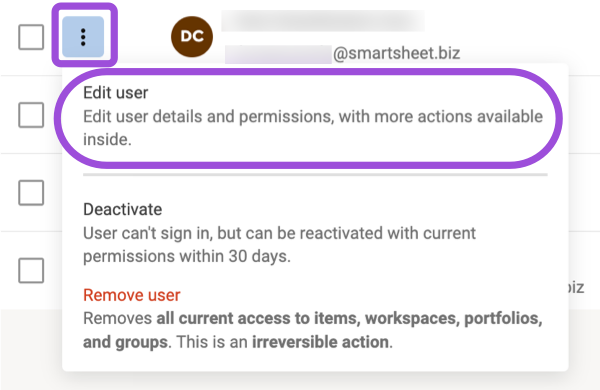
Select More actions in the top right of the panel.
Brandfolder Image
The options available in More actions depend on the user's status. Pending and declined-invitation users show a shorter list; deactivated users show Reactivate user instead of Deactivate user. See Edit users for status details.
Available actions for active users
| Use this option | To do this |
|---|---|
| Transfer owner permissions | Transfer the user's Owner permissions on Smartsheet items to another member. If the user doesn't own any items, a message tells you there's nothing to transfer. |
| Transfer owned groups | Transfer the user's group ownership to another member. If the user doesn't own any groups, a message tells you there's nothing to transfer. |
| Remove from groups | Remove the user from every group on the account. The user keeps their current sharing permissions and plan membership, but loses access to anything shared only through those groups. |
| Send password reset email | Send the user a password reset link. Their current password stays in effect until they complete the reset. |
| Manage MFA enrollment | Unenroll the user from the authenticator app MFA so they can set it up again on a new device. See Reset authenticator app MFA for users. |
| Manage MFA exemption | Exempt the user from authenticator app MFA, or remove an existing exemption. See Exempt users from authenticator app MFA |
| Download sheet access report | Request a CSV report of every sheet the user is shared to. Smartsheet emails you a link to the report; larger reports take longer to generate. |
| Deactivate user | Revoke the user's access to Smartsheet while retaining their sharing permissions for up to 30 days. See Deactivate or reactivate users |
| Remove user | Permanently remove the user from your plan. See Remove users |
Each of these actions opens a confirmation dialog before it takes effect. Select the action's name to see the exact consequences before you confirm.
If you can't complete an action, Admin Center shows an error banner and asks you to try again later. No changes are made when this happens.