Accurately track your projects by defining working days, non-working days, and holidays at the sheet and account levels.
USM Content
Project settings are now sheet settings in table, board, and timeline view. Learn more about working with sheet settings.
Keep this in mind about non-working days and holidays:
- Non-working days and holidays are excluded from duration calculations.
- If you view your Gantt view in days, Smartsheet highlights non-working days in grey and holidays in pink.
- Tasks and milestones can start on non-working days and holidays, but can never end on such days.
Working days, non-working days, and holidays at the sheet level
In Sheet settings > Years, weeks and working days, you can set:
- The month that the fiscal year starts
- The day the week starts
- Working hours in a day
- Working days and non-working days (including company holidays)
If you set any of the above for the sheet, they're only true on this sheet and do not override the plan-level settings. If you don't set any, then the sheet defaults to what is set at your plan level.
If dependencies are activated in a sheet, non-working days do affect duration calculations in the sheet. If dependencies aren't activated in a sheet, then non-working days do NOT affect duration calculations in the sheet.
You can manually schedule tasks and milestones to start on a non-working or holiday, but their end dates can’t occur on these days. If a task's start date is a non-working day or holiday, the task considers that day a working day regardless of the settings.
If you set any month besides January as the start of the fiscal year, then the fiscal year appears in the timescale header above the starting month.
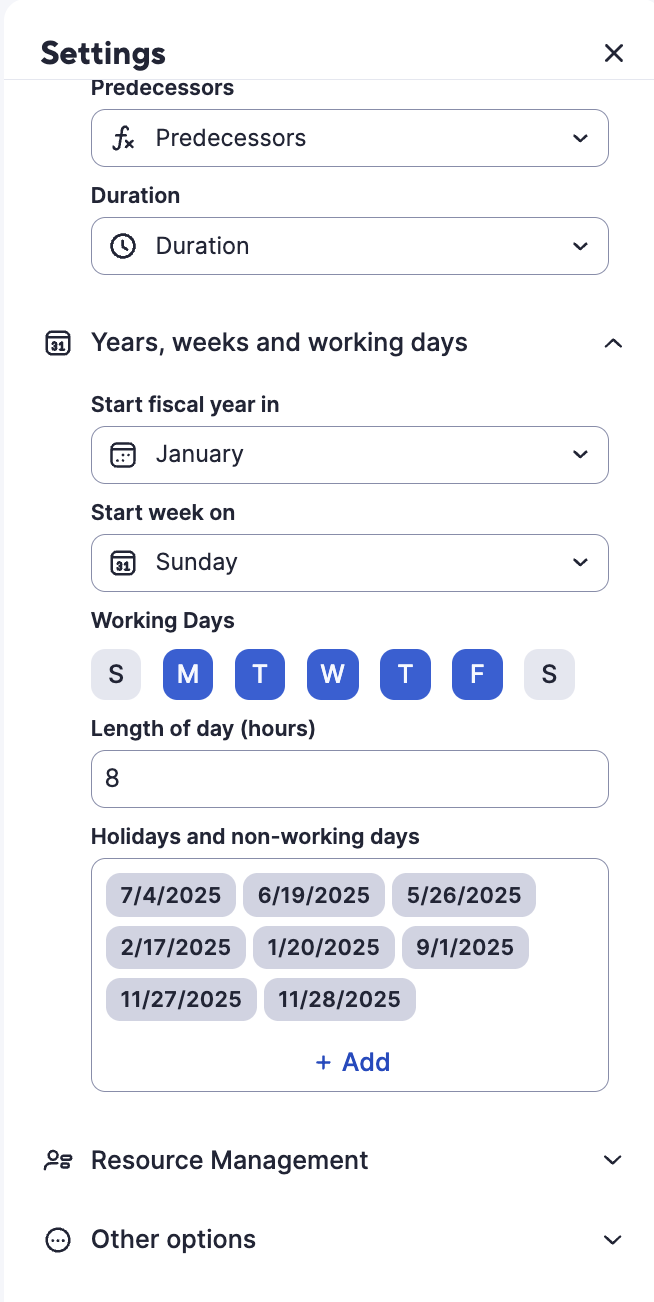
To configure these settings in grid view and legacy Gantt view:
Project settings only appear on sheets that have dependencies enabled.
Follow these steps to edit your working days, non-working days, and holidays for your sheet:
- Select the Project Settings
 gear icon in the Gantt view header, or right-click on any column header in grid or Gantt view, and select Edit Project Settings.
- In the Working Days section, select Edit.
- Select the checkbox for each weekly working day, and leave the checkbox blank for each non-working day.
- In the Length of Day (hours) field, enter the number of hours per working day. By default, Smartsheet sets 8-hour workdays.
- In the Non-Working Days (holidays, exceptions) section, enter specific dates of any non-working days or holidays.
- Select OK.
If a task's start date falls on a non-working day or holiday, Smartsheet treats that day as a working day for the task, regardless of settings.
Working days, non-working days, and holidays at the account level
If you're a System Admin on a Business or Enterprise plan, follow these steps to set and manage your account's working days, non-working days, and holidays.
- Select your user icon and then select Admin Center.
- Scroll down to the Working Days box and select Working Days.
- In the Working Days section, select the days of the week.
- In the Length of days (hours) box, enter the number of hours.
- In the Non-Working Days box, denote holidays and exceptions by using the date picker or entering dates in the format shown in the image above.
Keep in mind
- Your selection applies to all new sheets users added to the plan. Your changes don't affect existing project sheets.
- New sheets created from templates always inherit the template's working days regardless of the settings for account-level working days.
You can learn more in Admin Center capabilities.