Standardize and manage your project work at scale with portfolios. Create project templates, provision projects, and track everything from a single, centralized view — without complex setup or configuration.
USM Content
What is a portfolio?
A portfolio is a self-serve workspace that lets you standardize how you create and manage projects. Define a project template once, then use it to quickly spin up new projects — each with its own workspace containing all the sheets, dashboards, reports, and other items your team needs.
Portfolios give you a centralized project list where you can track every project's status, activate new projects, and manage your work from one place.
Each project lives in its own workspace and inherits the structure defined by your template, so every project your team works on starts from the same foundation.
Learn more about how to create and activate a project in a portfolio.
When should you use a portfolio?
Use portfolios when you need to create projects that follow the same structure repeatedly.
Portfolios work well for:
- Teams and departments that manage multiple projects with a consistent format
- Smaller organizations setting up standardized workflows for the first time
If you need advanced governance features like global updates or metadata management at scale, consider Control Center instead.
What do portfolios include?
When you create a portfolio, you get the following out of the box:
- Project list. A centralized intake sheet where you add, track, and activate all your projects. The project list supports a list view (specific to portfolios) and a table view for detailed data. Every project list also includes a Project leads column for automatic access management.
- Standard template. A ready-to-use template with common project items, so you can start provisioning projects right away. This template includes a RAID log, a project dashboard that provides an overview of the project’s health, and a My work dashboard that makes it easy for users shared to the project to see the work they own.
- Portfolio-level dashboards. A pre-built dashboard with high-level insights across your portfolio, such as overall budget, project breakdown by initiative and priority, and more. Data is sourced from the project list, which includes sample data you can remove. Add projects and create a portfolio report to build out your dashboard and share insights with stakeholders.
- Onboarding flow. A guided, in-app walkthrough that takes you through project template creation, project creation, and reporting setup.
How do you create a portfolio?
There are multiple ways to create a portfolio:
- From the Create menu: Select +Create in the left navigation bar, then select Portfolios.
- From Home: Go to the Portfolios tab on Home. If you don't have any portfolios, a prompt appears to create one.
- From an existing workspace: Save a workspace as a template and use it to create a new portfolio or add it to an existing one.
Once you’ve added and activated projects in your portfolio, you can provision new project workspaces with all the items from your selected template and share them with your collaborators.
Learn more about how to share a project in a portfolio.
How do you find your portfolios?
You can access your portfolios from the Portfolios tab on Home. This tab displays all your portfolios and the projects in each, so you can navigate directly to any project without opening the portfolio first.
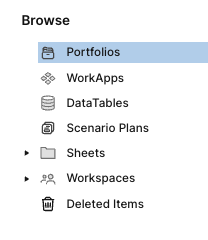
You can also find your portfolios and project workspaces through Search and Favorites on the left navigation bar. Alternatively, you can also select Browse > Portfolios or Browse > Workspaces.
Things to consider
- Each activated project creates a new workspace. You can't choose to create a folder instead.
- The project list only supports newer views (list view and table view). Other views aren't available on the project list.
- To keep change management sustainable, we recommend that your portfolios contain up to 5 templates and 100 projects, and that your workspaces contain up to 100 items.
- Resource Management, Dynamic View, and data integrations aren’t currently supported in portfolios.
- File library items in a template don't copy over to newly provisioned projects.
- If you delete a project, you permanently remove the project workspace and all its items.
- What you can do in a portfolio depends on your permission level. See the Portfolios FAQ for a full breakdown.
- Using portfolios triggers provisional membership. Learn more about provisional members in the Smartsheet user model and provisional membership help article.