Share individual projects from your portfolio's project list to give team members access to the project workspace and its items.
USM Content
There are three ways in which you can share a project:
- From the project list directly
- By copying the link to the project
- From the project workspace
- Automatically, using the Project leads column
Share a project from the project list
Basic portfolios don't automatically share projects when you activate them. Share each project individually after activation.
You can share a project directly from the project list without opening the project workspace.
- Open your portfolio.
- In the project list, find the active project you want to share.
- Select the Share icon on the project row.
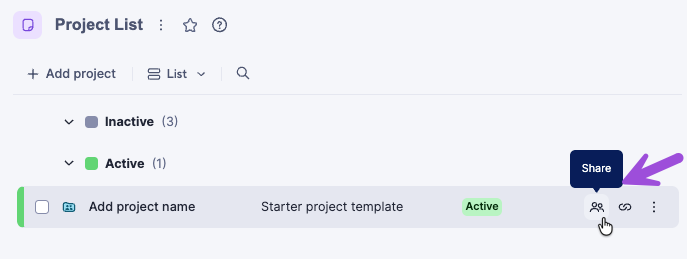
- Enter the people you want to share the project with and assign their permission level.
- Select Done.
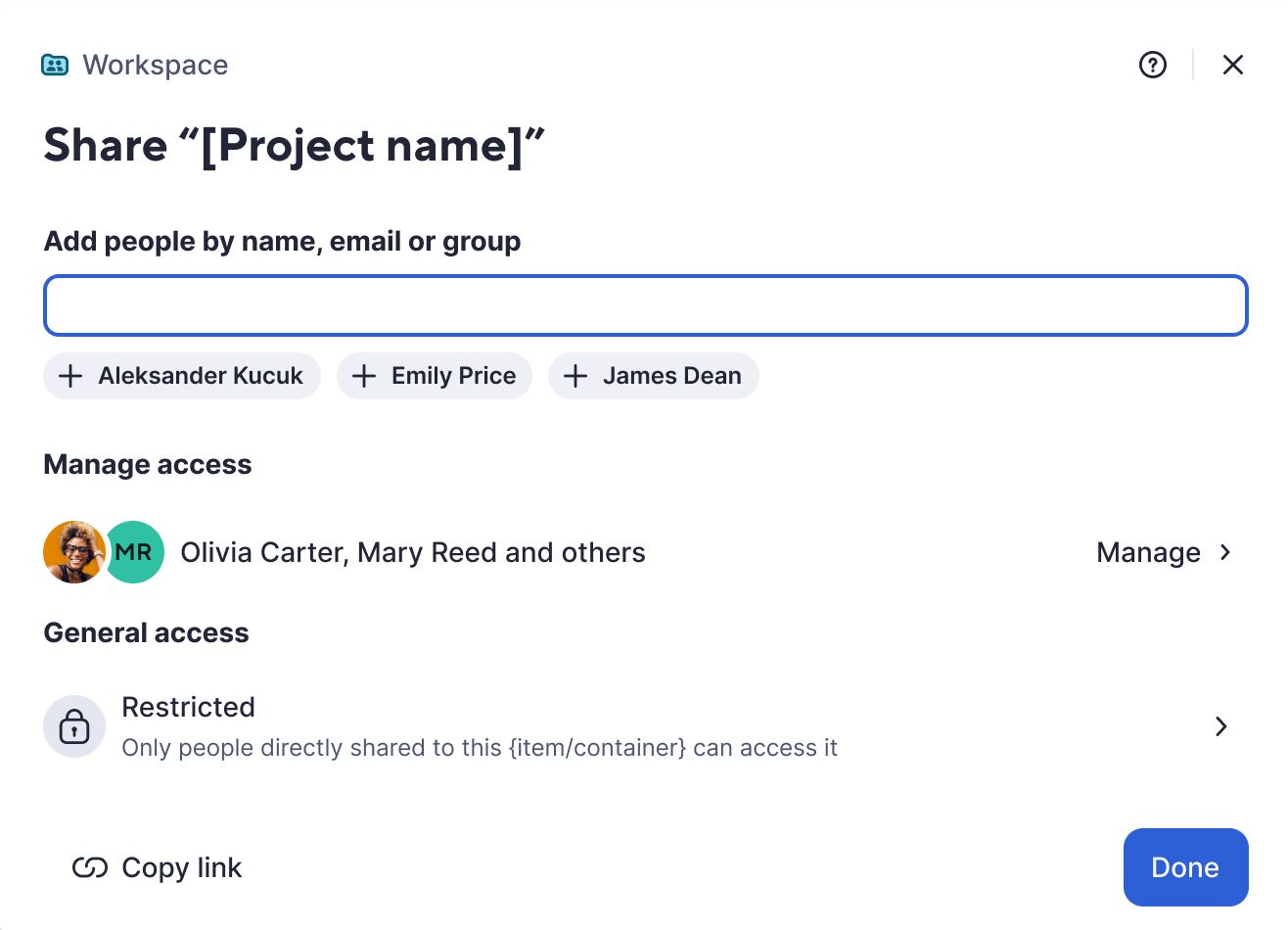
You can also share from the Actions menu (three-dot icon) on the project row. Select the menu, then select Share.
Copy a link to the project
To quickly send someone a direct link to a project workspace:
- In the project list, find the active project.
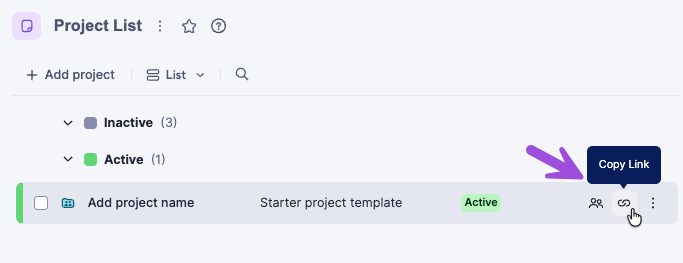
- Select the Actions menu (three-dot icon) on the project row.
- Select Copy link.
Share the copied link with your team via email, chat, or another channel.
Share a project from the project workspace
You can also share your projects from the project workspace.
- Open your portfolio.
- In the project list, find the active project you want to share.
- Open the project to access the project workspace.
- Use the three-dot menu to select Share.
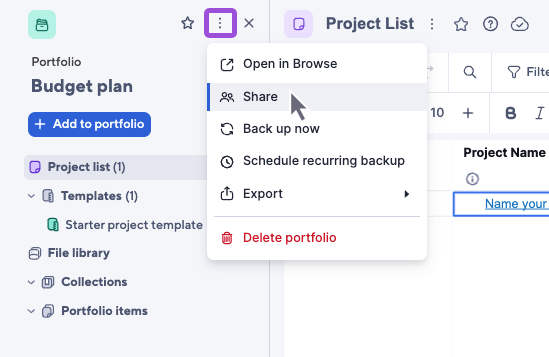
- Enter the people you want to share the project with and assign their permission level.
- Select Done.
Share a project from the project leads column
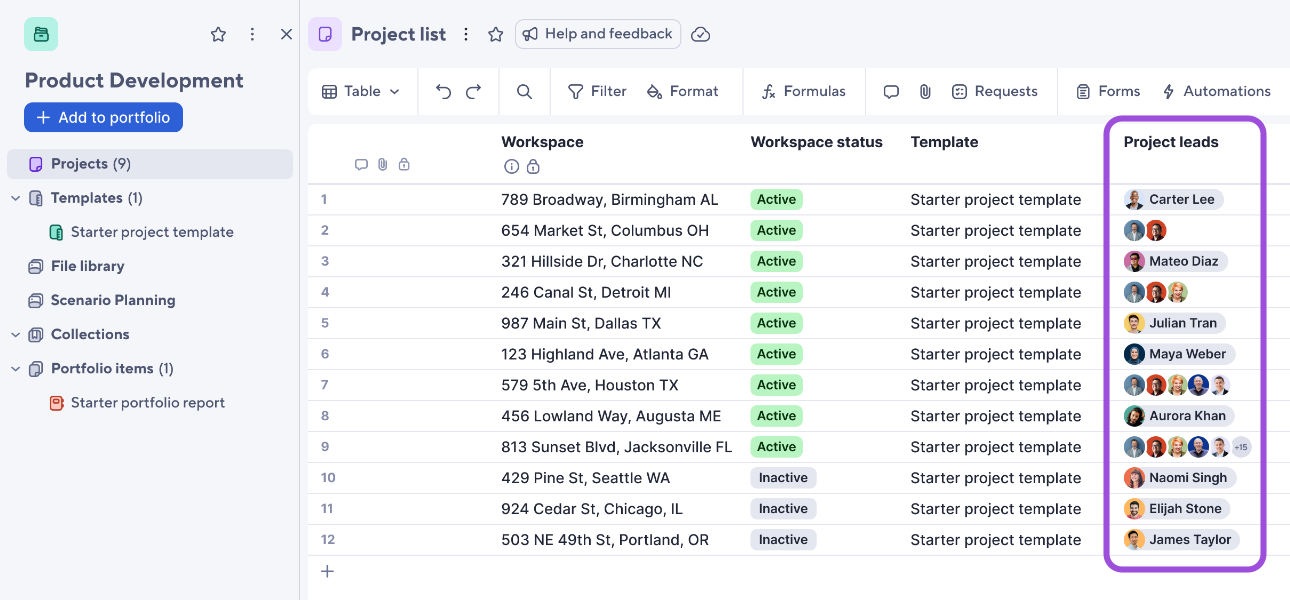
Every project list includes a multi-select Project leads column that automatically grants and revokes project access, without having to manually share collaborators.
Adding a contact to the Project leads column always grants them Admin permissions, even if they’re shared to the project workspace directly at a lower permission level.
To share a project using the Project leads column:
You can’t add a contact as a project lead if they aren’t part of your organization's safe sharing list.
- Open your portfolio.
- In the project list, find the project you want to share.
- Select the Project leads column for that project row, then add the contact.
Smartsheet automatically shares the project workspace with the contact.
Remove the contact from the Project leads column to automatically remove their access to the project workspace.
Things to consider
- You can only share activated projects.
- Sharing a project workspace shares all items within it.
- To manage sharing after the initial share, open the project workspace directly and update permissions from there.
- When you share a portfolio, access automatically extends to all associated projects and project templates. If you need to grant widespread access, manage permissions at the portfolio level. To keep things simple, pick one sharing strategy, either portfolio-level or project-level, and stick with it.
- Project ownership is assigned to whoever approves the project in List View. Portfolio Owners and Admins can delete workspaces, but you need to handle ownership changes on a project-by-project basis.
- If you’ve already shared someone to the portfolio, you don’t need to add them as a project lead to specific projects.
- Adding someone as a project lead shares them only to the selected project. To provide access to all projects, share them to the portfolio.
- Use the Ownership Transfer tool to transfer ownership.
- If your organization has MFA enabled and you share a project with a user on a plan without MFA, that user can’t access the portfolio's project list. They can still access individual project items shared directly with them.
Learn more about how to share workspaces.