Learn how to create consistent, real-time dropdown lists by linking your column options directly to a single source sheet.
USM Content
Before you begin
Before you start, you need:
- Viewer permissions to the source sheet and Admin permissions to the target sheet.
- A source sheet with the data you wish to connect to your target sheets. When you add values to cells in your source columns, the linked dropdown configuration syncs those values from the selected column. If the cells in the source column are blank, the system retrieves no values.
The only supported source column types are Contact, Dropdown Lists, and Text/Number.
Create a linked dropdown column
If you use the dropdown or contact list column type, you must toggle on the Limit to one value per cell option. Don’t modify this setting on the source sheet after setting up the linked dropdown to avoid breaking the connection between sheets.
Once you have the source sheet with the data:
- Open your target sheet and select table view.
- Add a new column and select the dropdown list column type.
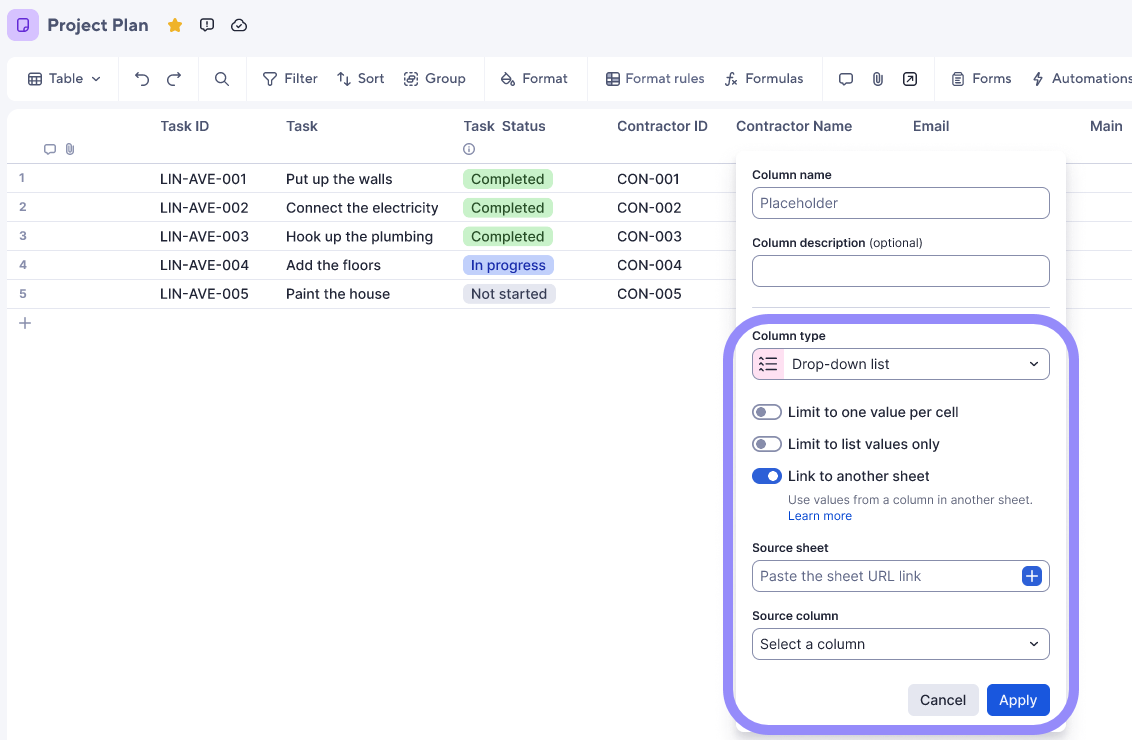
Add a column name, and toggle on Link to another sheet.
When you toggle on Link to another sheet, the Limit to list values only option automatically turns on, but you can turn it off to allow local cell values to be added.
You can have any of the dropdown list settings, such as Limit to list values only, or Allow multiple values per cell, enabled or deactivated when using linked dropdown columns.- In the Source sheet box, paste the URL of the source sheet or select the
 plus icon to search for the source sheet containing the dropdown values you want to use.
 - In the Source column box, select the column that contains the values you want in your dropdown list.
- Choose Apply.
The columns link in near real time. If you don’t see the data pull through, refresh your sheet.
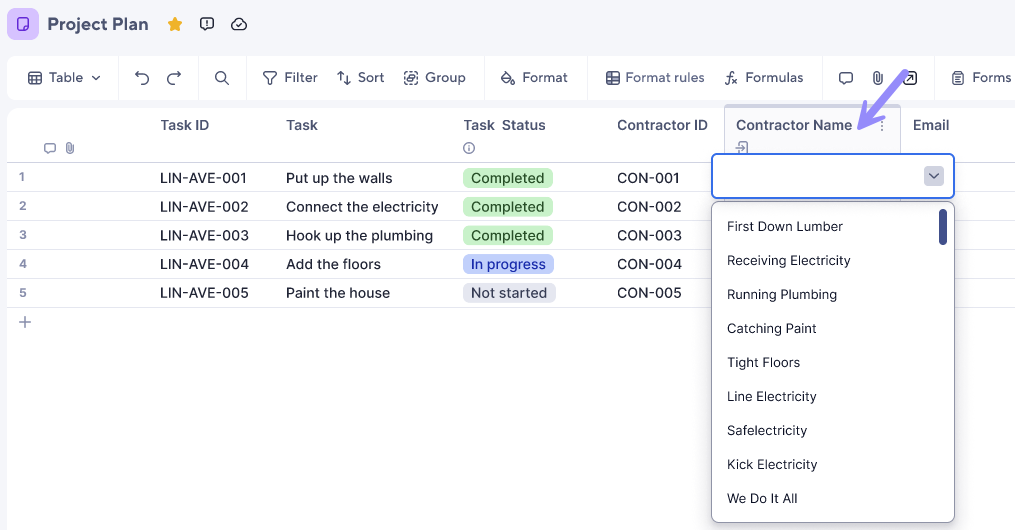
Now, when opening the dropdown option in the column, you can see the values from your source sheet column. Additionally, both columns (source and target) display the linked symbol at the top, confirming that the connection was successful.
The values appear in the order set in the source sheet rather than in alphabetical order.
You can use the column links functionality alongside linked dropdown columns to update other data in the row. For example, you can use the value from the dropdown as the lookup value in a column link configuration to reference data from a source sheet.
Filter a linked dropdown column
Once your dropdown column is connected, you can implement a static filter to restrict the list to specific rows based on defined criteria.
- Open your target sheet in table view.
- Go to the linked dropdown column and select the ⋮ three-dot menu, then select Column properties.
- Toggle on Filter dropdown options.
- Select the column in the source sheet you want to filter by, select an operator, and enter a value.
You can only apply one filter condition per linked dropdown column.
- Select Apply.
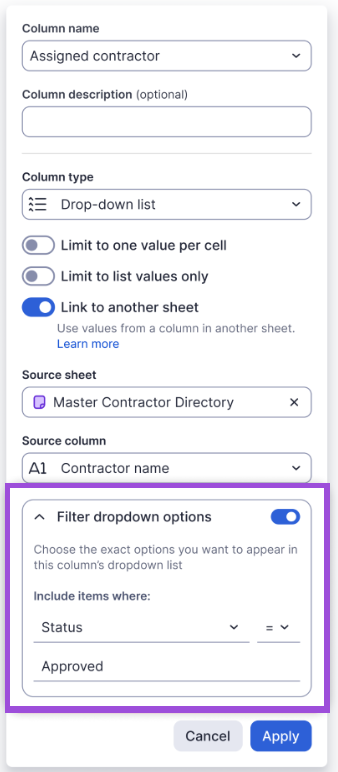
The dropdown now displays only values from rows in the source sheet that meet your filter condition.
To edit or remove a filter:
- Go to the linked dropdown column and select the ⋮ three-dot menu, then select Column properties.
- Adjust or clear the filter condition
- Select Apply.
The dropdown list updates immediately.
Manage linked dropdown columns
Users with at least Admin permissions on the target sheet can modify the linked dropdown columns.
Permissions required for deleting and editing linked dropdowns are the same as those needed for all column management activities. Learn more in the Insert, delete, or rename columns article.
Edit a linked dropdown column
- Open your target sheet in table view.
- Go to the column with the linked dropdown and select the
 three-dot menu.
 - Then select Column properties.
- Go to the Source sheet or Source column box to make your required updates.
- Once you make your changes, select Apply.
If you edit column properties in any view other than table view, your changes are saved and reflected in all views. For example, if you remove a dropdown option in grid view and then switch back to table view, the option remains removed.
Delete a linked dropdown column
- Open your target sheet in table view.
- Go to the column with the linked dropdown and select the
three-dot menu.
- Then select Column properties and toggle off Link to another sheet.
- Select Apply.
If you toggle off linked dropdowns, the values are retained at the last known point, and the data then becomes Dropdown list values.