Sheets, dashboards, reports, forms, and workspaces are items you can create using Smartsheet. Your plan owns these items to mitigate potential hurdles related to accidental deletions, orphaned items, or lost access requests.
This article discusses information relevant to both the Legacy Collaborator Model and the User Subscription Model. If you're unsure about your model type, learn how to determine the model your plan is on.
When you create an item, you automatically gain Owner permissions on it. You can then share that item with other collaborators and grant them access by assigning Admin, Editor, Owner, Viewer, or Commenter permissions.
However, it’s important to note that items you create are primarily owned by your plan. This ownership model facilitates managing access requests and avoids the risk of losing valuable items when an individual leaves your company’s Smartsheet plan.
How do access request notifications work?
Our ownership model ensures that access requests don’t get lost or unattended. For example, if a collaborator has Owner or Admin permissions on the item and goes on vacation or is out on leave, someone who is available and has the right permissions on the item can still get notified and review the access request, allowing for uninterrupted service.
The logic is as follows:
Is there an active Owner or Admins on the item?
- If yes, the notification is sent to all of them
- If not, are there any Plan Asset Admins?
- If yes, the Plan Asset Admins receive the notification
- If not, the System Admins receive the notification
Plan Asset Admins
Plan Asset Admins serve as the backstop to ensure access requests go to someone other than the System Admin in instances where no Owner or Admin is assigned to an item.
System Admins can assign the Plan Asset Admin role to any licensed user. Plan Asset Admins receive access request notifications if there isn’t an Owner or Admin defined on the item.
Keep this in mind
Plan Asset Admins can’t arbitrarily grant themselves, or anyone else, access to any item. To get access, they need a link to the item, and then they must request access from the Owner or Admin of the item. If the Owner is deactivated and no other user has Admin permissions on that item, the access request redirects to the Plan Asset Admin; only in this scenario can the Plan Asset Admin grant access to themselves.
What are Plan Asset Admins allowed to do?
Plan Asset Admins manage access requests on items where no other user has Owner or Admin permissions. They don’t have item Admin or Owner-level permissions like the ability to rearrange columns, lock/unlock rows, create forms, add dependencies, etc. unless they’re also granted item Admin permissions on that item.
By default, Plan Asset Admins don't have access to view the contents of an item. Learn more about sharing permissions levels and role capabilities.
To assign the Plan Asset Admin role
- In Admin Center, navigate to User Management if you’re on the Legacy Collaborator Model or User Roles and Reports if you’re on the User Subscription Model.
- Hover over the user and select them. The right panel displays.
Check the Plan Asset Admin checkbox.
Brandfolder Image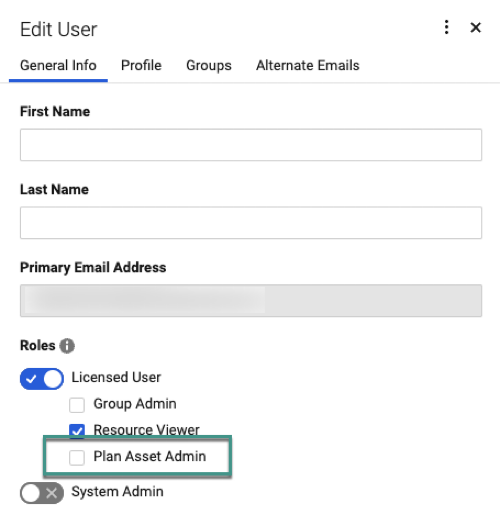
System Admins
Similar to Plan Asset Admins, System Admins can’t arbitrarily grant themselves, or anyone else, access to any item. To get access, they require a link to the item and must then request access from the item’s Owner or Admin. If the Owner is deactivated and no other user has Admin or Plan Asset Admin permissions on that item, the access request routes to the System Admin; only in this scenario can the System Admin grant access to themselves.
- By default, System Admins can’t open items to view them.
- Any permissions granted for items are logged and auditable through Event Reporting in plans where the feature is active. Learn more about monitoring how your organization uses data.
- To ensure existing System Admins can’t access specific items, you may need a separate plan and not grant access to any other users.
Other things to know
- As System Admin, you can create a sheet access report in Admin Center to get a list of all items within your plan.
When someone deletes a Smartsheet item, it’s stored in the recycle bin for 30 days. The item can be retrieved from the recycle bin during that period.
Deleted items can only be restored by the Admin who deleted them.
- System Admins and Plan Asset Admins can’t see the content of an item if they don’t have Viewer or greater permissions on the item.
Why do I need a Plan Asset Admin?
The Plan Asset Admin serves as the backstop to ensure that access requests are sent to someone other than the System Admin in instances where no Owner or Admin is assigned to an item.
I'm getting way too many access requests because I’m an Admin on multiple sheets and workspaces. What should I do?
We recommend lowering your access to the Editor permission on the item. If you need Admin access to use specific features, request to be upgraded to an Admin temporarily, perform your task, and downgrade your access back to Editor.
I’m concerned System Admins can assign permissions to anything. What do I do with confidential data that System Admins shouldn’t have access to?
- Assets are managed by the company and, by default, System Admins can’t open the items to view them. When a System Admin assigns themselves permissions to an item, the event is logged and auditable.
- To ensure existing System Admins can’t access specific items, the team requiring special confidentiality may consider using a separate plan that they manage on their own, and not grant access to any other users.
Why are sheets owned by unlicensed users or non-Members on my plan still active? I thought Smartsheet deactivated items not owned by licensed users or Members
Previously, when a user's license or Member status was removed, all items they held Owner permissions on were deactivated. Now, Smartsheet transfers Owner permissions of these items to the plan itself rather than deactivating them. This ensures your processes remain functional, regardless of changes to a user's permissions, license, or Member status.
If I remove a user from my plan, does the sheet become inaccessible to them?
Previously, when a user was removed, any sheets they held Owner permissions on would become inactive, making those sheets read-only for all users, including the removed user.
Now, when a user is removed, they can still access and edit the sheets, as these sheets remain active. To prevent the removed user from accessing the sheets, the System Admin must transfer Owner permissions and Remove Sharing from that user, which will revoke their access to all items in your plan.
Alternatively, if the System Admin deactivates the user instead of removing them, this issue would be avoided since deactivated users can no longer sign into their Smartsheet account.
How do I get a list of all my assets in a plan?
System Admins can create a Sheet Access Report in Admin Center to get a list of all the items in their plan.

