DataMesh allows you to:
- Sync a primary reference sheet or report to one or more consumer sheets.
- Automatically identify duplicate values.
- Create cell links between sheets based on the lookup values you specify.
- Automatically populate empty cells in a sheet based on a known lookup value in another sheet.
Before you begin
You must have:
- The DataMesh premium application permissions enabled in the Admin Center by a Smartsheet System Admin.
- Viewer permissions or higher on any source sheet or report, and Admin permissions or higher on any target sheet.
When to use DataMesh
Synchronize data across sheets
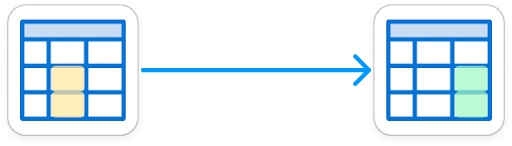
Syncing values between sheets keeps data consistent and current. When users update values on a source sheet, DataMesh pushes those changes to one or more destination sheets, ensuring all teams work with the most accurate information.
Aggregate or disperse data
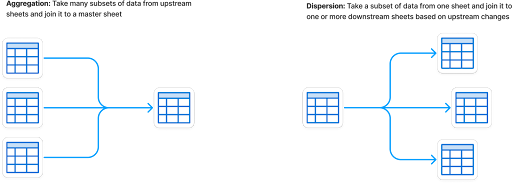
Support complex workflows by combining data from multiple sheets into a central location or distributing data from a single sheet to numerous destinations. For example, aggregate data from various reports into a primary sheet to feed other systems, or disperse campaign data from one source to multiple locations or sheets.
Specific use cases
Use case | Details |
|---|---|
Inventory & product information management (PIM) | Map prices, descriptions, and inventories based on a product SKU. |
Resource management | Map resource employee information from a secure source. |
Vendor and customer management | Update contact information, invoice details, and location information. |
Project management | Update project statuses and propagate task information. |
Campaign management | Manage marketing activities across teams. |
Budgeting & invoice management | Tasks related to managing budgets and invoices. |
Limitations
General limitations
- DataMesh works within all the Smartsheet limitations.
- Once you set the source and target sheets in a workflow, you can't change them.
- You can’t delete the source or target sheets if the workflow uses multiple target sheets.
- You can’t use dependency columns or columns with column formulas in your target sheet.
- The maximum number of mappable columns in a workflow is 190.
- You can’t map multiple source columns to a single target column. However, you can map one source column to multiple target columns.
- DataMesh doesn’t integrate with Control Center solutions.
Workflow-specific
- You can’t copy DataMesh workflows.
- Images and hyperlinks only transfer when using the Cell Link workflow types. Only the text values transfer if you use the Copy or Copy and Add Data types.
- When you select Update immediately, expect a short delay. Depending on the system volume, updates may take up to five minutes.
Using a report as the source
- Using a report as the source doesn't support the option to Update immediately.
- You can’t use sheet summary reports as a source.
- If you use row reports as a source, updates occur up to once per hour.
- API limitations apply to prevent the creation of a large number of cell links at once. The maximum number of cell links per run is from 100 to 150.