Edit, reorder, view, and delete sensitivity labels for your plan on the Data classification page in Admin Center.
USM Content
Data classification is available to Enterprise plans as part of Smartsheet Safeguard and to Advance Platinum plans.
Before you begin
- You need System Admin permission.
- Data classification must be on. While it's off, Edit label, Move actions, and Delete are unavailable. Properties stays available.
Edit a sensitivity label
Label edits take effect only after you select Publish labels. Until then, a published label shows Unpublished changes in the Label status column.
- In Admin Center, select the Menu icon, then select Governance Controls > Data Classification.
- In the label's row, select the three-dot menu, then select Edit label.
Update Label name, Label description, Label color, or Add a note.
Brandfolder Image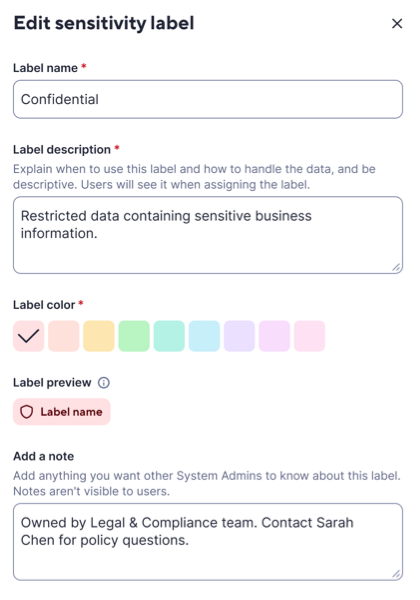
- Select Save.
Changes saved appears. To apply the edit for users, select Publish labels. For steps, see Create and publish sensitivity labels.
Change the sensitivity order
The order sets each label's sensitivity level. Level 1 is the most sensitive. Reports and dashboards use the order to decide which source label they show. Changes take effect only after you publish.
- In the label's row, select the three-dot menu.
Select Move to top, Move up, Move down, or Move to bottom.
Brandfolder Image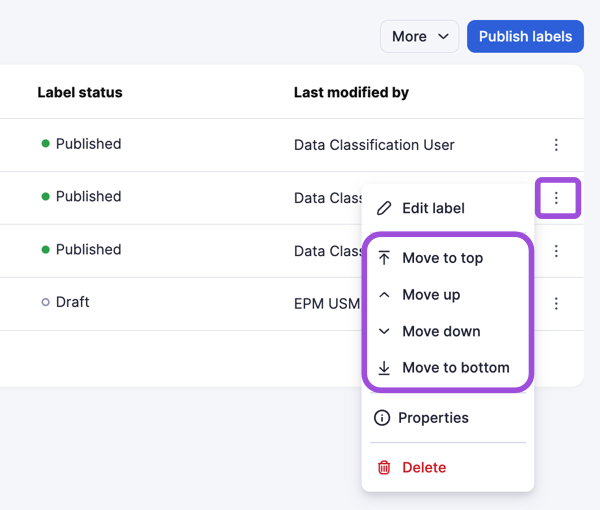
If the Change label order dialog appears, select Continue.
The label moves, and its Label status changes to Unpublished changes if you already published it. If the label is in Draft status, it remains in Draft status.
- To apply the new order, select Publish labels.
View label properties
To see a label's details:
- Select the three-dot menu in the label's row.
Select Properties.
Brandfolder Image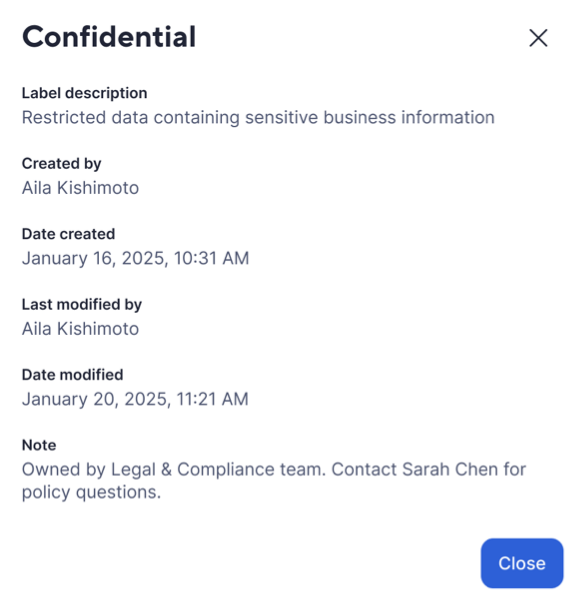
The dialog shows the label description, who created the label and when, who last modified it and when, and the note.
Delete a sensitivity label
You can't undo a delete. Smartsheet removes the label from every item that uses it. Reports and dashboards then recalculate their sensitivity based on the most sensitive label among their remaining underlying sources.
In the label's row, select the three-dot menu, then select Delete.
Brandfolder Image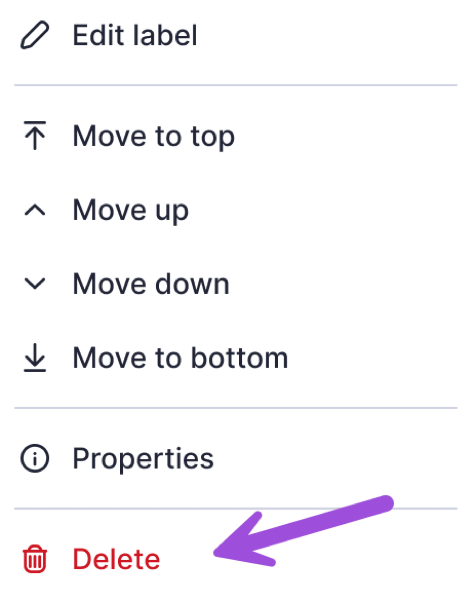
- Review the number of items that use the label.
Select I understand this can't be undone.
Brandfolder Image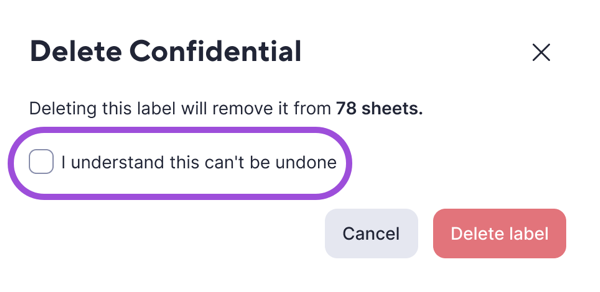
- Select Delete label.
A message confirms the deletion. You don't need to publish after you delete a label. The remaining labels keep their Published status, and their sensitivity levels update.
Things to consider
- If a label isn't applied to any item, the delete dialog doesn't include the confirmation checkbox. Select Delete label.
- You can't delete a label when only two published labels remain. The tooltip reads Data classification requires at least two published labels. Publish another to delete this one.
- If you select Save with no changes, the tooltip reads No changes to save.
- If you close a panel with unsaved changes, a dialog asks you to select Leave or Cancel.