Data classification lets System Admins create and assign sensitivity labels so everyone who works with a Smartsheet item can see how to handle it. Reports and dashboards show the label of the most sensitive source they use.
USM Content
Data classification is available to Enterprise plans as part of Smartsheet Safeguard and to Advance Platinum plans.
What is data classification?
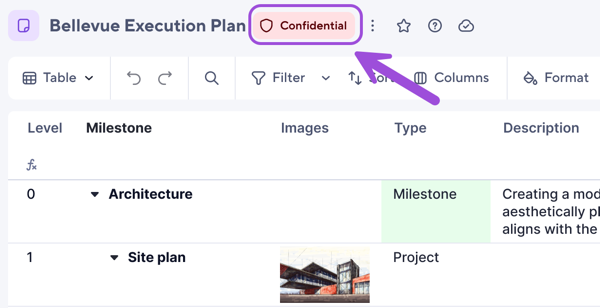
System Admins can create custom sensitivity labels in Admin Center (such as Public, Internal, and Confidential) and publish them for your plan. Sheet admins can then apply a published label to a sheet, after which the label permanently appears next to the sheet name. It shows users how sensitive the sheet is and how to handle it.
Sensitivity labels are informational. They don't change who can access an item, and they don't block sharing, downloads, or other actions. Sharing permissions stay the same.
Who uses data classification?
This table lists what each role does with data classification.
Role | What they can do |
|---|---|
System Admin |
|
Users with Admin permission on a sheet | Apply and change the sheet's label when manual labeling is on. |
All other users, including collaborators outside your plan | View labels and label descriptions. |
What does data classification include?
This table lists the components of data classification and what each one does.
| Component | Description |
|---|---|
| Sensitivity labels | Each label has a name, description, and color. System Admins can also add a note when creating the labels that only other System Admins see. |
| Sensitivity levels | The order of the labels, from most sensitive to least sensitive. |
| Classification guidelines | A link to your organization's data classification policy. Users see this link when they view or change a label. |
| Default label | An optional label setting that Smartsheet automatically applies to new sheets. |
| Manual labeling | A setting that controls whether sheet admins can change labels or labels change only through the Smartsheet API. |
| Classification coverage | A Labeled items card that shows what percentage of sheets, reports, and dashboards in your plan have a label. |
| Classification report | A downloadable report that lists each item and its label with additional useful information about the item. |
| Label history | Every label change is recorded in the activity log and in Event Reporting. |
What does a label show?
A label appears next to the item name on sheets, reports, and dashboards. On sheets, the label appears in Table, Board, and Timeline views.
Hover over the label to see its name and description. If a sheet, report, or dashboard has no label, nothing appears next to the sheet name; only sheet admins see a shield
 icon on an unlabelled sheet.
Hover over the label to see its name and description. Select the label to open a dialog with the description and a link to your organization's guidelines.
For sheets, the dialog also shows who last modified the label and when. For reports and dashboards, the dialog shows the date modified.
Who sees labels?
Everyone who opens a labeled item sees its label, including collaborators from other plans. Only users with Admin permission on the sheet can change a sheet's label.
How do reports and dashboards get a label?
Reports and dashboards show the most sensitive label from their underlying sources. If any source sheet or report has a more sensitive label than others in scope, the report or dashboard shows that label. Nobody can change this label directly.
When a source changes, or when a System Admin changes the label order or deletes a label, reports and dashboards update to show the most sensitive remaining label from their sources.
Does data classification apply to everyone in your plan?
Yes. When a System Admin enables data classification, it applies to all users in the plan. You can't limit it to one team or workspace. Existing sheets stay unlabeled until a sheet admin labels them or your System Admin labels them through the API.
What gets recorded when a label changes?
Smartsheet records every label change in the sheet's activity log and in Event Reporting. Each entry shows who changed the label, when, the old and new label, and the justification for the change. For steps, see Manage sensitivity labels on sheets, reports, and dashboards.
What happens when manual labeling is off?
When a System Admin turns off manual labeling, labels change only through the Smartsheet API. Sheet admins see a read-only dialog that reads Manual labeling is disabled by your System Admin. This label can't be changed manually. For a sheet with no label, no label icon appears for any user.
What happens when a System Admin turns off data classification?
Smartsheet hides labels from all users and shows the status of published labels in Admin Center as Inactive. Existing label selections remain on items in the background and aren’t visible to end users. However, when a System Admin turns data classification back on, the previously assigned labels appear again.
How do you access data classification?
System Admins open data classification in Admin Center from Menu > Governance Controls > Data Classification. Users see labels next to item names in Smartsheet.