Set a default label for new sheets, control whether users can change labels, and turn data classification on or off from the Data classification page in Admin Center.
USM Content
Data classification is available to Enterprise plans as part of Smartsheet Safeguard and to Advance Platinum plans.
Before you begin
- You must be a System Admin.
- Publish your labels first. The More menu is available only after you publish labels. For steps, see Create and publish sensitivity labels.
Set a default label
Smartsheet applies the default label to new sheets only. Existing sheets stay unlabeled until a sheet admin or the API labels them, and the default never replaces a label someone chose. The setting applies as soon as you save it, so you don't need to publish. Reports and dashboards don't use a default label because they show the most sensitive label from their underlying sources.
- In Admin Center, select the Menu icon, then select Governance Controls > Data Classification.
Select More > Default label.
Brandfolder Image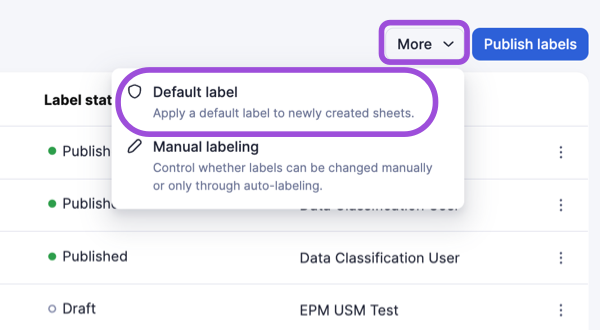
In Default label (optional), select a label.
Brandfolder Image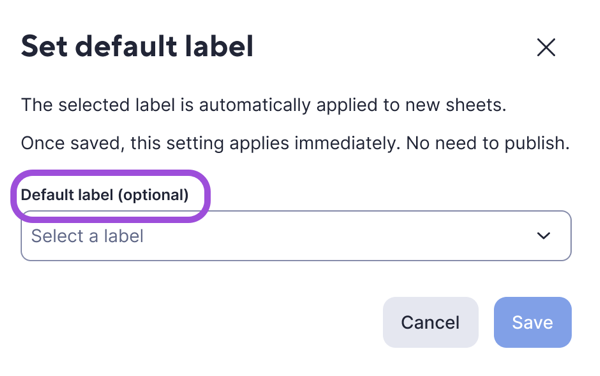
- Select Save.
Default label saved appears. This label automatically applies to each new sheet when it's created.
Manage manual labeling
The manual label setting applies as soon as you save it, so you don't need to publish. Allow manual labeling is on by default. When it's on, sheet admins and the Smartsheet API can both change labels, and the most recent change applies. When it's off, labels change only through the API.
Turn off manual labeling when an external tool, such as a data loss prevention (DLP) tool, is your source of truth for labels and sets them through the Smartsheet API.
- On the Data classification page, select More > Manual labeling.
Turn Allow manual labeling on or off.
Brandfolder Image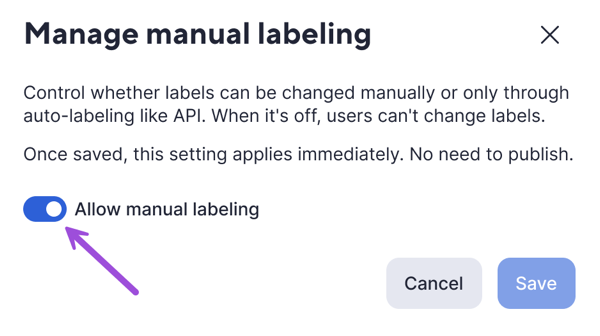
- Select Save.
Manual labeling settings saved appears. When you turn off Allow manual labeling, sheet admins see a read-only Sensitivity label dialog.
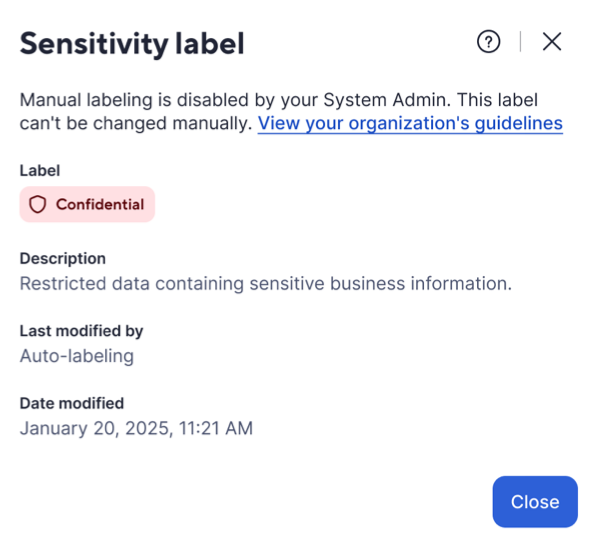
If a sheet has no label, Smartsheet hides the label icon from all users, including admins.
Turn off data classification
Turning off data classification hides sensitivity labels from all users. It doesn't delete labels or label selections on items. You can turn data classification back on at any time.
- On the Data classification page, select the toggle next to the page heading.
In the Turn off data classification dialog, select I understand labels will be hidden from users.
Brandfolder Image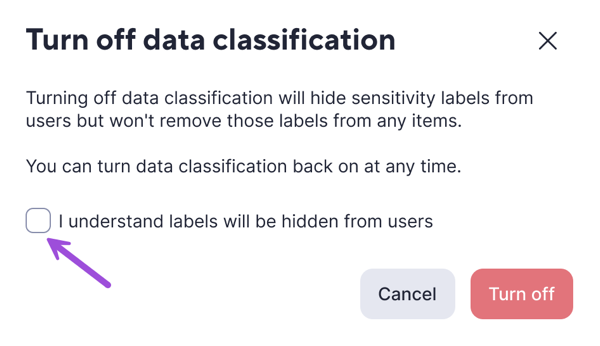
- Select Turn off.
Data classification turned off appears. Published labels show Inactive; draft labels stay in Draft; and the Labeled items card shows Data classification is off.
Turn on data classification
To turn data classification back on, select the toggle next to the page heading. Data classification turned on appears, Smartsheet shows your published labels again; labels return to their previous status, such as Published, Unpublished changes, or Draft; and items regain their previous label selections.
Things to consider
- While data classification is off, Publish labels is unavailable. Edit label, the Move actions, and Delete are also unavailable in each label's menu.
- Turning data classification off or on applies to every user in your plan. You can't limit it to one team or workspace.
- If Default label couldn't be saved or Manual labeling settings couldn't be saved appears, select Save again.
- Turning off Data Classification hides label visibility and selection on all items across the plan. Attempting to use the API to change or read labels when Data Classification is turned off results in an error.
- When Data Classification is turned back on, the labels that were previously assigned to the items return to the same state as before Data Classification was turned off.