Create an Advanced Portfolio, upgrade an existing Portfolio, and find your Advanced Portfolios in Smartsheet. Advanced Portfolios give you access to Linked Summary fields, the Publish changes option, and a portfolio summary.
USM Content
If you’re on an Advanced Work Management plan, any Portfolios you create are Advanced Portfolios by default.
There are multiple ways in which you can create an Advanced Portfolio:
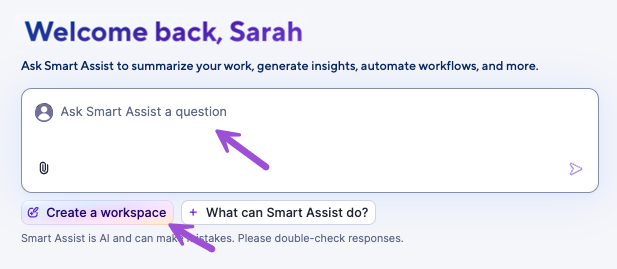
- AI. The MCP server can create a Portfolio via conversation. Access it via Claude, Copilot, Smart Assist, or the Create a workspace flow.
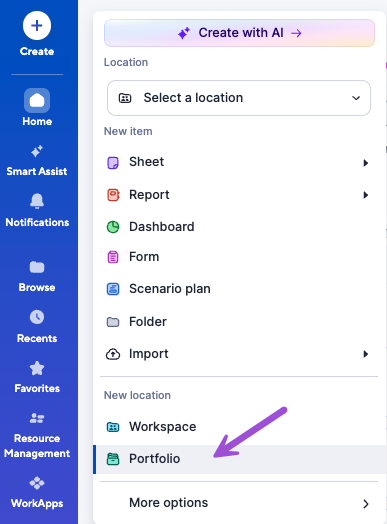
- +Create. Select the +Create button on Home. Then, select Portfolio.
- Save workspace as project template.
- Find the workspace you want to use as a template.
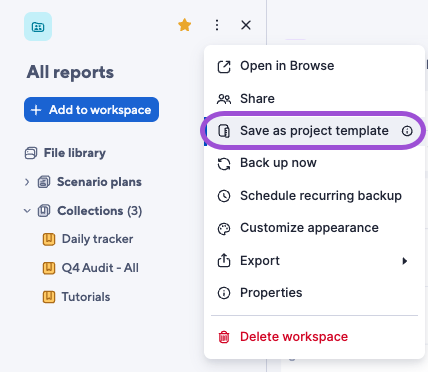
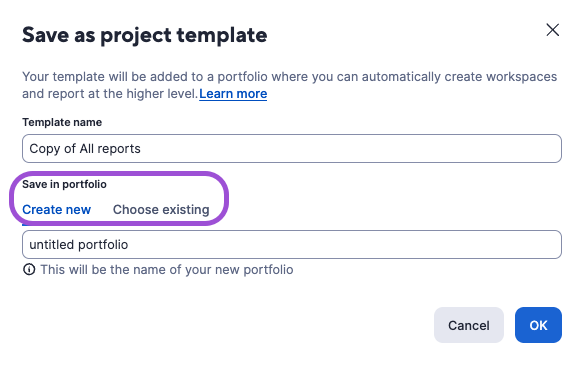
- At the top of the workspace panel, open the three-dot menu to select Save as project template.
- You can then choose to save a workspace into a new Portfolio or into an existing Portfolio.
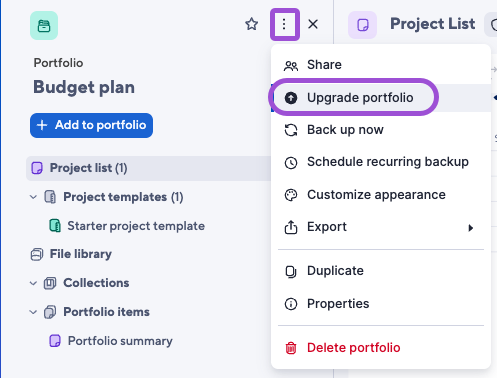
Upgrade to an Advanced Portfolio
Upgrade a Portfolio to Advanced to access Advanced-only features: Linked Summary fields, the Publish changes option, and the portfolio summary.
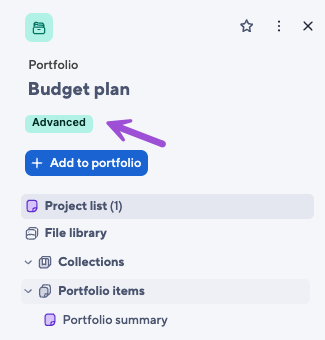
All Advanced Portfolios show an Advanced chip under the Portfolio name and project template name.
Find an Advanced Portfolio
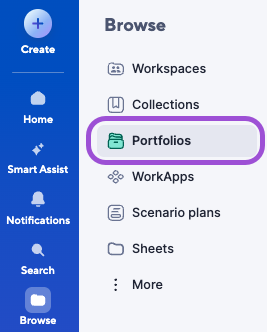
To find your Advanced Portfolio, you can use the Search function to find it by name or use the Portfolios tab in Browse.
Your projects live in workspaces, so use the Workspaces tab in Browse to filter by Type and find your projects quickly.
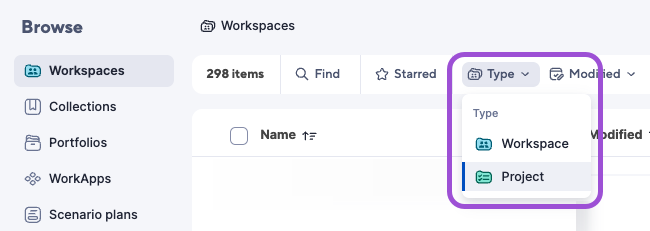
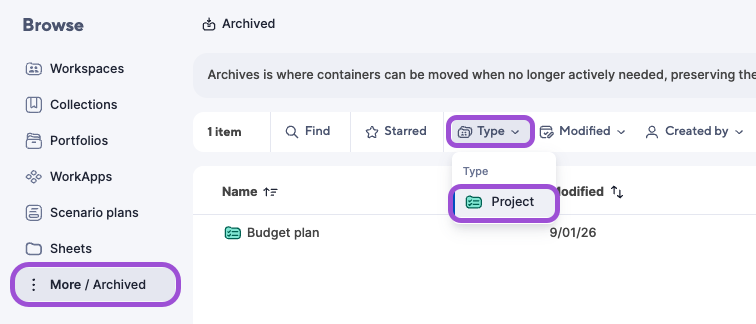
To navigate to an archived project, select More > Archived in Browse, then use the Type filter to select Project.