Move completed or inactive projects out of your active view without losing their data. When you archive a project, it moves into a collapsible Archived group in the project list. Unarchive a project at any time to bring it back into your active workflow.
USM Content
Before you begin
Only Portfolio and Advanced Portfolio Owners and Admins can archive and unarchive projects.
You can archive or unarchive one project at a time from its row, or select multiple projects and use the action bar in the list view to archive or unarchive them together.
Archive one or multiple projects
You can’t archive unprovisioned projects.
How you archive a project varies depending on the view you’re using.
List view
- In the project list, hover over an active project row.
- Select the checkbox on the left.
- Select the Archive project button that appears on the right side of the row or the Archive button in the toolbar at the top of the page.
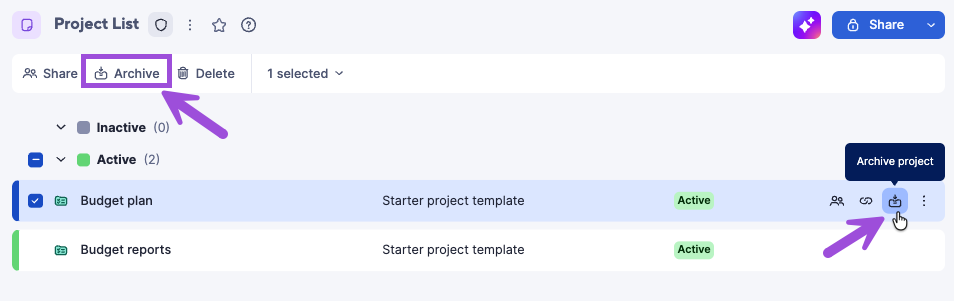
To archive multiple projects, select every project in a group at once, or select the checkbox in the group header. If you selected more than 10 projects, a confirmation dialog appears. Select Confirm to continue.
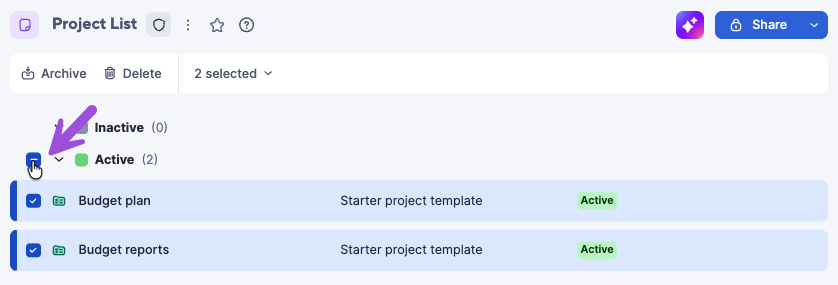
Table view
- In the project list, find your active project row.
- In the Status column, use the dropdown to change the project status to Archived.
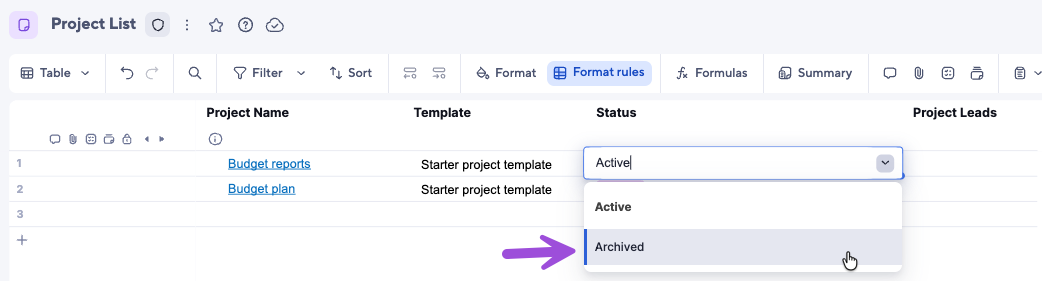
To update the status in multiple projects, either select the range and press CTRL + D (for Windows) or use the bottom right of the cell to drag the status down to all applicable projects.
Unarchive one or multiple projects
How you unarchive a project varies depending on the view you’re using.
List view
- In the Archived group, hover over the project row.
- Select the checkbox on the left side.
- Select the Unarchive project button that appears to the right of the row or the Unarchive button in the toolbar at the top of the page.
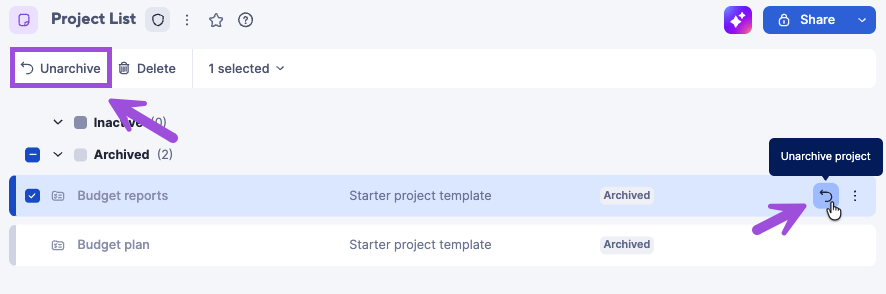
To unarchive multiple projects, select every project in a group at once, or select the checkbox in the group header.
Table view
- In the project list, find your active project row.
- In the Status column, use the dropdown to change the project status to Active.
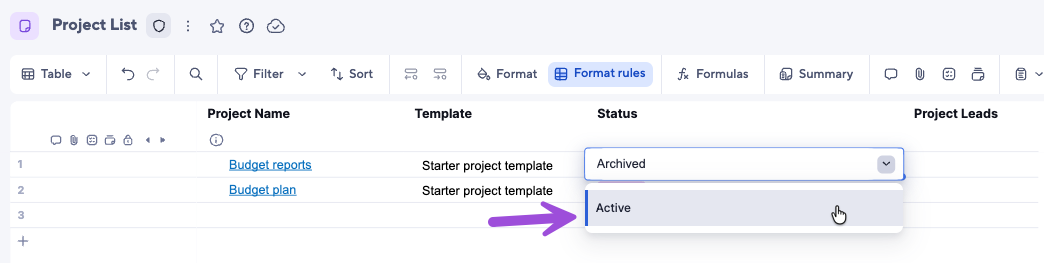
To update the status in multiple projects, either select the range and press CTRL + D (for Windows) or use the bottom right of the cell to drag the status down to all applicable projects.
Delete an archived project
Deleting an archived project deletes the project row, its workspace, and all its assets. This can't be undone.
How you delete a project varies depending on the view you’re using.
List view
- In the Archived group, hover over the project row.
- Select the checkbox on the left side.
- Select the three-dot menu to the right of the row and select Delete, or select the Delete button in the toolbar at the top of the page.
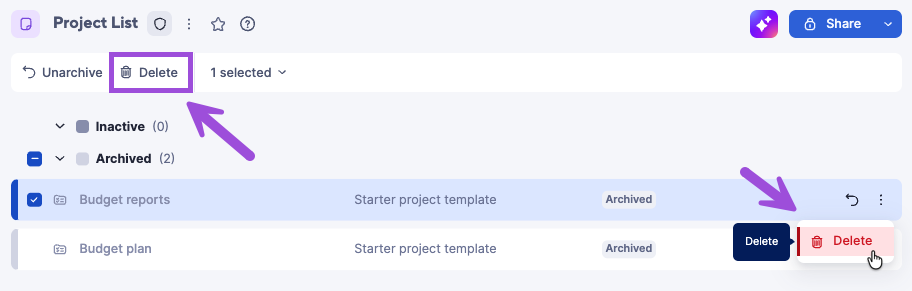
Table view
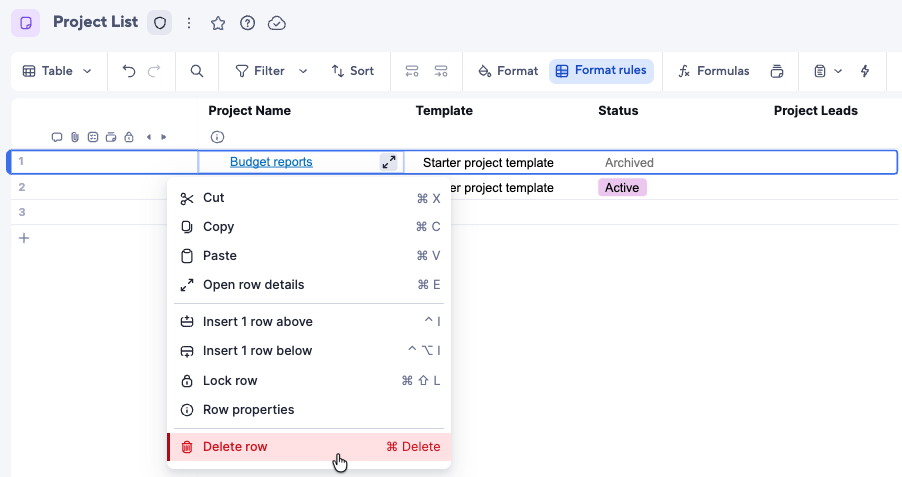
- In the Archived group, hover over the project row.
- Hover over the row and select the three-dot menu to the left of the row.
- Select Delete row.
Things to consider
- The Archived group appears at the bottom of the project list only after you archive your first project. If you haven’t archived anything, the group doesn't appear at all.
- The Archived group is collapsed by default and stays collapsed the next time you open the project list.
- Rows in the Archived group appear muted and aren't editable, but they still show the same columns as active rows, and you can still edit, search, sort, and filter them within the project list.
- Once you’ve archived a project, you can find it in Browse > More > Archived. All project items also still appear in Home.
- If a project's template changes while it's archived, unarchiving it doesn't update the project to match the new template right away. The update applies the next time you publish the template.
- Publishing a new template doesn’t apply to archived projects.
- Archiving doesn't deactivate forms or automations, freeze formulas or cell links, or hide archived projects from Search or item pickers.
- When you archive a project in Advanced Portfolios, the project workspace moves to the Archived tab in Browse. Open Browse and select More > Archived.
- When you archive a project in Advanced Portfolios, any changes you push through the Publish flow no longer apply to that project.
- Archiving a project also impacts filtering options when creating portfolio reports. If you want the project to be a part of the report, include Archived in the Projects included in the report option. Learn more about how to set up portfolio reports.