The AI Management page in Smartsheet Admin Center gives System Admins one place to turn AI capabilities and connectors on or off for everyone on your Smartsheet plan. Use it to enforce your organization's AI and AI assistant policies without turning off AI access entirely.
USM Content
What's AI Management?
The AI Management page in Smartsheet Admin Center lists every AI capability available on your plan, including built-in features like Smart Assist and connectors to external AI assistants like Claude or ChatGPT. Each item has its own toggle, so a System Admin can enable or disable it individually.
What can you control from AI Management?
The Activation control section lists two types of items: AI capabilities built into Smartsheet and connectors that allow external AI assistants to access Smartsheet data via the Smartsheet MCP Server. Every item shows its name, a brief description, and a link to its help article. What you see depends on your plan:
AI capabilities
The following AI capabilities are built into Smartsheet. Availability depends on your plan:
Capability | Pro | Business | Enterprise |
|---|---|---|---|
Smart Assist | Yes | Yes | Yes |
Smart Columns | Yes | Yes | Yes |
Intelligent form fill | Yes | Yes | Yes |
AI dashboard builder | Yes | Yes | Yes |
AI-powered charts for dashboards | Yes | Yes | Yes |
Table view formula creation | No | No | Yes |
| Analyze data | No | No | Yes |
| AI workspace creation | Yes | Yes | Yes |
| Grid view formula creation | No | No | Yes |
Text and summaries | No | No | Yes |
The following descriptions explain what each capability does:
- Smart Assist: Smartsheet's AI companion. Provides solutions, makes updates to your sheets, and can summarize and analyze your sheet data.
- Smart Columns: Allow users to create AI-powered columns to analyze customer sentiment, translate data, and categorize a sheet's information.
- Intelligent form fill: Allow users to complete forms using AI-powered voice-to-text input.
- AI dashboard builder: Allow users to quickly create useful dashboards with up to ten charts from a text prompt.
- AI-powered charts for dashboards: AI-powered chart creation and editing within the dashboard builder.
- Table view formula creation: Allow users to generate formulas from natural language prompts and apply them to sheets in table view.
- AI workspace creation: Allow users to create Smartsheet workspaces from a text prompt.
- Analyze data: Allow users to generate charts from sheet data with a text prompt. Generated charts can be added to new or existing dashboards.
- Grid view formula creation: Allow users to generate formulas from natural language prompts and apply them to sheets in grid view.
- Generate formulas: Type a prompt and quickly generate powerful formulas in your sheet.
- Text and summaries: Allow users to summarize, translate, or analyze sentiment for text in individual cells.
Connectors and other MCP clients
The following connectors and other MCP clients require a Business, Enterprise, or Advanced Work Management plan:
Capability | Description |
|---|---|
Claude Connector | Allow users to read and update Smartsheet data via Anthropic's Claude. |
ChatGPT Connector | Allow users to read and update Smartsheet data via OpenAI's ChatGPT. |
Gemini Connector | Allow users to read and update Smartsheet data via Google Gemini. |
| Copilot Cowork Connector | Allow users to read and update Smartsheet data via Microsoft Copilot Cowork. |
Microsoft 365 Copilot Connector | Allow users to read and update Smartsheet data via Microsoft 365 Copilot. |
Amazon Quick Connector | Allow users to read and update Smartsheet data via Amazon Quick. |
Other MCP clients | Allow users to read and update Smartsheet data through MCP clients not listed in this table. Disabling Other MCP Clients doesn't affect the managed connectors. |
Turning off Other MCP Clients blocks direct programmatic access to Smartsheet data. It doesn't affect managed connectors like Claude Connector or ChatGPT Connector, and it doesn't affect Smart Assist.
When do you use AI Management?
Use the AI Management page to align Smartsheet's AI access with your organization's policies. Common scenarios include:
- Turning off a specific connector, like Codex Connector, to comply with a policy that restricts one AI ecosystem while keeping other connectors and Smart Assist available.
- Turning off Other MCP clients to block direct programmatic access to Smartsheet data while still allowing managed connector flows like Claude Connector or ChatGPT Connector.
- Turning off Analyze data or Text and summaries plan-wide if your organization hasn't yet approved generative AI use on sheet content.
How do you access AI Management?
The following two paths open the AI Management page:
- From the Admin Center homepage, select Manage AI settings on the AI Management task card.
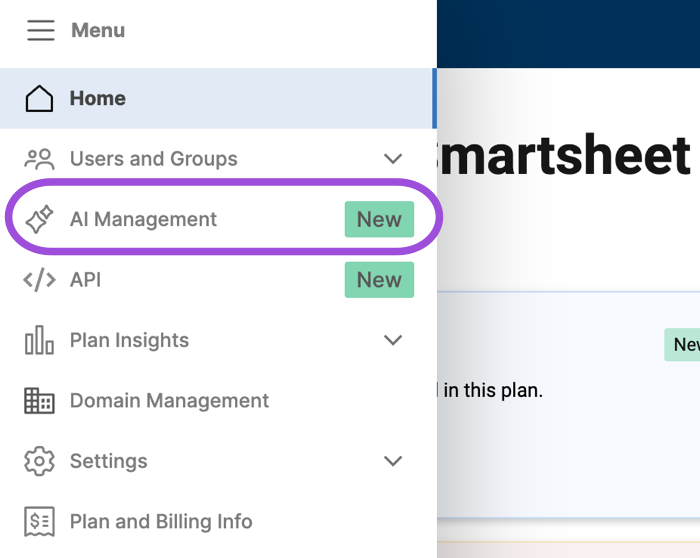
- From anywhere in Admin Center, select the Menu icon to open the navigation panel, then select AI Management.
Things to consider
- The AI Management page applies changes to everyone on your plan. Scoping a toggle to specific users or groups isn't available.
- Connector toggles control the Smartsheet side of the connection only. Smartsheet can't see or override settings your organization manages within the AI assistant's own admin console.
- Turning off a capability doesn't remove existing content. For example, AI charts already placed on dashboards and previously created Smart Columns continue to work.
- AI management isn't available in Smartsheet Gov.