System Admins can decide what happens to Provisional Members at the end of each billing cycle.
USM Content
At the end of each billing cycle, all Provisional Members you haven’t upgraded to Members get automatically downgraded to a free seat type and lose access to any permissions or features that require a higher seat type.
You also have the option to downgrade Provisional Members before the end of the billing cycle if necessary. However, if they need their previous access restored, they need to ask you or another System Admin to upgrade them to a paid Member.
Downgrading an active user may cause work interruptions. Learn how to review usage and change seat types in the Manage seat types help article.
The Admin Center homepage shows the current setting.
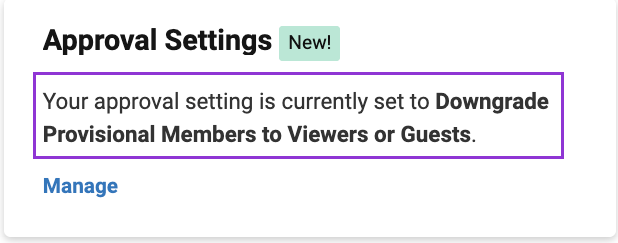
You can change the Provisional Member approval settings.
Change to automatically upgrade Provisional Members at the end of the billing cycle:
- Sign in to the Admin Center.
- In the Seat type setting tile, select Manage.
On the Seat type settings page, under Provisional Member setting, select Upgrade to paid Member, and then select the Save settings button.
A message confirms the update.
If no Member seats are available, the cost of additional Member seats is part of your auto-bill or invoice.
FAQ
Why did Provisional Members on my plan become Contributors (or Guests)?
By default, no Provisional Members can become paid Members without System Admin approval. You must manually upgrade each Provisional Member to a paid Member seat.
You can change the Provisional Member Settings if you want to upgrade Provisional Members automatically at the end of each review period.
How do I prevent my Provisional Members from being downgraded?
Choose the option that works best for your plan and company:
- Ongoing proactive seat management: During each review period, check the usage data for Provisional Members and assign a paid Member seat to those who need to continue to collaborate. If there are no paid Member seats available, the new seat is included in the auto-bill or invoice.
- Automatic approval for paid Member seats: You can change the Provisional Member setting if you want to upgrade Provisional Members automatically at the end of each review period. Provisional Members use available Member seats first. If none are available, the cost of additional Member seats is part of your auto-bill or invoice.
- As-needed reactive seat management: You can upgrade a Provisional Member at any time to assign a paid Member seat. Members can only be downgraded by you or another System Admin.
See the Manage seat types help article for checking usage and upgrading a user’s seat type.
My users were downgraded to free seats. How do I upgrade them to Members?
See the Manage seat types help article.
Is there a way my plan users can request a seat?
Internal users who need a Member seat can request one directly within Smartsheet.
With the default Seat request setting, you see pending requests in the Seat types and true-up page. Use the Seat requests filter to list only users with pending requests.
With the custom URL Seat request settings, the system you set up outside of Smartsheet manages requests.