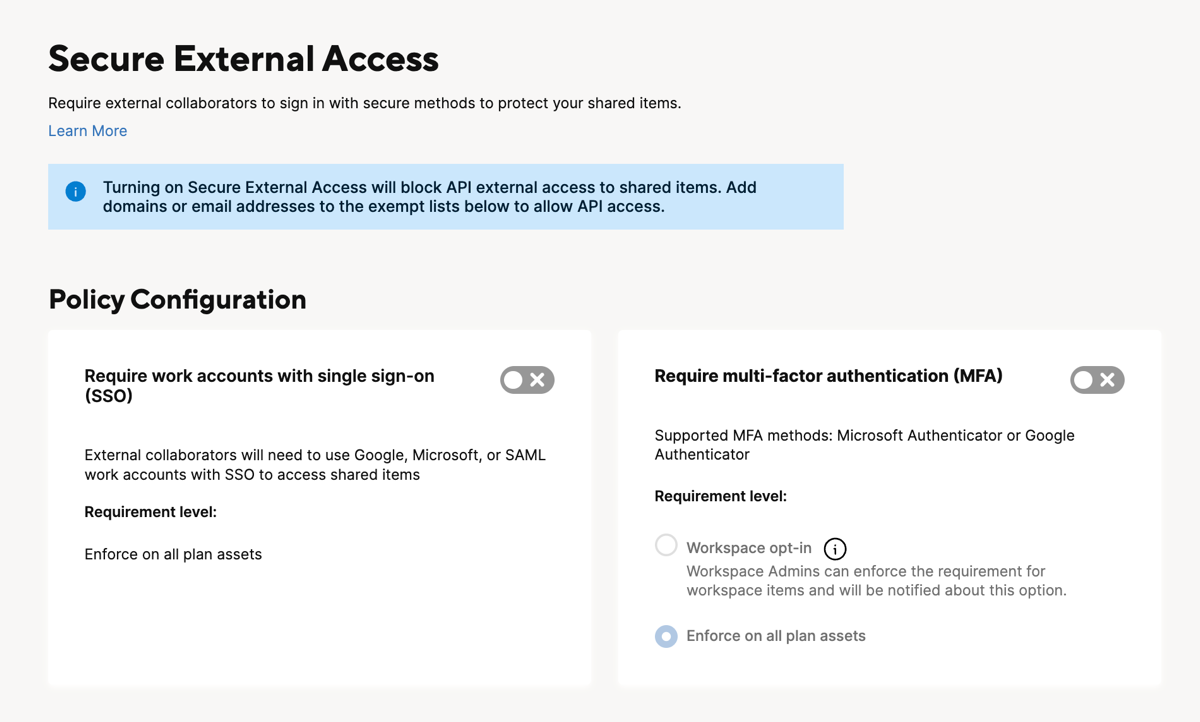
Require Multi-Factor Authentication (MFA) enhances security for external sharing by requiring external collaborators to sign in with an additional layer of authentication to gain access to any content you share with them.
USM Content
The Require MFA policy ensures external collaborators authenticate via MFA, enhancing their security with an additional layer of verification. Even if a password gets compromised, the MFA functionality prevents unauthorized access.
If an external collaborator's Identity Provider (IdP) doesn't support MFA or fails to communicate the MFA completion status with Smartsheet, the authenticator app serves as a backup.
Supported methods
- SAML (Okta, Entra ID, AD FS)
- Microsoft work account
- Authenticator app (Google Authenticator, Microsoft Authenticator) *
* While technically compatible with any authenticator app, Smartsheet officially tests and recommends Microsoft Authenticator and Google Authenticator. Support from Smartsheet is limited to configurations involving these recommended applications.
Authenticator app
Authenticator apps generate a time-based one-time passcode (TOTP) or other cryptographic codes used for MFA. When users set up an authenticator app with Smartsheet, it creates a unique, rotating code on their device that they use in addition to their password to verify their identity.
The setup process involves a one-time configuration. When accessing a shared Smartsheet item that requires MFA, users must set up an authenticator app, such as Microsoft Authenticator or Google Authenticator. This involves scanning a QR code or entering a secret key into their chosen authenticator app, and then verifying with a six-digit code generated by the app. Once successfully set up, they can access the external shared item.
If the user loses their device or their authenticator app stops working, self-recovery options are available if they’ve saved their Google Authenticator backup key or enabled Microsoft Authenticator’s cloud backup. If these self-service steps don’t resolve the issue, they can contact Smartsheet Support to reset their authenticator app settings. This allows them to complete the one-time setup again during their next sign-in.
Activate the Require MFA policy
- Sign in to Admin Center.
- Select the Menu icon and navigate to Settings > Secure External Access.
- Slide the Require MFA toggle to turn on the policy.
- To allow Workspace Admins to apply the policy on specific workspaces, select the Workspace opt-in button.
- To enforce the policy on all plan items, select Enforce on all plan assets.
To get a report showing all the workspaces with the Require MFA policy enabled on your plan, reach out to Support.
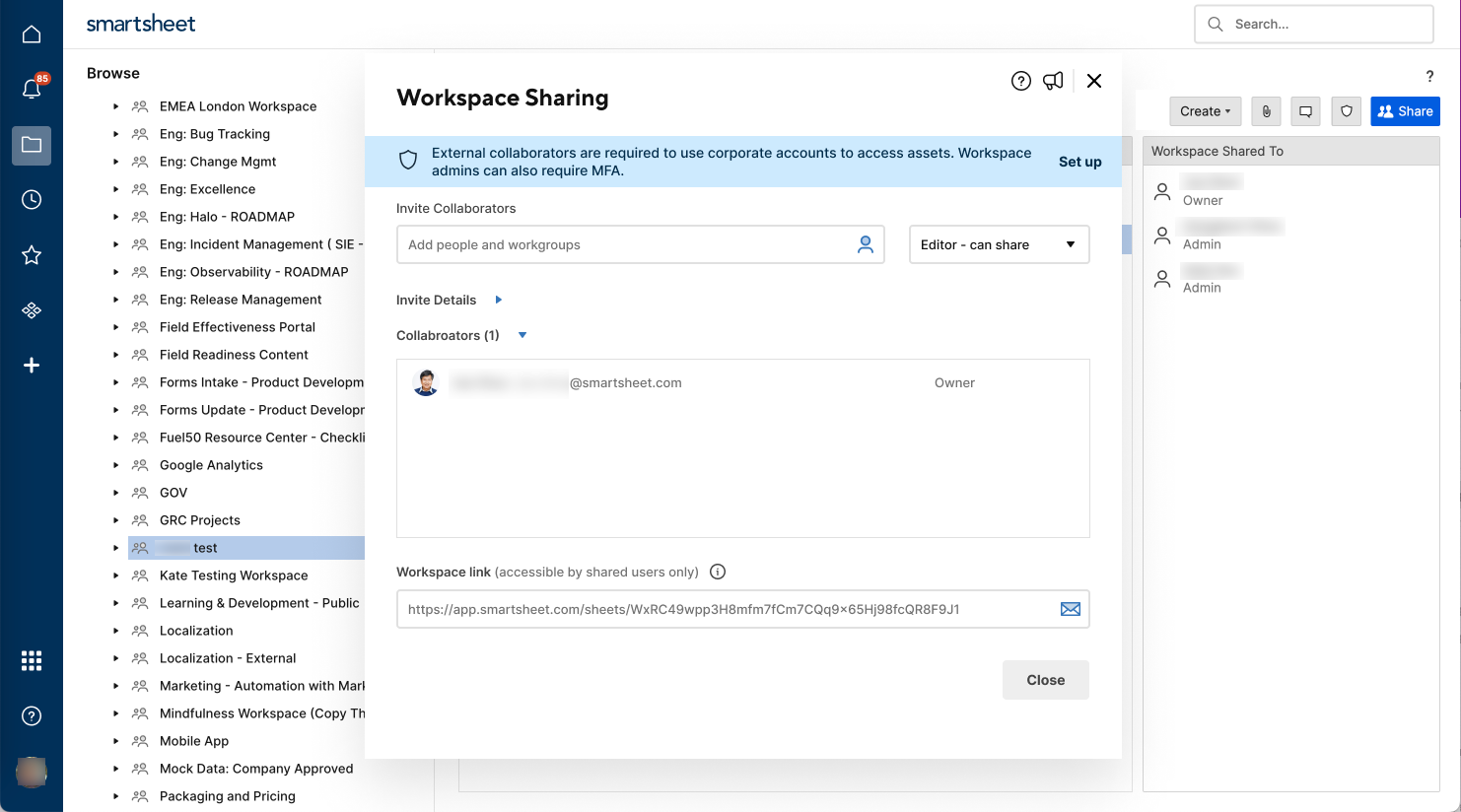
Activate MFA for workspace access
If a System Admin enables Workspace opt-in, Workspace Admins can enforce the Require MFA policy on specific workspaces.
This policy applies to users who aren't part of any validated domain in the plan that enabled the policy, or any domain/email address mentioned in the Exempt list for these policies.
To activate MFA for a specific workspace:
- Go to the workspace and select Share in the top right corner.
- Select Set up from the top of the sharing window.
- Slide the Require MFA toggle to enable the feature. Settings apply to all items in the workspace, not to individual items.