Control who can receive automation from sheets based on their sheet access and relationship with your organization.
USM Content
The Security & Controls page in Admin Center allows you to configure access and notification permissions. You can manage how users receive notifications, access groups, utilize Tenant IDs, interact with forms, and leverage offline form submissions.
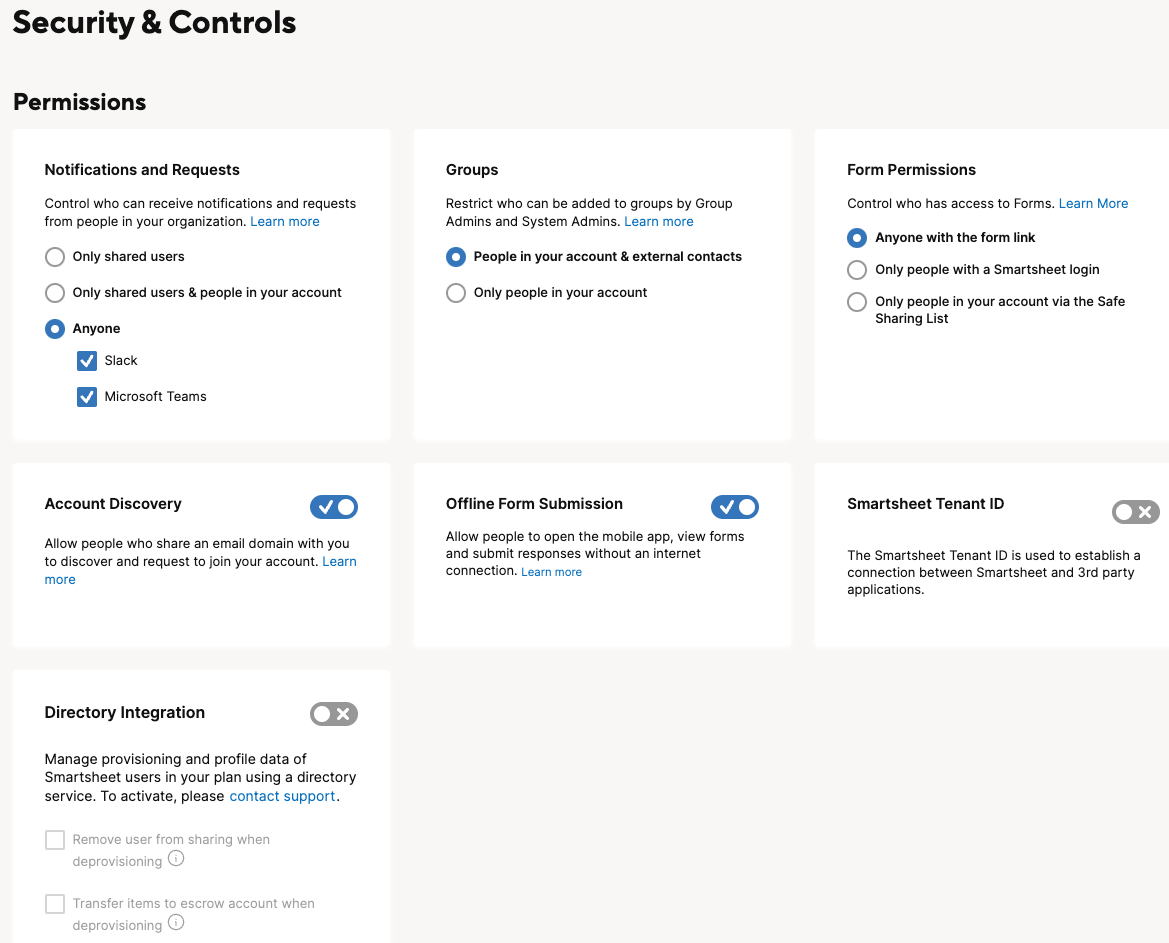
Notification and requests
Control who can receive notifications or requests from sheets based on the users' level of access to sheets and memberships in the organization. In Admin Center, you have three options:
- Only shared users
- Only shared users and people in your account
- Anyone (any email address and third-party integrations, such as Slack or Microsoft Teams)
Notes
- All sheets are created with restricted permissions (Only shared users), so if desired, sheet Owners and Admins must manually make automation less restrictive at the sheet level.
- Users with Owner or Admin permissions on a sheet can only select sheet-level automation permissions that are equally or more restrictive than the account-level automation permissions.
- If any sheets are unrestricted (Anyone) or limited (Only shared users and people in your account), and you set the account to be more restrictive, then those sheets will automatically adopt the more restrictive setting. However, if you then set the account to be less restrictive, then the sheets will return to their prior state unless they were manually set to be more restricted than the account settings.
- If a sheet is manually set to Only shared users or Only shared users and people in your account permissions, and you adjust the account-level automation permissions to be less restrictive, the sheets will remain unchanged.
- Individual email addresses must meet the account's approved domain-sharing restrictions in order to receive automated email notifications.
Groups
You can control membership to groups created within the organization. By default, you can add anyone to a group, but you can restrict groups to people who are part of the organization.
If your organization uses Directory Integration, you can still add a user whose email address doesn’t match any of the domains for the plan to a Smartsheet group.
Tenant ID
The Smartsheet Tenant ID is a one-time key used to establish a connection between Smartsheet and third-party applications, such as AWS AppFabric. It is located under Security Controls in the Admin Center.
Forms
By default, all forms are anonymous and available to anyone with a link to them. However, you can limit form access to people with a Smartsheet login or to people on your Smartsheet account via the safe sharing list.
When you've selected these settings in the Admin Center, they apply as the minimum permissions for all forms on your account, and they can't be changed in the form builder.
Only Enterprise customers can set system-wide form permissions.
Offline forms
Offline Form Submission allows your team to access the mobile app and submit forms without an internet connection. Toggle this setting on or off to control access for users on your account. For more information about this feature, review Use mobile forms when you're offline.
LCM Content
The Security & Controls page in Admin Center allows you to configure access and notification permissions. You can manage how users receive notifications, access groups, utilize Tenant IDs, interact with forms, and leverage offline form submissions.
Notification and requests
Control who can receive notifications or requests from sheets based on the users' level of access to sheets and memberships in the organization. In Admin Center, you have three options:
- Only shared users
- Only shared users and people in your account
- Anyone (any email address and third-party integrations, such as Slack or Microsoft Teams)
Notes
- All sheets are created with restricted permissions (Only shared users), so if desired, sheet Owners and Admins must manually make automation less restrictive at the sheet level.
- Users with Owner or Admin permissions on a sheet can only select sheet-level automation permissions that are equally or more restrictive than the account-level automation permissions.
- If any sheets are unrestricted (Anyone) or limited (Only shared users and people in your account), and you set the account to be more restrictive, then those sheets will automatically adopt the more restrictive setting. However, if you then set the account to be less restrictive, then the sheets will return to their prior state unless they were manually set to be more restricted than the account settings.
- If a sheet is manually set to Only shared users or Only shared users and people in your account permissions, and you adjust the account-level automation permissions to be less restrictive, the sheets will remain unchanged.
- Individual email addresses must meet the account's approved domain-sharing restrictions in order to receive automated email notifications.
Groups
You can control membership to groups created within the organization. By default, you can add anyone to a group, but you can restrict groups to people who are part of the organization.
If your organization uses Directory Integration, you can still add a user whose email address doesn’t match any of the domains for the plan to a Smartsheet group.
Account discovery
With Account Discovery enabled, people with an email address that matches the plan's verified email domain can request to join the organization. This request appears in the License Request Management section. For more information, see Join an existing Smartsheet plan at your organization.
- If you have configured Custom Upgrades, the request is forwarded accordingly.
- If you use User Auto Provisioning (UAP), you can't configure Account Discovery; UAP takes precedence over Account Discovery in those cases.
Tenant ID
The Smartsheet Tenant ID is a one-time key used to establish a connection between Smartsheet and third-party applications, such as AWS AppFabric. It is located under Security Controls in the Admin Center.
Forms
By default, all forms are anonymous and available to anyone with a link to them. However, you can limit form access to people with a Smartsheet login or to people on your Smartsheet account via the safe sharing list.
When you've selected these settings in the Admin Center, they apply as the minimum permissions for all forms on your account, and they can't be changed in the form builder.
Only Enterprise customers can set system-wide form permissions.
Offline forms
Offline Form Submission allows your team to access the mobile app and submit forms without an internet connection. Toggle this setting on or off to control access for users on your account. For more information about this feature, review Use mobile forms when you're offline.