Manage who receives alerts and requests by adjusting permissions at the account or sheet level. If recipients aren't receiving notifications, you can troubleshoot by adjusting sharing and permission settings or by updating your recipient list.
USM Content
Not all notification types support external or unlicensed recipients. Alert, update request, and reminder notifications can reach anyone when your automation permissions allow it. Other notification types require recipients to have a Smartsheet account.
Find your path
This article covers two different tasks depending on your role:
- System Admins setting organization-wide permissions: Go to Plan-level automation controls.
- Sheet Owners or Admins managing notifications on a specific sheet: Go to Sheet-level automation controls.
Plan-level automation controls
You need to be a System Admin to control plan-level automations.
- Sign in to the Admin Center.
- Select the Menu icon at the upper-left corner of the screen.
- Navigate to Settings > Security Controls > Permissions.
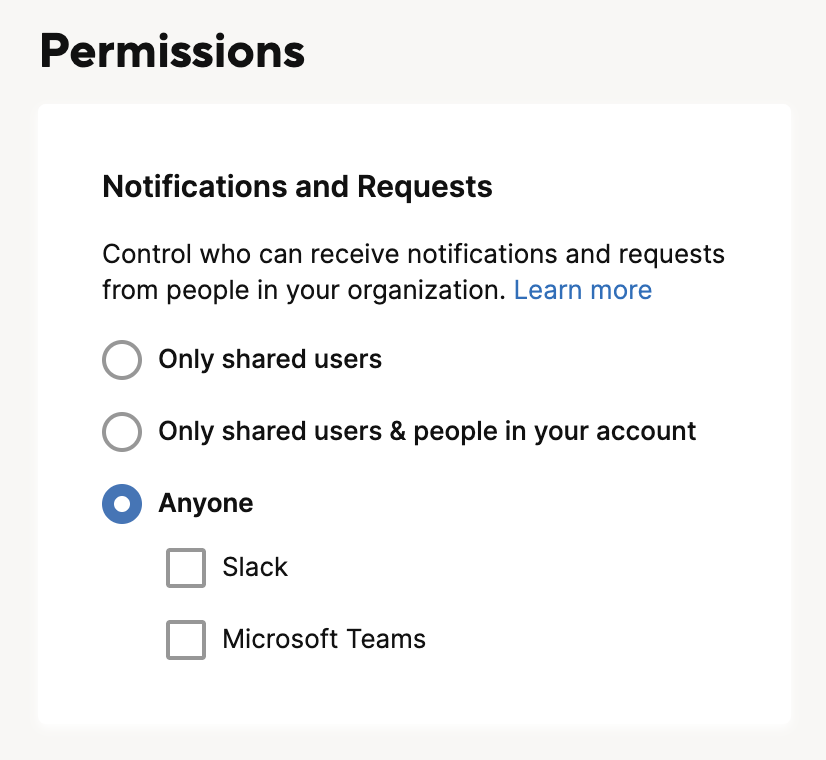
At the account level, three options control who can receive automation notifications:
- Only shared users: Only people shared to the sheet receive notifications.
- Only shared users and people in your account: People shared to the sheet and people in your Smartsheet account receive notifications.
- Anyone: Anyone can receive notifications, even if they aren't shared to the sheet or part of your account.
The plan-level setting acts as a ceiling for all sheets in your plan. Sheet Owners and Admins can match or further restrict this setting on individual sheets, but they can't exceed it.
Sheet-level automation controls
The sheet Owner or Admin can control who can receive alerts and requests on the sheet.
Change sheet-level notifications
- Select Automation > Manage automation workflows.
- Select the gear icon to open Settings.
- In the Automation permissions window, choose your desired settings for notifications:
- Restricted (Default): Only people who can view the sheet and have logged in to Smartsheet receive notifications.
Limited: People in your Smartsheet account, as well as those who can view the sheet within Smartsheet, receive notifications.
Adding an email address to your contacts doesn't automatically make a person available in your account. You also need to add them as a user before they can receive notifications under the Restricted or Limited settings.
- Unrestricted: Anyone can get notifications, even if they’re not shared to the sheet.
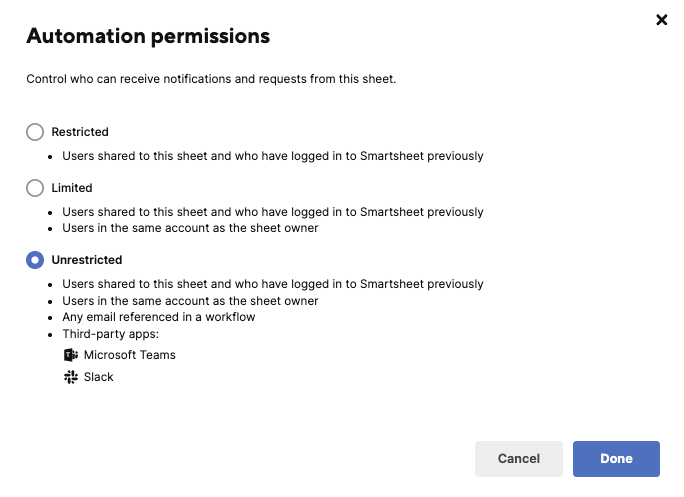
If the account-level permissions are set to Limited or Restricted, some of these settings may be unavailable. If you can't set your desired sheet-level alert and action settings, contact your System Admin to adjust them at the account level.
Receive alerts and requests via Slack, Teams, or Google Chat
To receive alerts and requests via chat on Slack, Microsoft Teams, or Google Chat, open your sheet and go to:
- Automation > Manage automation workflows
- Select the gear icon to open the Settings window.
- Select Unrestricted.
Then, set up your account depending on the app you want to connect Smartsheet to:
- Learn how to connect to Slack
- Learn how to connect to Microsoft Teams
- Learn how to connect to Google Chat
Troubleshoot notification delivery issues
If recipients aren't getting notifications, or if you're getting emails that one or more recipients can't receive them, here are some things to check.
Confirm notification type
Check that the automation is configured to send an alert, update request, or reminder. These notification types support external and unlicensed recipients when your automation permissions allow it. Other notification types require recipients to have a Smartsheet account.
Verify your automation is active
- Open the sheet and select Automation > Manage automation workflows.
- Confirm the workflow is active.
Send a test notification to an internal user
Temporarily add yourself or another licensed internal user to the recipient list. If they receive the notification, the automation is working, and the issue is specific to the external recipient's delivery configuration..
Share the intended recipient to the sheet
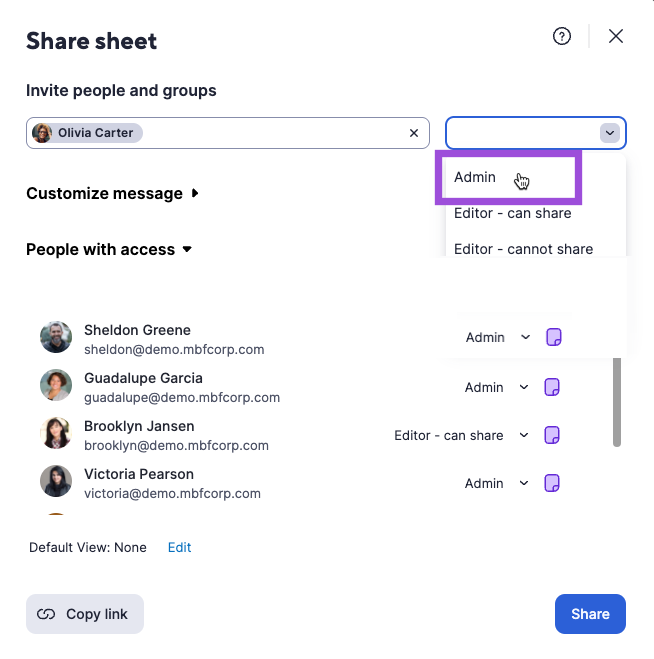
- Open the sheet and select Share.
- In the Add people by name, email or group field, type the email address of the person you want to share the sheet with.
- Set the desired sharing permission for them.
- Enter a personal message for the person in the Message (optional) section to provide more context about your sheet.
- Select Share.
Change your settings to be less restrictive
If you create an alert to go out to people not shared to your sheet, edit your Alert & Action settings to be less restrictive. Consider doing this if you removed someone's access to the sheet but still want them to receive alerts.
- Open the sheet and select Automation > Manage automation workflows.
- Select the gear icon to open the Settings window.
- Choose a less restrictive setting (for example, Unrestricted).
Edit your notification recipient list
- Open the sheet and select Automation > Manage automation workflows.
- Double-click the automation that's causing the error messages.
- Modify the recipient list as needed (add or remove recipients) or change the settings to Unrestricted.
If you copy a sheet with alerts configured, update the workflow recipient list to remove any users who shouldn't receive unnecessary alerts.
Check the recipient's spam folder
Ask the external recipient to check their spam or junk folder. If the notification is there, they can mark it as not spam to help prevent future notifications from being filtered.
Confirm Allow List email addresses
Check with the System Admin on your account to ensure all the appropriate email addresses are on the Allow List for your organization.
To find your System Admin's email address, select your profile icon in Smartsheet (bottom left corner) > Plan Info > Contact Email.
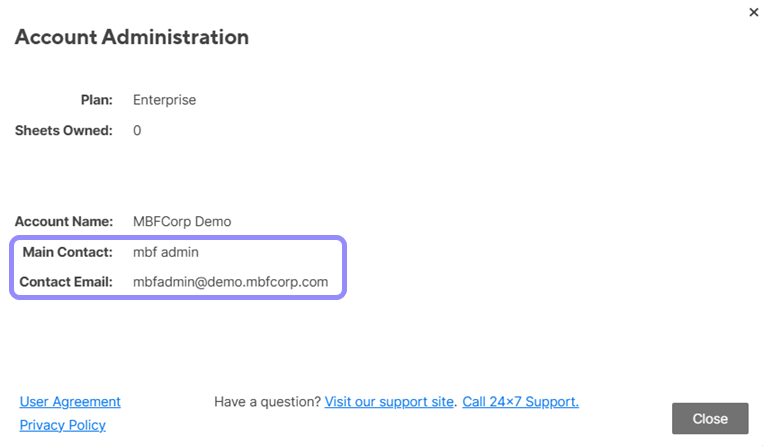
The Main Contact field tells you the name of your System Admin.
Check the recipient's email server's allow list
If the recipient's organization uses email filtering, Smartsheet notification emails may be blocked before they reach the inbox. Ask the recipient to check with their IT team to ensure Smartsheet's sending domains are allow-listed on their email server. For the complete list of domains organized by region (US, EU, AU), see Issue: Email not received from Smartsheet.