Use collections to share only relevant items or parts of any workspace (sheets, reports, dashboards, forms) with your collaborators and control access granularly.
USM Content
With collections, you can curate the selection of Smartsheet items and external content you want to share with your team. Add any Smartsheet item from any workspace or bring content from outside the workspace and even outside of Smartsheet (Google Docs, PowerBI dashboards, and other external URLs).

When can you use a collection?
Use collections to share curated content with a selection of collaborators. Gather and organize content you can share easily to provide a single view and streamline your team’s work. Add Smartsheet items (sheets, reports, forms) or non-Smartsheet content.
When you copy a workspace with a collection, you copy the collections in it.
What do collections offer?
- Flexible and granular access control. Provide collaborators access only to a part of a solution or a selection of items.
- A tailored experience. Give your team a focused view of their work. Combine Smartsheet items from different workspaces or add external content to complement your resources.
- Multiple Admins. Assign multiple Admins to a collection. All Admins can share, edit, or delete the collection.
What can you add to a collection?
The Smartsheet items that you add to your collection can live in any workspace.
Smartsheet items you can add to a collection:
- Sheets
- Reports
- Dashboards
- Dynamic Views
- Forms
For Smartsheet items, you can set specific views or filters as default to further customize what you want others to focus on.
Non-Smartsheet content you can add to a collection:
- Google Drive
- Miro
- SharePoint
- Vimeo
- Other external URLs
How do you access your collections?
You can access all your collections or create new ones through the workspace panel or from the All workspaces tab on Home.
Favorites section
You should favorite your collections to access them more directly. You can open them from the Favorites section on the left navigation bar.
There are two ways in which you can favorite a collection:
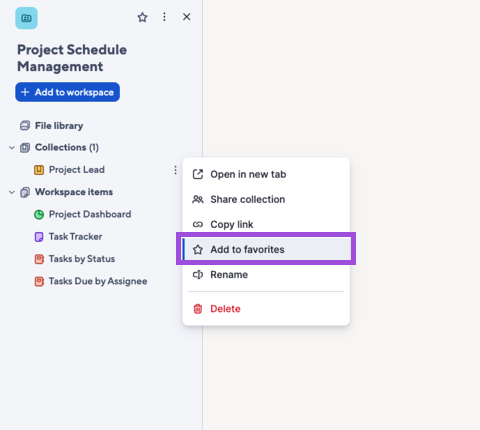
- From the workspace panel. Open the workspace where your collection lives and use the three-dot menu to the right of the collection’s name to select Add to favorites.
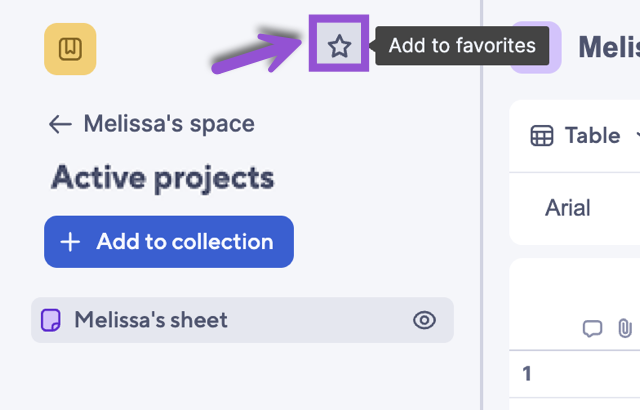
- From the collection panel. Open a workspace to access the desired collection, then select the star icon at the panel's top.
You can identify a collection in Favorites by the star that now appears over its icon.
Recents section
After accessing an item in a shared collection, use the left navigation bar to select Recents
Brandfolder Image
 and select the item. By selecting it, you go directly to the collection that contains the item.