You can transfer Owner permissions of sheets, reports, dashboards, and workspaces.
Use cases for transferring Owner permissions
- Someone in your team has a new job and isn't managing the same projects anymore.
- Someone has left your organization entirely, so you remove that user from the plan. Now, you need to assign Owner permissions for their Smartsheet items.
- Someone in your plan stops using Smartsheet.
Things to know
- You can only transfer Owner permissions for all items from a user. It's not possible to transfer only selected items.
- When you transfer Owner permissions to someone else, you keep the hierarchy of those items in place. Even when the Owner permissions for the underlying sheets or reports change, your dashboard widgets keep working.
Workspaces and permissions
If you transfer Owner permissions of items within a workspace from one owner to another user:
- ...and that user already has Admin or Owner-level access to the workspace, the items stay in the workspace, and the new user becomes the owner of the transferred items.
- ...and that user doesn't have Admin or Owner-level access to the workspace, the items remain in that workspace, the target user becomes the Admin of the transferred items, and the current workspace owner becomes the owner of the items.
Transfer Owner permissions of items
- In Admin Center, navigate to the Menu and select User Management (Legacy Collaborator Model) / User Roles and Reports (User Subscription Model).
On the User Management screen (Legacy Collaborator Model) / User roles and reports screen (User Subscription Model), select the user who owns the item you want to transfer.
If you're unsure about your model type, learn how to determine the model your plan is on.
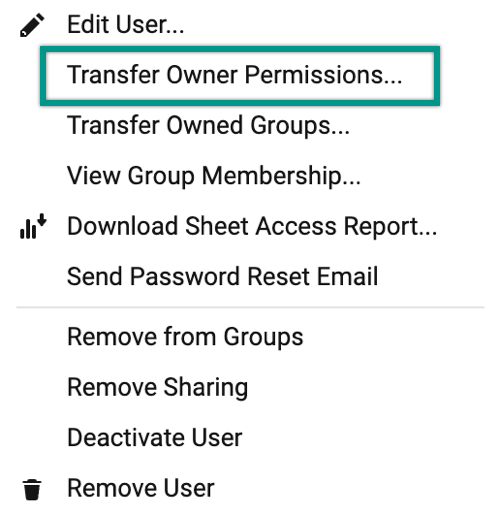
- Select the kebab menu
Brandfolder Image
 and then select Transfer Owner Permissions...
 - Enter the user email address of the new owner.
Select Transfer.
Brandfolder Image