Use web content widgets in your dashboard to embed interactive content such as sheets, forms, videos, and more.
USM Content
You can set up the widget when you first add it to your dashboard, or later by editing the dashboard and selecting the widget.
Enable the web content widget
System Admins have to enable the web content widget for everyone on the plan.
Learn more about global account settings.
- In the Admin Center, go to Menu > Settings > Security Controls.
- Under the Content and Chat Controls tile, use the toggle to activate or deactivate the Web Content Widget feature.
Use a web content widget in your dashboard to embed interactive content such as:
- Sheets
- Forms
- Videos
- Charts
- Calendars
- Other types of content from third-party tools
The web content widget isn’t available in the trial or individual version of Smartsheet. For more information about which features are included in which plan types, check out the Smartsheet Pricing page.
Add web content
- In the edit mode, select + Add Widget in the toolbar.
- Select Web content.
In the Web Content panel, select Add embed code.
Brandfolder Image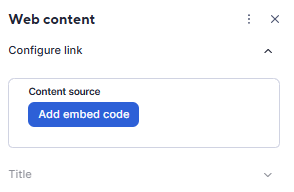
If you’re editing the link of an existing web content widget, in the Configure Link section, select Change.
- In the Embed Web Content box, paste the URL or embed code.
- Select Apply.
- If desired, add a title by expanding the Title section. Toggle Show Title on and use the Tytle styling options to format it.
- Select Save to save the changes to the dashboard.
Embed enabled web content
Here's a list of approved domains for embedding content from the web:
- Smartsheet forms
- Smartsheet Calendar App
- Smartsheet published sheets (Grid, Gantt, Card, and Calendar views)
- Tableau (Online and public)
- PowerBI
- YouTube
- Vimeo
- Published Google Docs, Slides and Sheets
- Google Maps
- Microsoft Excel*
- Microsoft Word*
- Microsoft PowerPoint*
- BING Maps
- Loom
- Google Calendar
- Adobe XD/Creative Cloud Solidworks
- Looker Studio
- Google Fusion Tables
- Catchpoint
- Lucid Chart
- Domo
Learn how to embed the listed apps/software in your Smartsheet dashboard.
Web content behavior in the Smartsheet mobile app
When you open a Smartsheet dashboard from the mobile app, you can't directly view certain embeddable content, but you can see it on the Smartsheet dashboard as an accessible link.
For identified content providers, the web content widget appears on the mobile app as an icon or logo. Unidentified content providers appear as a link icon with the content URL below it.
To access the content, open it in an external browser, the app, or tap the widget.