USM Content
Review access permissions and published content through detailed administrative reports.
Sheet access and published items reports
USM Content
For US and EU plans, both reports are available in two versions: standard and alternate. The version your plan receives is determined automatically based on plan size.
AU plans use a separate report format for both reports, regardless of plan size. See the AU version under each report for its columns.
The alternate version uses API endpoints to support large-scale deployments and returns raw, non-expanded data. If you're unsure which version applies to your plan, generate a report; the format indicates which version you received.
Generate a sheet access report
If you're in the legacy model, you must generate the report from the User Management page instead. Learn how to determine the model your plan is on.
- Sign in to Admin Center.
- Select the Menu icon to expand the left sidebar, then navigate to Users and Groups > Seat Types and True-up.
- Select Reports > Sheet access report.
- Check your email. The report goes to the email associated with your Admin Center login.
Standard version
The standard version of the sheet access report includes the following data:
- Key: The unique key for each sheet in your team's Smartsheet account. Users don't see this key. It can be helpful when you have multiple sheets with the same name.
- Name: Sheet names seen in your Smartsheet session.
- Workspace Name: Workspace names in your Smartsheet session.
- Type: Indicates whether the item is a sheet, report, or dashboard.
- Shared To: All email addresses for those who have sheets shared to them, whether paid, unpaid, or external collaborators.
- Shared To Permission: Shows permissions of who it was shared to (Owner, Admin, Editor (can share), Editor - (cannot share), Viewer, Commenter.
- Asset Last Modified Date/Time (UTC): Last date/time when the sheet was updated.
- User Last Activity Date/Time (UTC): Last date/time the user accessed the Smartsheet item.
- Item ID: Unique identification number for the shared item.
- Workspace ID: The unique identifier for the workspace that contains the item.
Alternate version
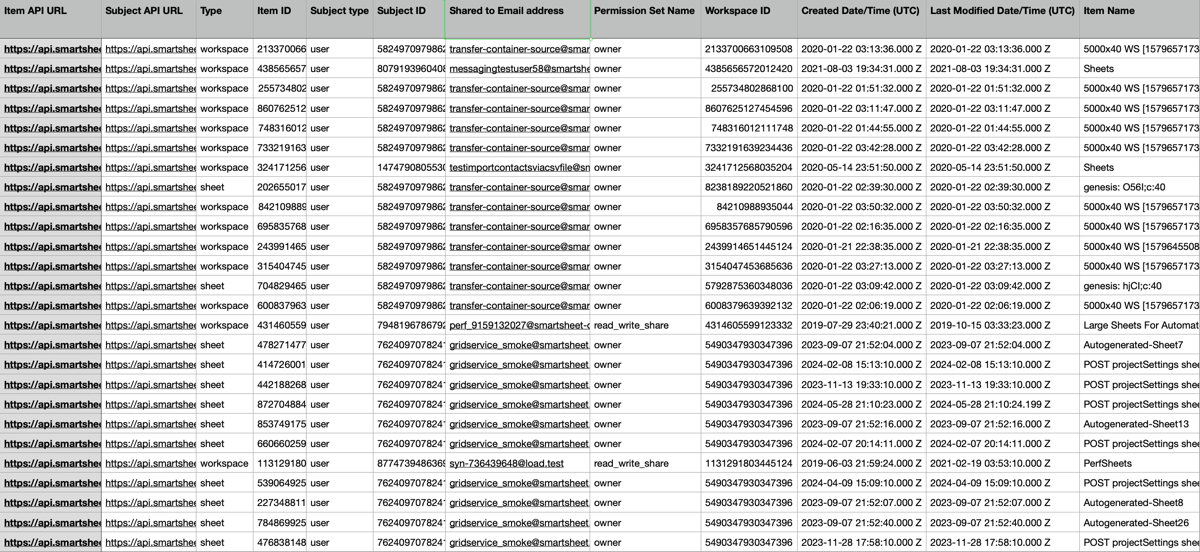
To support large-scale deployments, the alternate version uses item and subject API URLs instead of direct links or expanded user and group details. Direct links and expanded details can create performance issues; API URLs allow the report to generate and load efficiently.
The alternate version of the sheet access report contains the following columns:
- Item API URL
- Subject API URL (API URL to user/group)
- Type (item type, such as sheet or workspace)
- Item ID
- Subject type (user/group)
- Subject ID (user or group ID)
- Shared to Email address
- Permission Set Name (for example, read_only)
- Workspace ID
- Created Date/Time (UTC)
- Last Modified Date/Time (UTC)
- Item Name
AU version
AU sheet access reports use a separate column format, regardless of plan size.
- Key: The unique key for each sheet in your team's Smartsheet account. Users don't see this key. It can be helpful when you have multiple sheets with the same name.
- Name: Sheet names seen in your Smartsheet session.
- Workspace Name: Workspace names in your Smartsheet session.
- Type: Indicates whether the item is a sheet, report, or dashboard.
- Owner: The email address of the item's owner.
- Shared To: All email addresses for those who have sheets shared to them, whether paid, unpaid, or external collaborators.
- Shared To Permission: Shows permissions of who it was shared to (Owner, Admin, Editor (can share), Editor - (cannot share), Viewer, Commenter).
- Last Modified Date/Time (UTC): Last date/time when the item was updated.
Generate a published items report
If you're in the legacy model, you must generate the report from the User Management page instead. Learn how to determine the model your plan is on.
- Sign in to Admin Center.
- Select the Menu icon to expand the left sidebar, then navigate to Users and Groups > Seat Types and True-up.
- Select Reports > Published items report.
- Check your email. The report goes to the email associated with your Admin Center login.
Standard version
The standard version of the published items report contains the following columns:
- Key
- Name
- Type
- Publisher
- Published Format
- Published Item Type
- Access Control
- Publish Link
- Asset Last Modified Date/Time (UTC)
- User Last Activity Date/Time (UTC)
Alternate version
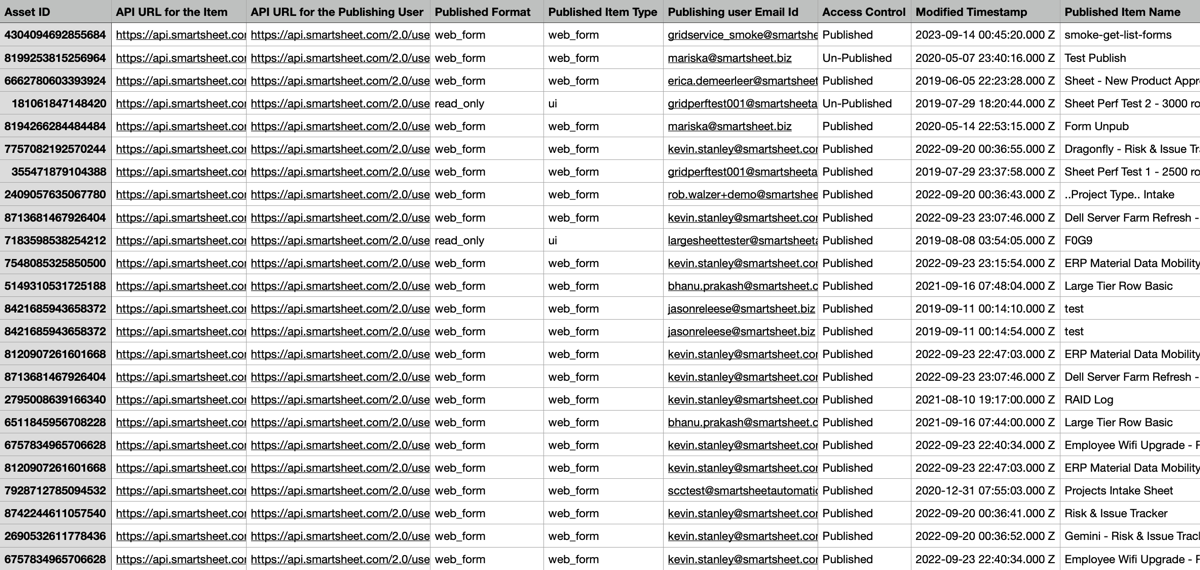
The alternate version of the published items report contains the following columns:
- Asset ID
- API URL for the Item (for Item Name)
- API URL for the Publishing User
- Published Format
- Published Item Type
- Publishing user Email Id
- Access Control
- Modified Timestamp
- Published Item Name
AU version
AU published items reports use a separate column format, regardless of plan size. This format doesn't include published forms as a published item type.
- Id: The unique identifier for each published item.
- Name: The name of the published item.
- Type: Indicates whether the item is a sheet, report, or dashboard.
- Owner: The email address of the item's owner.
- Publisher: The email address of the user who published the item.
- Publish Type: The format the item was published in.
- Access Control: The access level required to view the published item.
- Publish Link: The published URL for the item.
- Last Modified Date/Time (UTC): Last date/time when the item was updated.
The following FAQs apply to the alternate version of both reports and require API access. If your plan receives the standard version, these questions don't apply to your workflow.
What's the difference between the standard and alternate versions of the Sheet Access report?
The alternate version uses API endpoints that return raw, non-expanded data instead of expanding user and group details into individual rows. Because it doesn't expand those details, the alternate version contains fewer rows by design. For example, a group shared with multiple users appears as a single entry with an API URL rather than as separate rows for each individual user. To retrieve complete user or group details, use the API URLs provided in the report.
Is there an option to export the report in JSON format?
No.
What's the syntax for the Item API URL and Subject API URL in the alternate report?
The syntax for the Item API URLs is as follows:
- For a sheet: https://api.smartsheet.com/2.0/sheets/{{Resource ID}}
- For a report: https://api.smartsheet.com/2.0/reports/{{Resource ID}}
- For a dashboard: https://api.smartsheet.com/2.0/dashboards/{{Resource ID}}
The syntax for the Subject API URLs is: https://api.smartsheet.com/2.0/users/{{Subject ID}} or https://api.smartsheet.com/2.0/groups/{{Subject ID}} based on if the Subject Type is user or group.
For more information, see the Smartsheet API documentation.
How can I locate the Item IDs and Subject IDs?
To find the {{Resource ID}} for sheets, reports, or dashboards before the Sheet Access report is updated, you can navigate within Smartsheet to the specific asset, select File > Properties, and locate the asset ID listed there. The sheet access report also contains a Resource ID column.
User IDs aren't displayed in the Smartsheet UI, as email addresses serve as the primary identifier. To obtain User IDs, you need to utilize the Get User API. Here’s a quick guide on how you might retrieve User IDs:
- Make an API call to the Users endpoint: https://api.smartsheet.com/2.0/users
- Parse the response to extract User IDs associated with the current user’s email address.
For more information, see the Smartsheet API documentation.