Upload assets
You have several options for uploading in Brandfolder. To start uploading, you will first want to customize your sections and then select which section to upload your assets to.
- Drag files individually or in bulk to the uploader box.
- Select the uploader box and drag in an entire folder. Folders can only be uploaded after selecting the uploader box.
We recommend using Chrome to upload this way, as Brandfolder will pull in the folder names automatically as tags.
- You can also pull assets in from anywhere listed on the left-hand side of the uploader: Dropbox, Box, Google Drive, Link, or an FTP.
Edit assets
What edits can I make to an asset?
You can make several edits on a per-asset basis by clicking into an asset and then clicking the Edit tab. You can also add new attachments using the uploader box on the bottom-left side of the modal.
Under Asset Details, you will see several editable fields/items listed here, such as:
- Asset Name
- Description
- Tags
Under Custom Fields, you can attribute any custom fields you have set up for your Brandfolder for this particular asset. For more information about custom fields, visit the Setting up Custom Fields knowledge base article.
Under Advanced, you may see several editable fields/items listed, such as:
- Custom Asset Thumbnail
- Custom Watermark
- 360 Viewer
- Asset Background Color
PRO-TIPs:
- The recommended dimensions for the custom thumbnails are 375px X 160px.
- The Default for the Asset Background Color will be the gray and white checkerboard (transparent) or white, or you can pick your hex color.
Merge assets
Once assets are merged, they can't be unmerged.
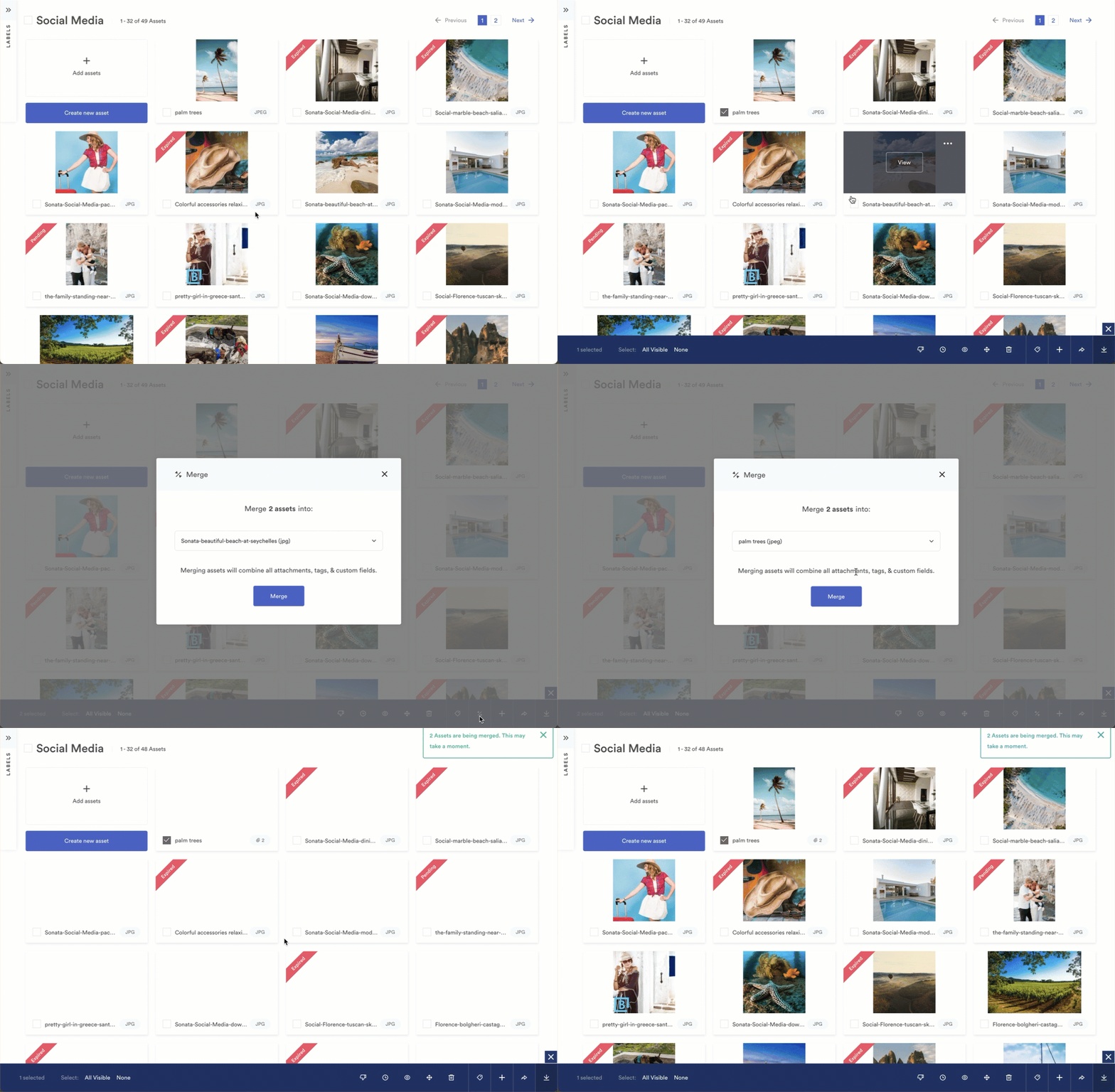
All attachments, fields, and tags are mered into the destination asset (the one you choose in the dropdown of the Merge option).
- Select assets you would like to merge by clicking the checkbox in the bottom right of each asset
- Select the Merge button in the bulk actions bar in the bottom right.
Users can open the asset modal to download individual attachments or all attachments. The edit tab of the asset modal allows users to reorder the attachments if needed.
The name and description of the destination asset remain the same, but the names and descriptions of the other assets being merged are lost.
It is recommended not to merge more than 49 assets together.