Use contacts in Smartsheet for faster collaboration. For example, use contacts when you send emails, share sheets, or assign tasks in Smartsheet.
One way to manage contacts is with the My Smartsheet Contacts list. Here, you can store the email addresses of coworkers you’ll be collaborating with in Smartsheet.
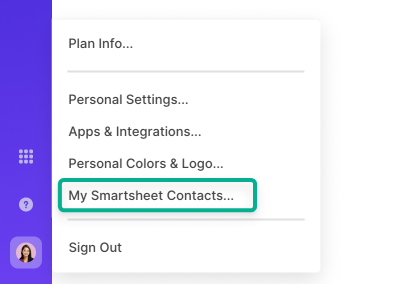
To view the contacts in your My Smartsheet Contacts list, open the left navigation bar and select Account > My Smartsheet Contacts….
Who can see your Smartsheet contacts?
Your My Smartsheet Contacts list is private to you. However, if you assign a task or share a sheet with one of your contacts, that contact's email address is visible to others who have access to the sheet.
Format your .csv File
If you want to import contacts from Outlook, Hotmail, or AOL, export the contacts to a .csv file. Then, add the following columns to the .csv file: First Name, Last Name, and Email Address.
Spelling must be exact, or the list won't import correctly.
Here's an example of how to format your .csv file:
First Name Last Name Email Address First Name Sally Last Name Smart Email Address sally.smart@smartsheet.com First Name Ian Last Name Intelligent Email Address ian.intelligent@smartsheet.com First Name Dave Last Name Diligent Email Address dave.diligent@smartsheet.com
You can import an unlimited number of contacts; however, you can only import 1,000 contacts at a time.
Add contacts to My Smartsheet Contacts
Bulk import contacts
- In the left navigation bar, select Account > My Smartsheet Contacts.
- Select Import Contacts.
- Select one of these options and follow the steps:
- .csv (Outlook, Yahoo, etc.)
- Select the .csv file, then Continue.
- Choose the contacts to import into Smartsheet, and then select Import.
- vcf (vCard File)
- Select the vCard file, select Continue, and then select Import.
Ensure your CSV file has no blank cells to avoid issues when bulk importing contacts.
Add contacts individually
- Select Account > My Smartsheet Contacts > Add in the left navigation bar.
- Type the name and email address of the contact.
- Select OK.
Add individual contacts when you share a Smartsheet Item
When you share items in Smartsheet by typing an email address, the email address is added automatically to your My Smartsheet Contacts list.
You can associate a name with the address in two different ways:
- Edit the contact via the My Smartsheet Contacts form
- If you’re in the Sheet Sharing or Report Sharing form, add a contact to the list via the Select Contacts form:
- In the Invite Collaborators field, select the Select Contacts icon.
- In the Select Contacts form, select Add New.
- Enter your contact’s name and email address, and then select OK.
Edit or delete contacts
- In the left navigation bar, select Account > My Smartsheet Contacts...
- In the My Smartsheet Contacts form, right-click the contact to edit or delete.
- Select one of these options:
- Edit Contact: Enter a name associated with the email address
- Delete Contact: Remove a contact from your contact list
- Deleting or editing a contact in your contact list doesn't remove or update the email address on shared sheets. See the Find and replace values within a sheet article to re-assign tasks.
You can’t edit a contact's email address, only the name. To adjust an email address, create a new contact for a user.
Export contacts from your Smartsheet Contacts List
- In the left navigation bar, select Account > My Smartsheet Contacts...
- Select Export Contacts > .csv.
The contacts from your My Smartsheet Contacts list appear as an exported .csv file to the location where downloads are stored on your computer.
Tips and best practices for using contacts
- You can manage which contacts appear when you type in a cell.
To use contacts from your entire Smartsheet contact list, type your contact's name in a cell in the Contact List column. Once you start typing, results appear in the contact list.
There isn't a way to use contact list entries from other sheets.
- Group Admins on Business and Enterprise plans can organize contacts into groups. This makes it easier to share and send information to multiple people.
- The names you select for your contacts appear when you assign tasks in the Contact List columns. However, in other areas, such as the Sharing list, the name displayed is pulled from the user's Smartsheet account.
