Manage your data integrity by locking and unlocking columns and rows.
If you want to protect critical data from being changed or deleted by others who are shared on your sheet, you can lock columns and rows. Data contained in cells in locked rows or columns cannot be edited. Similarly, cells in newly inserted rows won't be editable in locked columns. Locked columns and rows also apply to anyone working from an update request or published sheet.
You can lock any column or row except the attachment and comment columns.
Another way to protect your data is to use the proper sharing permissions when you share your sheet. For example, if you don't want them to be able to make changes, share a sheet with someone with Viewer permissions rather than Editor permissions.
You can create workflows that lock rows automatically when specific conditions are met. Learn more about Action blocks: Specify what automation is triggered.
Lock a column or row
To lock a column, right-click the column header and click Lock Column.
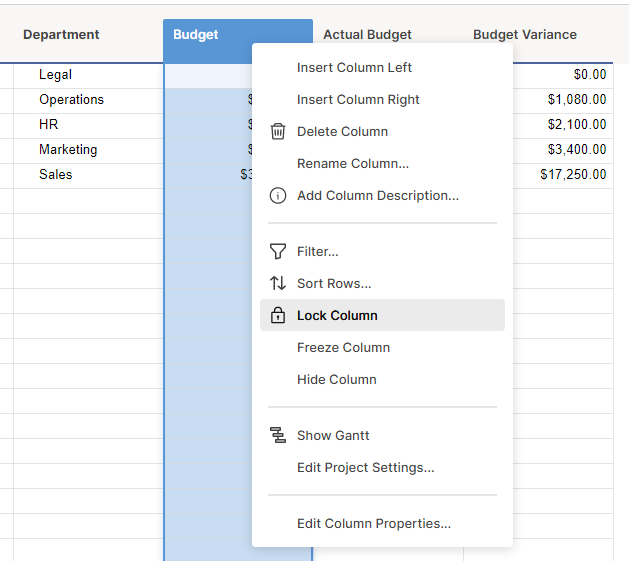
Locking a column doesn't prevent someone with Editor-sharing permissions from deleting or moving rows. It prevents them from editing or deleting any data in that column.
To lock a row, right-click a row number and click Lock.
A lock icon will appear in the column or row headers to indicate that a column or row has been locked.
Unlock a column or row
To unlock a row:
- Right-click on a row's number and select Unlock Row. (Or, click the lock icon in the row’s Lock column.)
- Select OK in the message requesting your confirmation to unlock it.
To unlock a column:
- Right-click the column header and select Unlock Column (or click the lock icon under the column header).
- Select OK in the message requesting your confirmation to unlock it.
You can freeze columns to keep them visible while the rest of the sheet scrolls left or right.