Applies to
- Pro
- Business
- Enterprise
Capabilities
Who can use this capability
Owners, Admins, and Editors on a sheet can add, version, or delete attachments. Anyone with access to the sheet can view and download attachments. You can send an attachment in an email to anyone with a valid email address.
System Admins for Enterprise accounts can disable any file attachment options.
Keep attachments current
Upload a new version of an attachment while still preserving prior versions.
How you update an attachment depends on where the attachment came from:
- File uploaded from a computer or mobile device: If the file is attached to the sheet directly, you have to download the attachment and edit the file outside of Smartsheet, and then upload the edited file as a new version.
- Attachment resides on a third-party service: If the file is attached from a third-party storage service compatible with the Smartsheet Attachments capability (Google Drive, OneDrive, Dropbox, Evernote, Egnyte, or Box), the most efficient way to keep the file current is to edit it directly in the hosting service.
You may need to be the file owner on the corresponding online storage service in order to access and edit it. For more information about compatible third-party file hosting services, see Attach a File or Link From an Online Resource.Files attached from Box are read-only when accessed from Smartsheet. You must be shared to the file with appropriate permissions in Box to be able to edit or download the file for editing and versioning. More on editing and versioning files in Box can be found on the Box community site.
If you aren't sure which situation applies to the file you are working with, you can find the answer in the Attachments panel (select the Attachments icon in the right panel to display it) and hover the mouse over the menu icon. Files that were uploaded from a computer or mobile device include the menu items Download File and Upload New Version.
Update a file uploaded from your computer or mobile device
- Select the Attachments icon in the right panel.
- Hover over the attachment that you want to update and go to Menu icon > Download File.
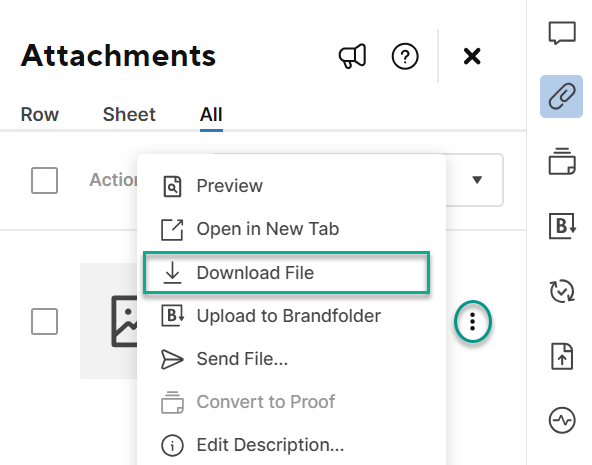
- Once you've edited the file, locate the now out of date version in Smartsheet and select Upload New Version.
- Locate the file on your device and select Open.
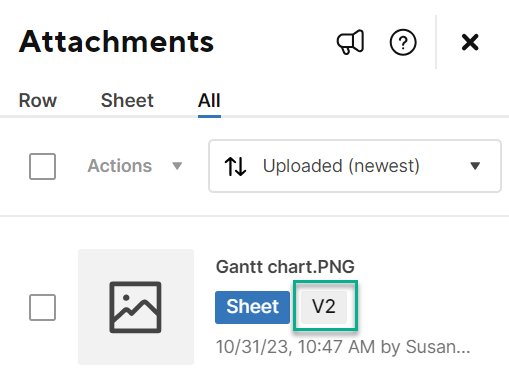
That's it! You'll see an updated version number below the name of the attachment.
View and download attachment versions
- In the Attachments pane, locate the attachment for which you want to view or download a previous version.
- Hover over the file name for the attachment and go to Menu icon > View Version History (or select the version indicator in the file details).
- Hover over the version of the attachment that you want to view or download and click Preview File or Download File.
When anyone downloads an attachment, they download the most recent version
To delete attachments that are no longer needed, see Delete a File Attachment From a Sheet.