Use sort to organize the data in your sheet.
USM Content
Use Sort to arrange sheet data in ascending or descending order. You can apply up to three levels of sorting.
Sorting affects existing rows in the sheet. When new rows are added, you need to sort again to include them.
Sorting the sheet only affects your view and isn't persistent for other users.
Sort rows in grid view
In grid view, you can’t undo a sort after the sheet is saved. Ensure the rows in your sheet are arranged as desired before saving it.
When sorting, you can choose to work with all rows in your sheet or only selected rows.
Sort all rows
- Right-click on a column header and open the column options menu.
- Select Sort Rows. The Sort form appears.
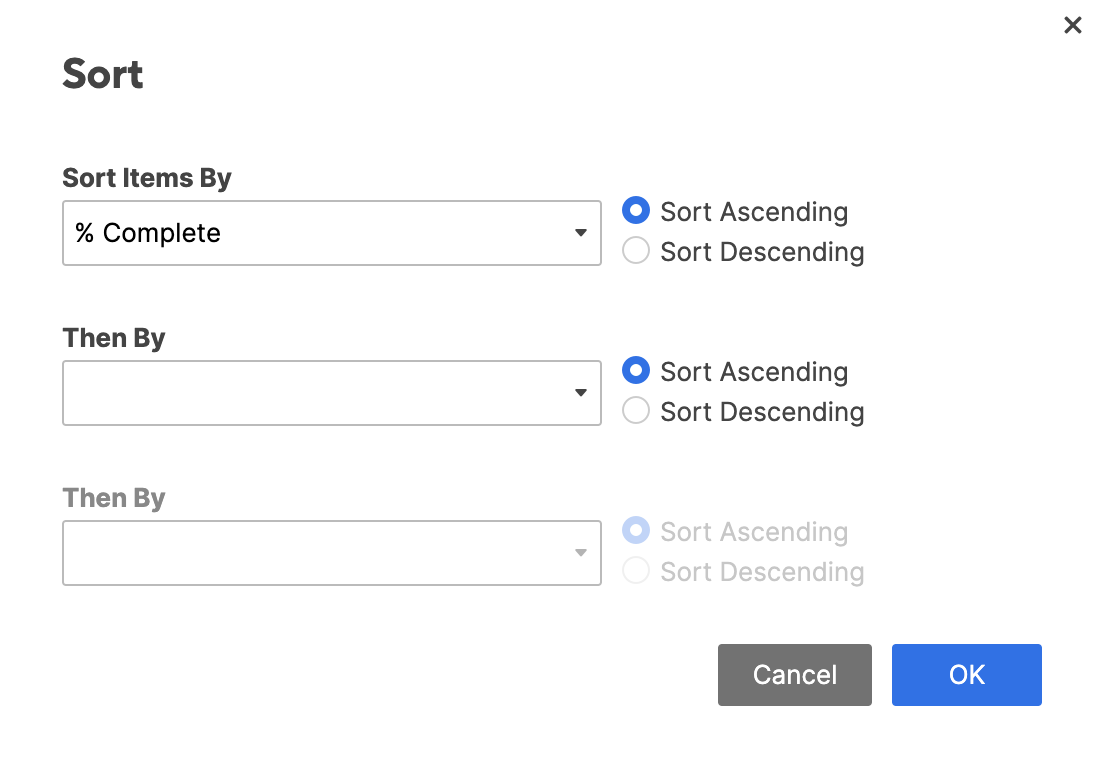
- Enter sort criteria and then select OK.
Sort a selection of rows
- Highlight the rows by holding down the Shift key and selecting the row numbers you want to sort.
- Right-click the selected area, then select Sort Rows.
- In the Sort form, enter your sort criteria and selectOK.
Sort your data in table view
To sort rows in ascending or descending order in table view, you can:
- Open the column options menu and select Sort rows.
Or,
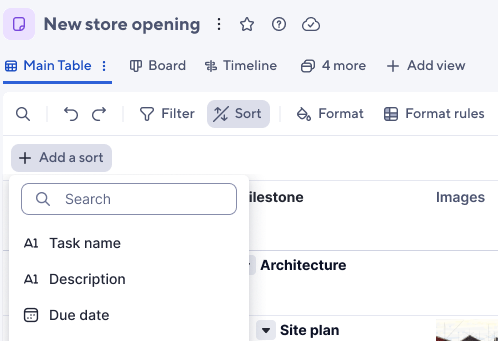
- In the toolbar, select Sort > Add a sort and choose the column you want.
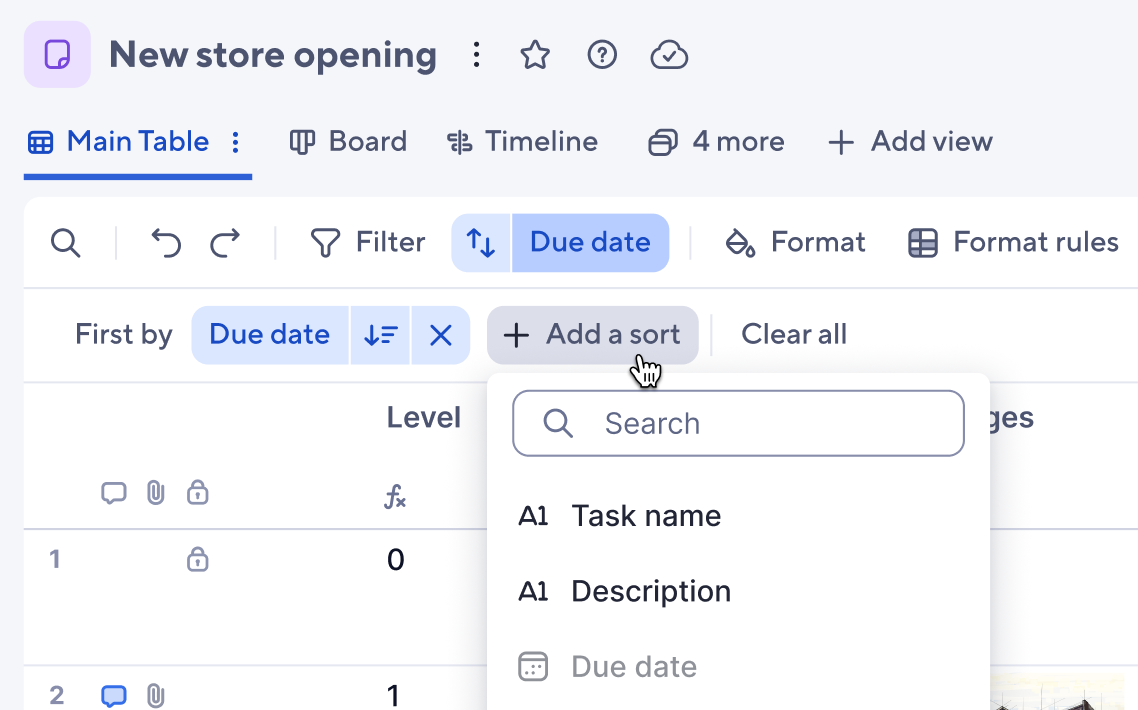
When applying a sort, the arrow next to the selected column name indicates the sorting order. Select it to change to reverse the order.
When one or two sort levels are applied, Add a sort is still available, as you can sort up to three levels.
How different data types are sorted
The type of data you sort influences the result. Here are a few examples:
- Hierarchy: If you’ve created sub-items, the sub-items are sorted but kept beneath their parent row. The parent rows are also sorted, but their sub-items move with them.
- Data created with a Dropdown list: If you sort on a column that is a Dropdown List type, items are sorted using the order of the drop-down list values. Double-click on a column header and select Edit Column Properties to view/edit these values or to change their order.
- Harvey Ball values: When sorted in ascending order, the values will be ordered as Empty > Quarter > Half >Three-Quarters > Full > Blank.
- Red-Yellow-Green values: When sorted in ascending order, the values will be ordered as Red > Yellow > Green > Blank.
Mixed letters and numbers: Values that start with a letter and include a number will be sorted first in alphabetical order, then in numerical order, starting from the leftmost digit. For example, the values Q1, Q2, Q3, Q12, will be sorted as Q1, Q12, Q2, Q3.
When sorting in ascending or descending order, blank rows are sorted below rows with values.
Sort behavior in reports
When you sort a report, items are sorted in ascending or descending order. If you sort on a column that is a Dropdown List type in the source sheet, items aren’t sorted based on the predetermined dropdown values in the included source sheets.
A report can pull from multiple sheets and consolidate columns with the same name and column type. If the dropdown list columns have different values across sheets (for example, a, b, c, d in one sheet and 1, 2, 3, 4 in another), the report cannot determine which sort to apply to the consolidated column.
Why is the Sort option unavailable?
Sorting is only available for Editor permissions or higher.
If you have Editor permissions and the Sort option appears unavailable, your selection may include locked rows. Deselect any locked rows and try again. Editors can sort a sheet, but can't sort locked rows.
Learn more about sharing permission levels.