Within Smart Assist, you can upload files and then use natural language to attach them to sheets or add their data to new or existing sheets.
USM Content
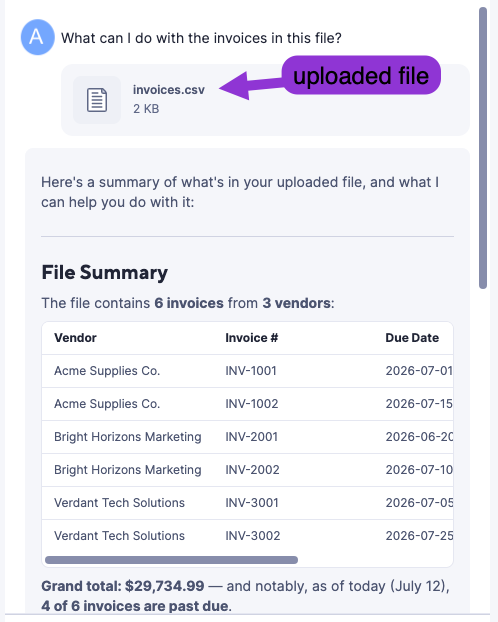
In the image below, Smart Assist summarizes data from the uploaded file, prototypes a sheet, and offers to create the sheet.
What can I do with files in Smart Assist?
The points below describe some of the many things you can do with files in Smart Assist:
- Transcripts to tasks — Upload a meeting transcript and have Smart Assist extract action items and propose new rows or updates for your approval.
- Spreadsheet ingestion — Upload a .csv file to update existing rows, add new rows, or populate a new sheet.
- Document matching — Upload invoices or other documents; Smart Assist can match items to the right customer or vendor row and propose updates.
- Reference content — Upload briefs, images, or PDFs into a campaign sheet. Tell Smart Assist what you want to do, and it recommends actions and performs the ones you approve.
Next, learn how to upload a file into your conversation and use the file contents in your sheet.
Example: Importing data from a file
The following steps show how to upload a file to your Smart Assist conversation and use the file contents.
In the Smart Assist chat input, upload a file by using one of the following methods:
- Click the attachment icon and browse for a file.
- Drag and drop a file into the chat input.
- Paste a file directly into the chat input.
The file appears inline in the chat thread with its name, type, and size.
- In the chat input, tell Smart Assist what to do with the file or ask for suggestions. Then, submit your input. Smart Assist proposes actions for you to approve.
Review Smart Assist's proposed actions.
For example, the proposed actions can show a sampling of rows that Smart Assist suggests adding to the sheet.
Brandfolder Image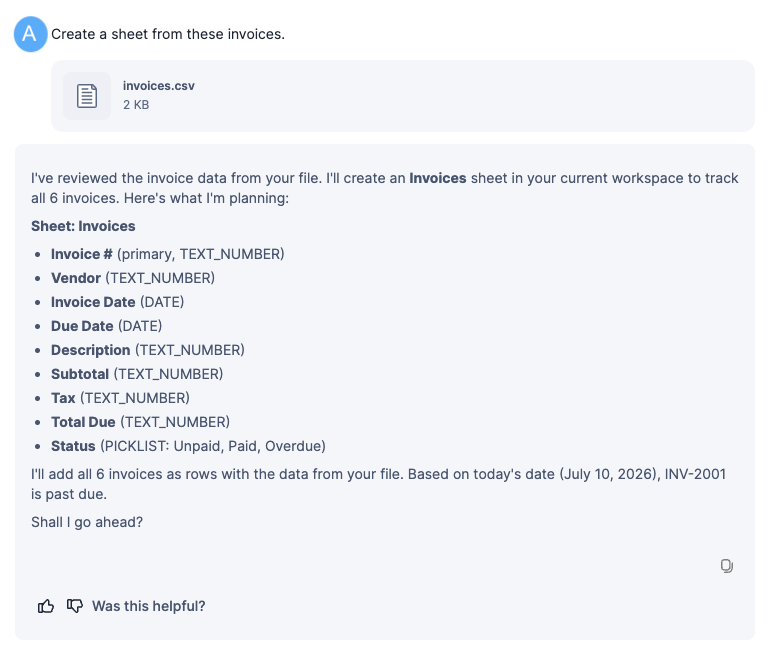
When you're ready to make the proposed changes, submit your approval in the chat input.
Upon approval, a newly created sheet, sheet details, and a link to the sheet appear.Brandfolder Image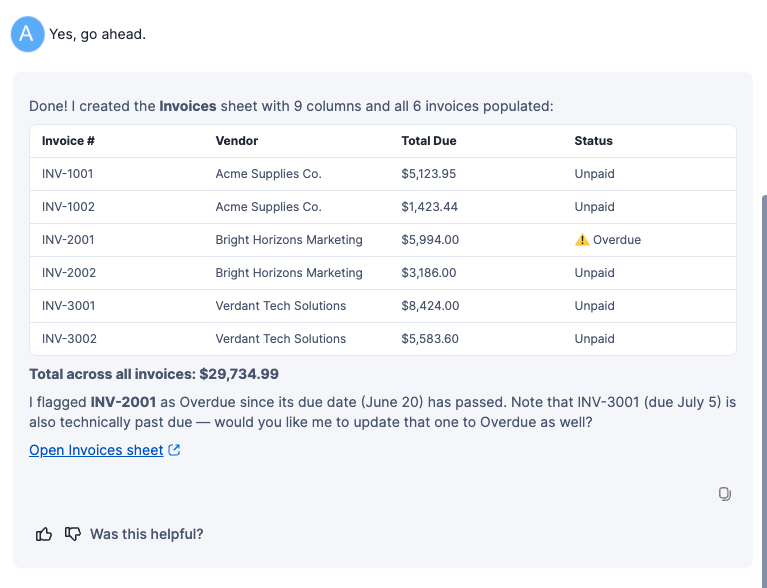
You modified a sheet based on data from the file you uploaded.
Supported file types and size limits
The table below identifies the types of files you can upload to Smart Assist.
| Category | Supported formats |
|---|---|
| Documents | PDF, TXT, MD |
| Spreadsheets | CSV |
| Images | PNG, JPG, GIF |
| Transcripts | VTT |
Size limits
The following points specify upload file size limits.
- Images: up to 3.75 MB
- All other files: up to 4.5 MB
You can upload only one file at a time. Any additional file that you upload replaces the formerly uploaded file in the chat.
Privacy and security
The following points describe the privacy and security of files you upload to Smart Assist.
- Files are scoped to your chat session. When you close the Smart Assist panel, the file is removed from chat history.
- All uploaded files are scanned for viruses before processing. Malicious files are blocked.
Start uploading files today to enhance your workflows with Smart Assist.