In Copilot Studio, administrators can configure an agent to use the Smartsheet MCP Server and make that agent available to their organization.
USM Content
This article describes how to configure and publish an agent enhanced with the Smartsheet MCP Connector.
The following video demonstrates the configuration steps.
Prerequisites:
AI and MCP server access are enabled for Smartsheet organizations by default. Unless your Smartsheet system admin disabled AI or MCP server access, you're ready to configure the connector.
- Microsoft 365 Copilot license with Copilot Studio access (included in most M365 Copilot Enterprise plans)
- Smartsheet Business, Enterprise, or Advanced Work Management plan
- Copilot Studio Maker role (or Environment Admin) in your Power Platform environment
- AI and MCP server access must not be disabled in Smartsheet for your organization. Note: AI and MCP server access are enabled by default.
How do I configure and publish an agent enhanced with the Smartsheet Connector?
The following steps describe how to configure and publish the agent.
- Go to Power Platform’s Copilot Studio at https://copilotstudio.microsoft.com/.
- Create a custom agent or select an existing agent and edit it.
- Start adding a Tool of type Model Context Protocol. Then, find and select the Smartsheet US connector.
- Create a connection and follow the authorization flow.
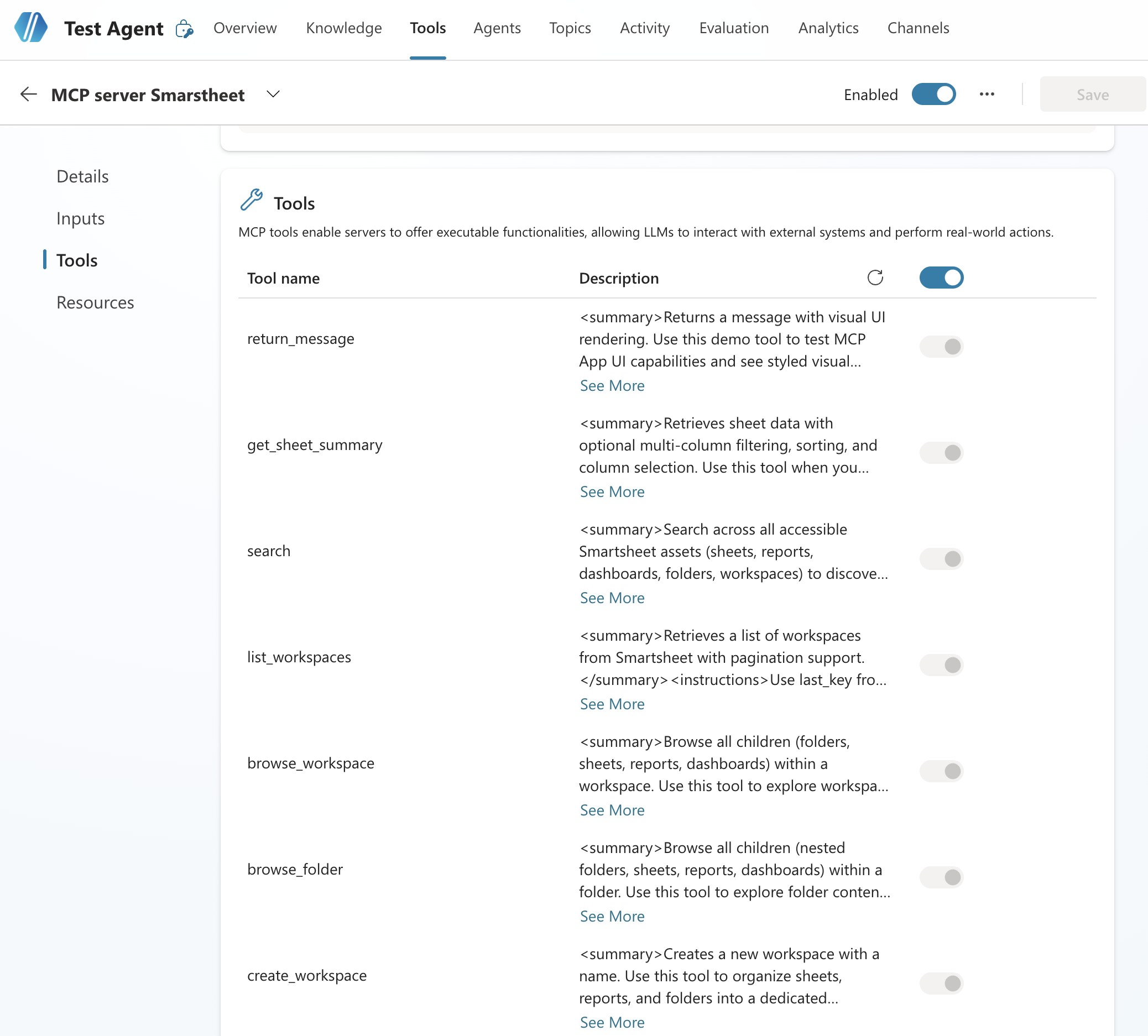
- On the settings page for your MCP server, review the listed tools and resources. You can enable/disable tools exposed from the Smartsheet’s MCP server.
As the agent’s administrator, you’re determining the Smartsheet MCP Server capabilities available to agent users in Microsoft 365 Copilot.
- Optionally, test your agent by prompting it in the prompt panel on the right side of all tabs in the configuration page.
If you need to reconnect, open the connection manager and follow the flow. - Publish your agent.
- Connect your agent to a channel for your organization's users to use.
The agent is available and ready for usage in Microsoft 365 Copilot for anyone within your organization/tenant.
Share the agent name with users in your organization.
If the agent isn’t available in Microsoft 365 Copilot chat at first, reconnect the agent.