Tag people in your assets to improve search accuracy and reduce the time spent manually reviewing large collections of images.
USM Content

Brandfolder automatically detects faces in your images when you upload them. You can tag the people who appear in these assets to improve search accuracy and reduce the time spent manually reviewing large collections of images.
Once you assign a name to a detected face, Brandfolder saves it as a reusable tag. It recognizes that person in future images and automatically suggests the correct tag.
You can use people's names as criteria in Advanced Filters when searching for assets. After a person is tagged, their name becomes available as a filter option, allowing you to instantly pull up all assets where that individual appears.
How to turn on people tagging?
- Go to the Brandfolder where you want to activate it.
- Navigate to Settings > General settings > Advanced.
- Scroll until you find People tagging.
- Select Enabled.
How to tag a person?
- Upload an image with faces in it.
- Select the bonds created by Brandfolder, identifying the person’s face.
- Assign a name.
- Fill other custom fields as required.
- Select Save.
Once a person is tagged, their name displays on the asset and becomes searchable across your Brandfolder.
People tags on assets
You can view, edit, and delete people tags directly from the asset’s modal.
To view people tags:
- Select the asset.
- Go to the Overview tab.
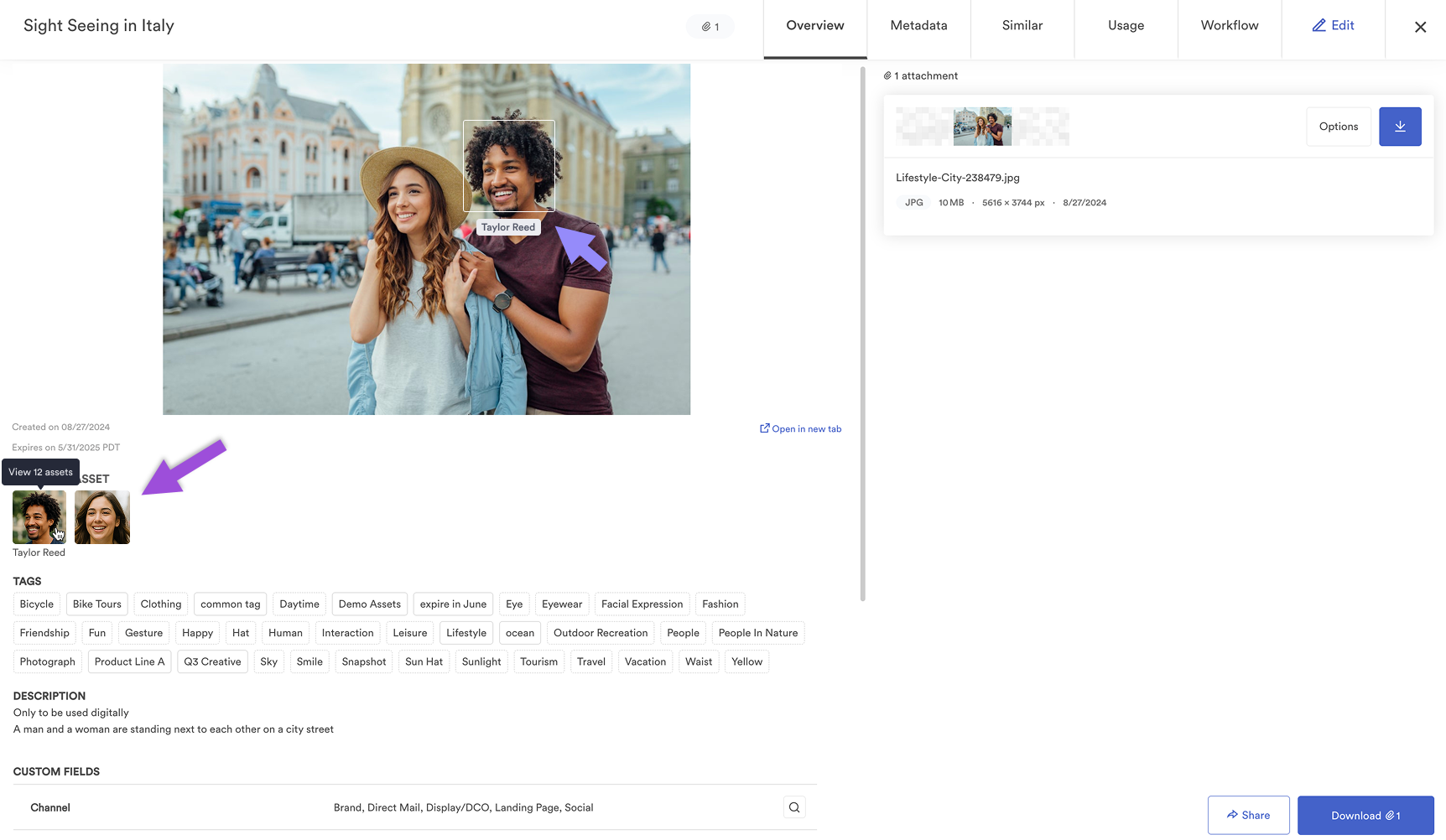
The People in assets section displays the faces identified in the asset.
The following sections provide steps on how to edit, remove and merge people tags on a specific asset. All these actions can also be done in Bulk, see Manage people tags in bulk.
To edit the tags:
- Select Edit.
- Select a detected face to assign or edit a name.
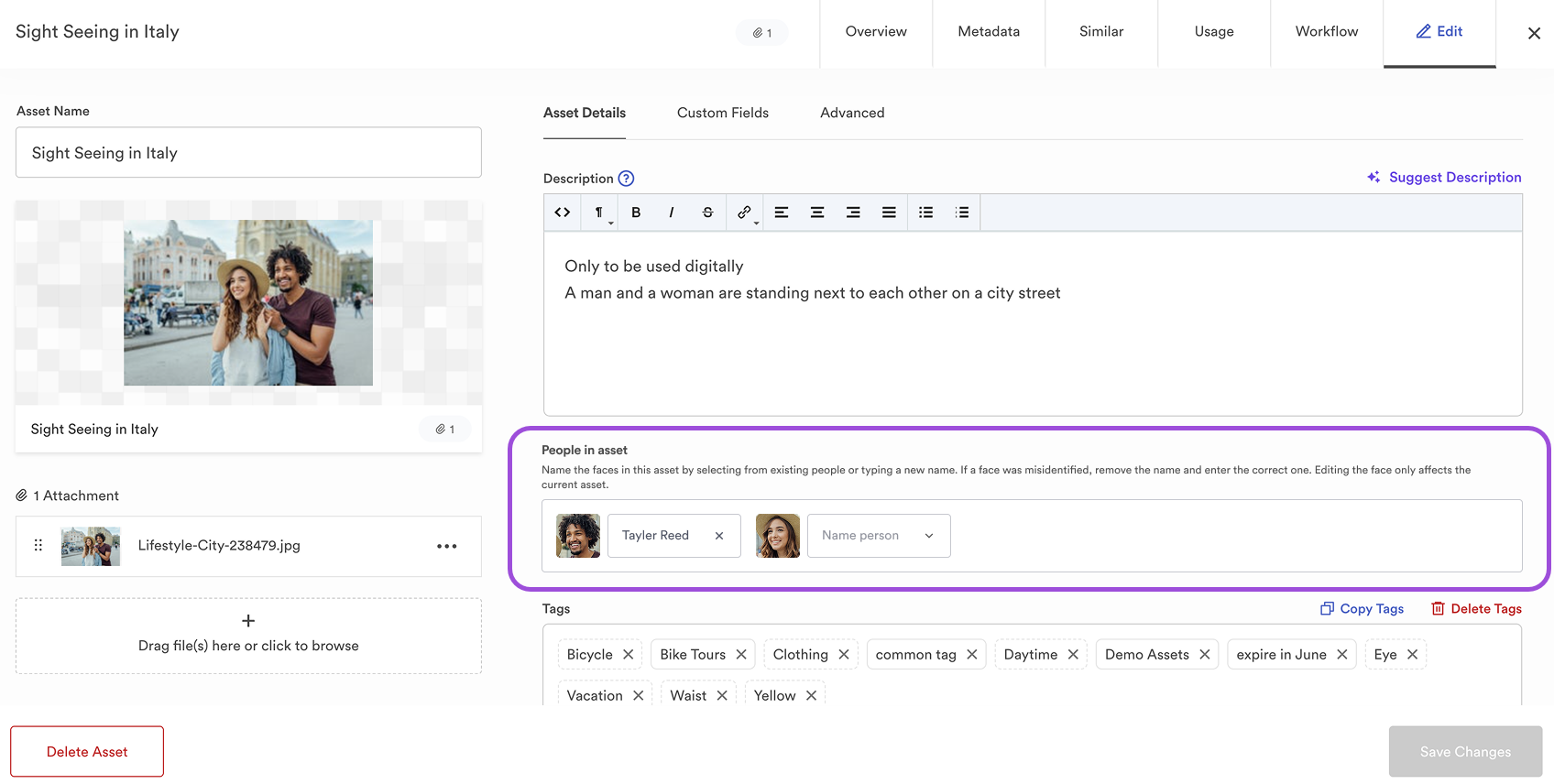
To remove a name tag:
- Select the cross icon next to the person's name.
This deletes the name tag from a person’s face. Useful for incorrect face identification.
To merge people:
- Open the asset modal and go to the Edit tab.
- Select the detected face and begin typing a name to see existing profiles in the dropdown.
- Select the existing name you want to merge with.
- A confirmation modal appears. In addition to Merge people and Keep them separate, you also have the option to:
- Merge just this instance of the person (useful for correcting a single misclassified asset), or
- Merge all instances of this person across the system.
Manage people tags in bulk
- Go to Settings > Bulk Management.
- Select People.
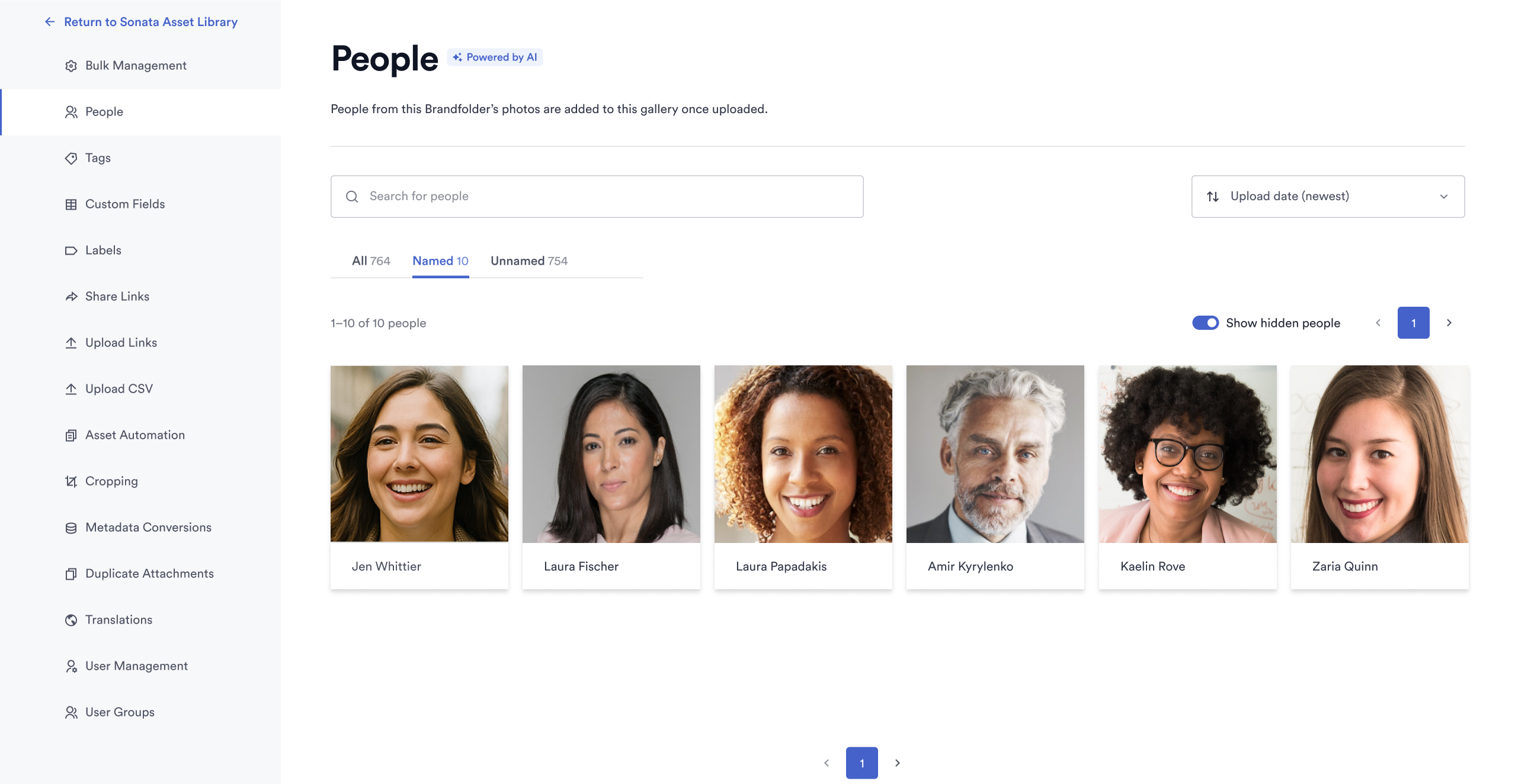
Here is the list of people who have been tagged across your Brandfolder. You can:
- Use the tabs to see All people, Named, or Unnamed individuals.
- Use the search box to find a person by name.
- Use filters to narrow results by tag confidence, detection date, or folder.
- Sort the list by Upload date, Frequency, Last name, or First name.
- Select a person's face to open a new tab with all assets where that person appears.
Edit a person’s tag
- Select the face you want to rename.
- Update the name or add alternate names/aliases as needed.
- Select Save.
If the name you enter matches an existing Person Profile in the People Hub, a confirmation modal appears offering to Merge people or Keep them separate.
Merge duplicate people
- Select the name field of the person you want to merge.
- Start typing a name. A dropdown appears with existing named profiles.
- Select the existing name you want to merge with.
- A confirmation modal appears showing the two conflicting profiles. Select one of two options:
- Merge people: combines both profiles into one.
- Keep them separate: allows two people with the same name to coexist in the system.
Merges are irreversible.
Remove a person tag
To remove a name from a person:
Select their name to enter edit mode.
Clear the current value.
Press Enter.
The name is removed from the person's profile.
Hide or unhide identities
Hiding an identity removes the person’s thumbnail from the asset modal, but the bounding box indicating that a face was identified still appears.
- Hover over a person’s face.
- Select the three-dot menu.
- Select Hide identity. (Or Unhide identity, depending on what you want to do)
You can toggle on Show hidden people to display the hidden identities in the People hub, or toggle it off to see only unhidden identities.