Link your Smartsheet account to Claude to generate natural-language summaries and take action on individual sheets.
USM Content
This Connector uses the Model Context Protocol (MCP), a secure standard that allows Claude to access your Smartsheet data with your permission, understand your work in context, and act on your behalf.
Claude securely accesses live sheet data—such as task progress, overdue items, and key risks—and presents a concise summary directly in the Claude interface. You can also update statuses, dates, and risks using natural-language prompts, making it easy to understand project status and keep work moving without navigating multiple sheets.
The Smartsheet MCP prompt cookbook shows you how to prompt the Smartsheet Connector (the MCP server) to get powerful insights and take action.
Prerequisites
The following items are required for you to use the Smartsheet Connector in Claude:
- You are an active user on a Claude plan.
- A Claude Owner must enable the integration for your organization. Refer to Claude’s instructions here.
- The Claude Connector AI capability must be enabled. It's enabled by default for all eligible plans. If Claude access to Smartsheet appears to be blocked, contact your System Admin to activate it in the Smartsheet Admin Center.
Connect to Smartsheet
The following steps demonstrate how to connect Claude to Smartsheet:
- Open Claude and sign in with your credentials.
- Go to Customize > Connectors.
- If the Smartsheet Connector doesn't appear, select the search icon (magnifying glass) and search for Smartsheet.
- Once found, select it and then select Connect.
Claude prompts you for your credentials. - Log in with your Smartsheet credentials and select Allow.
When prompted, select the URL for your Smartsheet region:
US:https://mcp.smartsheet.com
EU:https://mcp.smartsheet.eu
AU:https://mcp.smartsheet.au
The Configure button and the server URL appear, confirming the connection.Start a new chat.
Enable the Smartsheet Connector for your chat.
You’re now connected to the Smartsheet MCP Server.
Manage Claude's permissions for Smartsheet functionality
You can configure permissions for individual Smartsheet tools, or apply them broadly to all read-only or write functions. In Claude, go to Customize > Connectors > Smartsheet > Configure. The following Smartsheet tools permission pages appears.
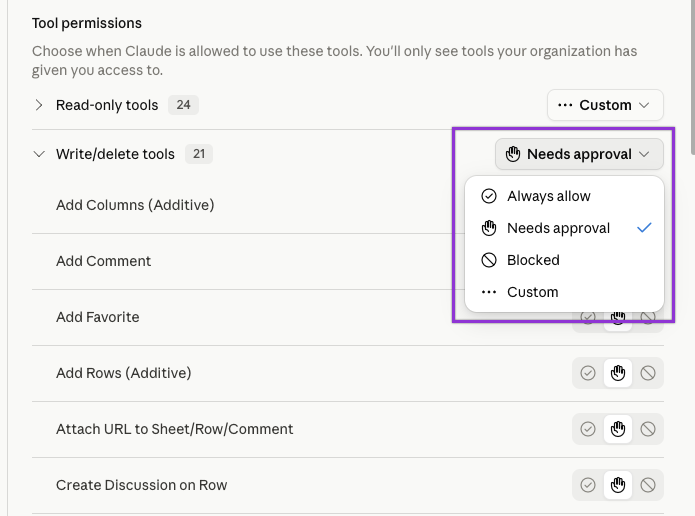
When a prompt triggers a tool, the Smartsheet MCP Server Connector applies its designated permission level. Every tool operates under one of three permissions:
- Always allow: Executes the tool automatically without asking.
- Needs approval: Prompts you for confirmation before running. If you decline, the tool is skipped.
- Blocked: Prevents the tool from running entirely and returns a notice that it is blocked.
See some examples on how you can use this Connector in your day-to-day work in Use the Smartsheet Connector with Claude.
FAQ
What access do Smartsheet and Claude have to my data via the integration?
Claude can access only the Smartsheet data you explicitly allow, including specific sheets, workspaces, or objects that you already have permission to view or edit, and only when you initiate a request. It cannot browse your account independently or access data outside the scope you select. Data is processed at runtime to generate a response and is not stored or used for model training. Smartsheet itself does not use customer data to train Claude or any other AI models, and does not access or process Claude-generated content, except for aggregated usage and reliability tracking.
How do I change the region for my Smartsheet MCP Connector?
When you set up the Smartsheet MCP Connector for the first time, you are prompted to select your region. This choice is cached to keep your connection stable.
If you need to switch to a different region later, you cannot simply change it in the settings or disconnect. You must fully reset the connection.
Follow these steps to reconfigure your region:
- Remove the Connector.
- Add the Connector again.
- During Connector setup, select your new region.
How do I limit Smartsheet and Claude's access to my data and prompts?
You control access through existing Smartsheet permissions and Admin controls. Both Smartsheet AI features and Claude can access only the specific sheets, workspaces, and objects you already have permission to use, and only when you actively initiate a request. Organization sysadmins can turn on and off Read/Write permissions. Data and prompts are processed at runtime solely to fulfill your request and are not stored or used for model training.