Learn how to set up session inactivity timeouts for users within your Smartsheet plan. This feature requires users to sign back in after a specified period of inactivity.
USM Content
The configurable user session expiry allows System Admins in Enterprise plans to set inactivity timeouts from 15 minutes up to a maximum of 30 hours. This setting applies plan-wide, affecting all managed users.
End-user experience on timeout
When users in your plan reach the configured period of inactivity, Smartsheet automatically signs them out by default and redirects them to the sign-in page for reauthentication. These users don’t get an option to continue their session.
Find out which sheet actions refresh a user's session.
Default timeout settings
If you don't specify a custom timeout, the default settings for session durations in the Admin Center are as follows: web sessions default to 19 hours, while desktop sessions default to 72 hours.
Any configuration for web sessions that is shorter than the default of 19 hours overrides the desktop session configuration.
Examples
- If you set web sessions to 4 hours, then the desktop session matches the web configuration of 4 hours because it’s shorter than the default.
- If you set web sessions at the default of 19 hours or more, the desktop session automatically defaults to 72 hours, following the existing configuration logic.
Known limitations
- The configurable inactivity timeout applies only to web and desktop sessions, not to mobile sessions. For mobile session setup, reach out to Support.
- This feature applies to the Smartsheet app, Dynamic View, Calendar App, Resource Management, WorkApps, Collections, Bridge, and Data Table. It doesn't support Data Shuttle, DataMesh, and the Pivot App.
- Gov plans can't set up inactivity timeouts independently in Admin Center. To activate the feature, Gov System Admins must contact Smartsheet Support.
Configure user session expiration
Once activated, users must sign out and sign back in for the Admin Center to enforce the new session timeout configuration.
- Navigate to the Admin Center menu located at the top left.
Go to Settings > Security Controls.
The Security & Controls page displays.
Scroll to the Session Inactivity Timeout card.
Brandfolder Image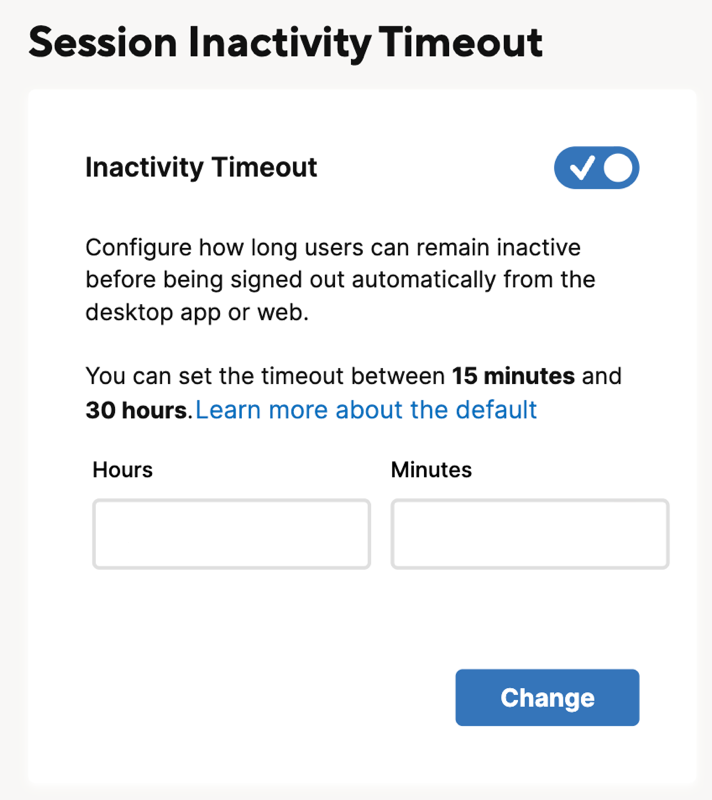
- Toggle Inactivity Timeout on.
Use the Hours and Minutes fields to configure the duration for which users can remain inactive before Smartsheet automatically signs them out of the desktop app or web.
If the value you enter is less than 15 minutes or greater than 30 hours, an error displays.
Session refresh sheet actions
The following table outlines various actions within a sheet and whether they refresh the user's session.
Action | Grid view | Table view |
|---|---|---|
Scrolling | Yes | Yes |
Clicking on a cell | Yes | Yes |
Enter data into a cell | No | Yes |
Save the sheet | Yes | Yes* |
Open comments | Yes | Yes |
Post a comment | Yes | Yes |
Open attachments | Yes | Yes |
Upload attachment | Yes | Yes |
View cell history | Yes | Yes |
Sharing actions | Yes | Yes |
Form edits or submission | Yes | Yes |
Report or dashboard edits | Yes | Yes |
Searching (files or data) | Yes | Yes |
Download | Yes | Yes |
Admin Center actions | No | No |
Actions in premium apps | Yes | Yes |
Open a view (Dynamic View) | Yes | Yes |
Favorite a view (Dynamic View) | Yes | Yes |
Scrolling (Dynamic View) | No | No |
Clicking on a cell (Dynamic View) | No | No |
View attachments (Dynamic View) | Yes | Yes |
View comments (Dynamic View) | Yes | Yes |
* Editing a cell automatically saves.
FAQs
Does changing the session inactivity timeout length sign out users who already have a session longer than the new timeout length?
No, the new session timeout configuration takes effect during the user's next session. This means the user must sign out and sign back in to be subject to the new session timeout settings.
If session timeouts don't apply to Data Shuttle, DataMesh, Pivot App, or Control Center, what are the session timeout options for these apps?
Contact Smartsheet Support for details regarding session timeout options for these apps.