You can interact with sheets and reports in various views on mobile devices using the mobile app.
USM Content
Sheets and reports must first be created and configured in the web application before using them in the Mobile App.
Any changes you make in sheets or reports are automatically saved. You can use the refresh symbol at the top to have the latest information.
Act on rows, columns, or the entire sheet
The options menu
 at the top-right in the screen provides access to the following actions for sheets and reports.
- Share
- Sort
- See attachments, conversations, or forms
- Print or export
- Add rows or edit columns
Switch views to change how you see your work
The mobile app supports several different views to optimize how you interact with your sheets and reports.
To switch views, tap the Views icon on the navigation bar.
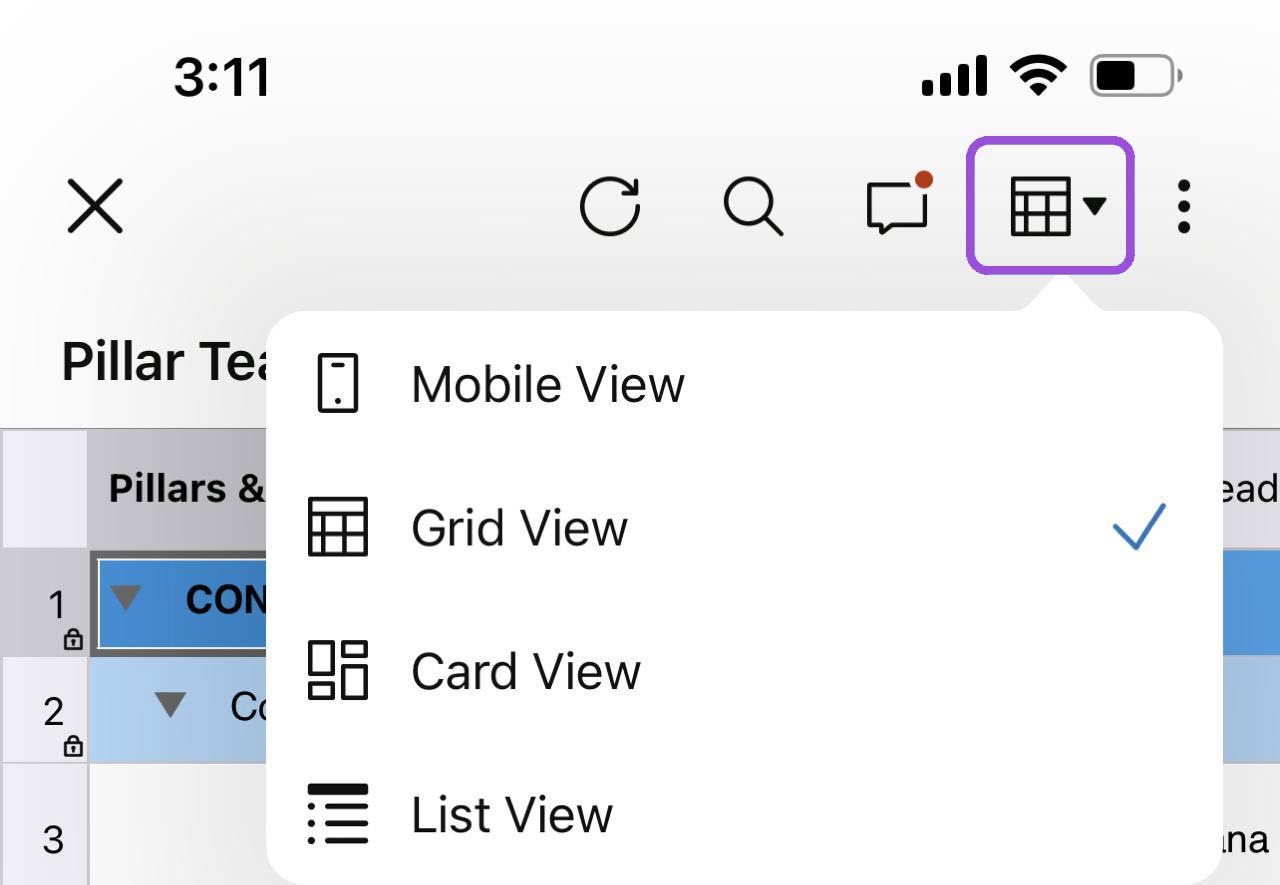
You can display sheets using Mobile, Grid, Card, and List views. Reports are available in Grid and Gantt views.
Mobile view
Select the fields you want to display
- Select Settings to specify the fields you want to see for a particular sheet or report.
- Select expanded view or collapsed view from the icons on the right.
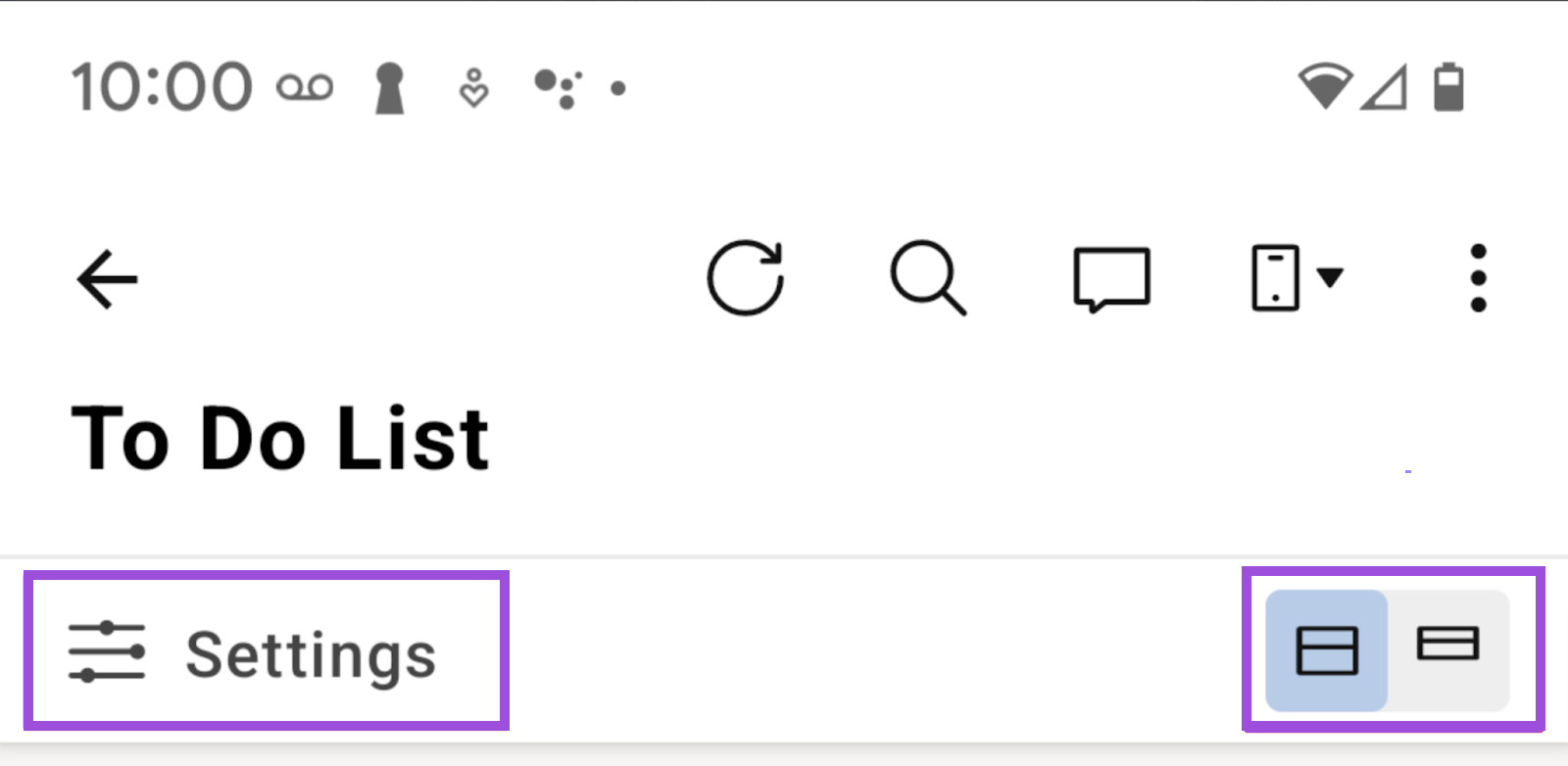
The compact view displays only the primary column.
If you have parent and child rows, a return symbol indicates child rows; the parent row is referenced in smaller, gray text at the top of the entry. Only the immediate parent is displayed at the top of the child entry. If you want to see nested rows, switch to Grid view.
Act on entries in Mobile view
Tap the More icon
to the right of each entry to access the following options:
- View Conversations and Attachments
- Edit or send an entry. You can also send a link to the entry with Send Entry Link.
- Request an update to the entry.
- Insert an entry above or below the one you tapped.
- Delete Entry.
Grid view
Actions in Grid view
- To access the row toolbar, tap a row number.
- To access the column toolbar, tap a column header.
- To access a cell toolbar, tap and hold the cell.
- To see more menu items, scroll up from the bottom of the screen.
- To move a row, tap-and-drag from the row number on the left of the sheet or report.
- To refresh the data in your view, tap the cloud icon.
Data synchronization
In Grid view, the app saves your cell edits automatically in the background as soon as you tap away.
In the mobile app, other views and Smartsheet Gov save edits synchronously.
The symbol in the cloud icon at the top of the screen indicates the data synchronization state. The list below describes the cloud icon variations:
- Checkmark - synchronization complete
- Circling arrows - synchronization pending
- Orange outline - unsynchronized; refresh required
- Red X - synchronization issue (for example, bad connection)
Card view
To open individual cards, tap the primary card's name.
For detailed instructions on working with data in Card view, refer to Act on work in motion with mobile Card view.
Gantt view
In Gantt view (Reports only), tap any item in the view to access its menu.
Troubleshooting
A cell or row is highlighted red. What does that mean?
After leaving a cell that you’ve edited in Grid view, the app saves your changes asynchronously in the background. If there’s an issue with saving a change, the app colors the border of the affected cell or row red.
Examine your connection status via the cloud icon at the top of your screen. When your connection is good, retry your edit.
In other views and in Smartsheet Gov, the app saves your changes synchronously, blocking other actions until your current change is persisted.
A yellow banner states that my data connection is interrupted or that my data is out of sync, calling me to refresh. What should I do?
Refresh your view. In Grid view, this means tapping the cloud icon.