Use natural language to query your sheets and take action—right from your mobile device.
USM Content
With Smart Assist on the Smartsheet mobile app, you can quickly check project status, communicate with teams, and more without the need to navigate your sheets. Smart Assist is an AI assistant embedded in the mobile app. It understands your current context and is ready to answer questions and perform requested actions regarding your current sheet or other sheets you work with.
Key benefits include:
- Instant project overviews: You can get status summaries without digging through hundreds of rows.
- Frictionless action: Skip searching for cells and icons to tap; Smart Assist lets you update, share, and manage tasks using natural language.
- Sheet-aware assistance: Smart Assist understands your specific sheet context and respects your existing permissions, ensuring you only see and act on data you are authorized to access.
In short, the feature aims to answer "What's happening?" and "What needs my attention?", and act on your sheet from anywhere.
Manage your project with Smart Assist
Smart Assist appears for a sheet only when all of the following conditions are met:
- You can access the sheet
- You can access all of the sheet's workspace
- You're viewing the sheet in Grid view
The following steps demonstrate how to manage your projects conversationally using Smart Assist:
Open a sheet in Grid view.
The Smart Assist sparkle button appears in the bottom right-hand corner of the sheet.
Brandfolder Image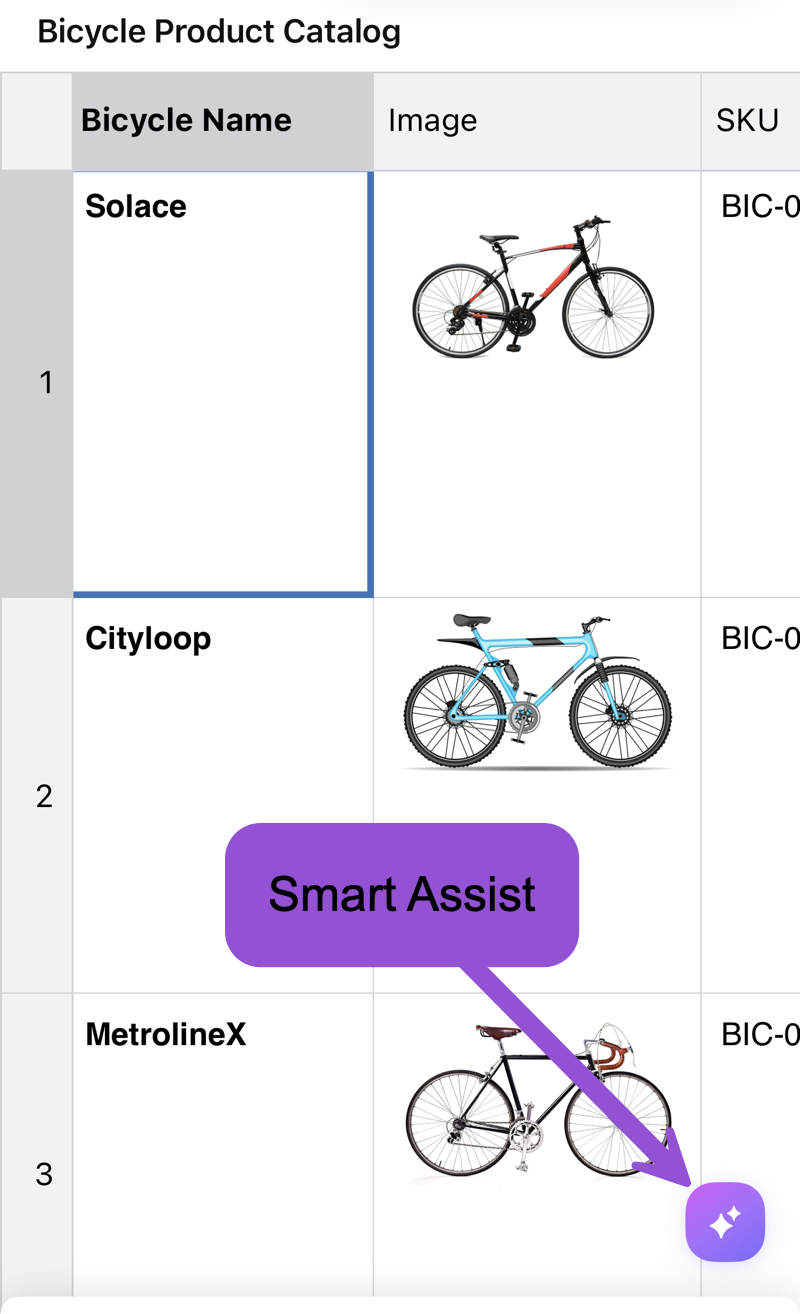
Tap the Smart Assist sparkle button.
Smart Assist lists prompts that you can send instantly, has an input box at the bottom for typing a prompt, and has an adjacent microphone for speaking a prompt.
Brandfolder Image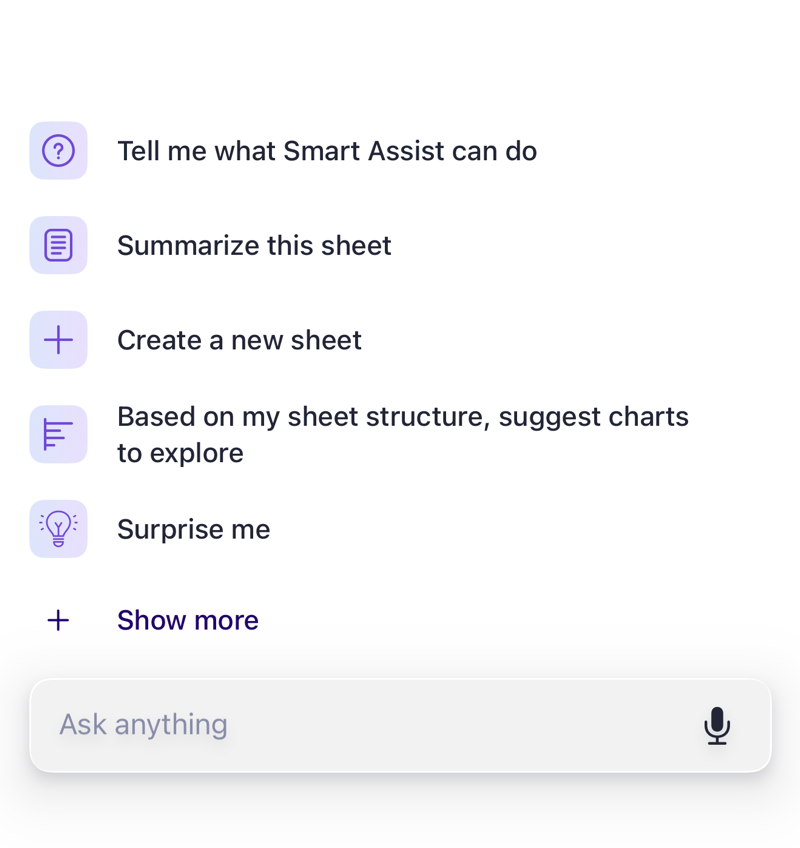
If you tap the microphone to speak a prompt, tap the square stop button when you're done speaking. Smart Assist transcribes your prompt.
Tap a suggested prompt, or enter a prompt (by typing or speaking) and then tap the Send button, found next to the input box.
Smart Assist responds to your prompt with relevant information and offers suggestions on what to do next.
Brandfolder Image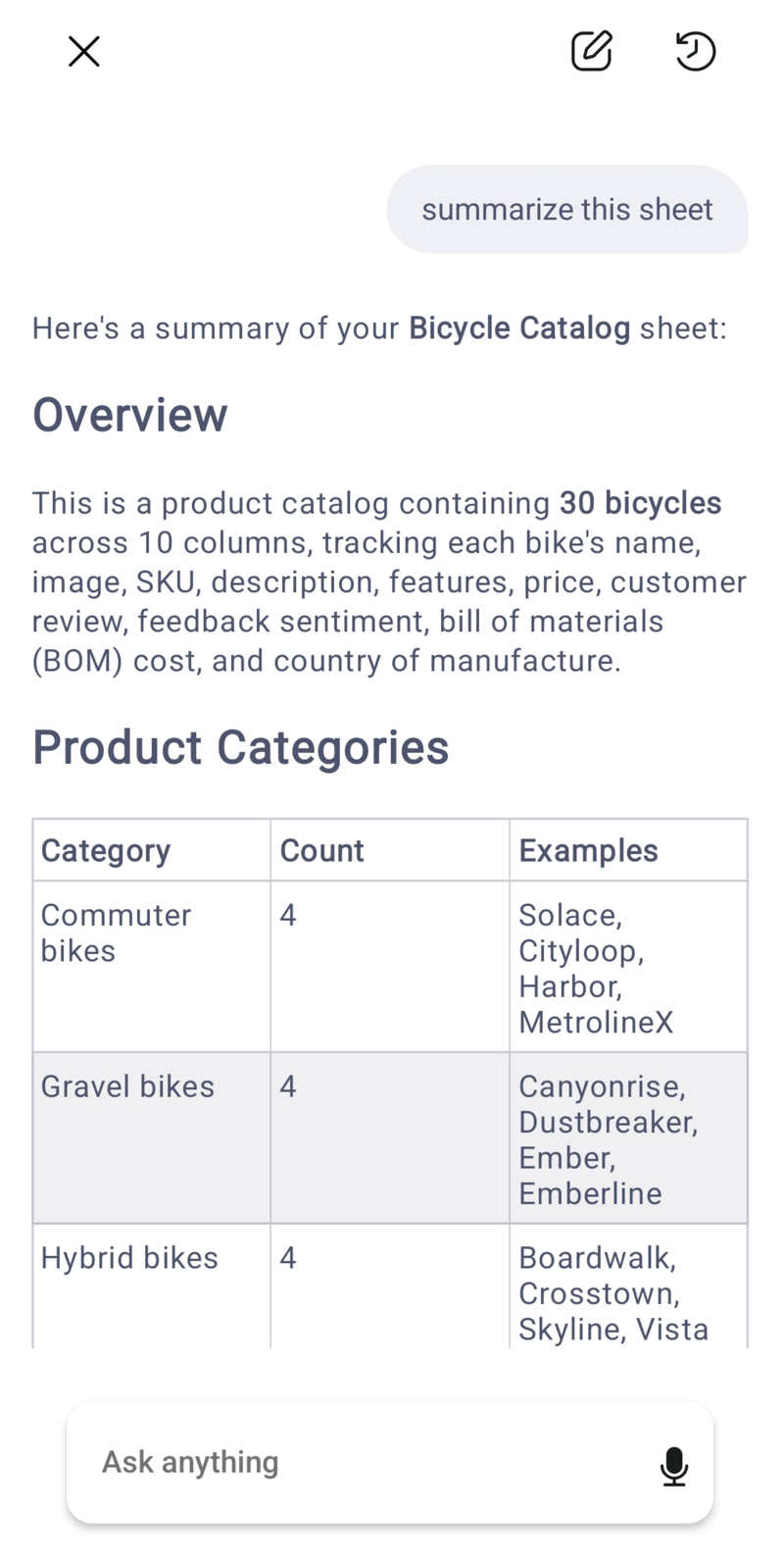
You can continue gaining project insights and managing sheet data in your current conversation, or start a new conversation by tapping the paper-and-pencil icon above your current conversation.
To revisit previous conversations, tap the conversation history icon (a clock with a reverse-circling arrow) above your current conversation.
What's next?
For example prompts that cover risk assessment, decision support, communication, and more, refer to the Smartsheet MCP prompt library.