Timeline view displays date-based work on a horizontal timeline. Use timeline view to create project roadmaps, or to plan, track, and manage tasks, work, and portfolios.
USM Content

Timeline view displays date-based work on a horizontal timeline. Use timeline view to create project roadmaps or to plan, track, and manage tasks, work, and portfolios.
You need to have a Business or Enterprise plan to use timeline view. Learn more about upgrading your plan.
Timeline view allows you to:
- See date-based work on a timeline
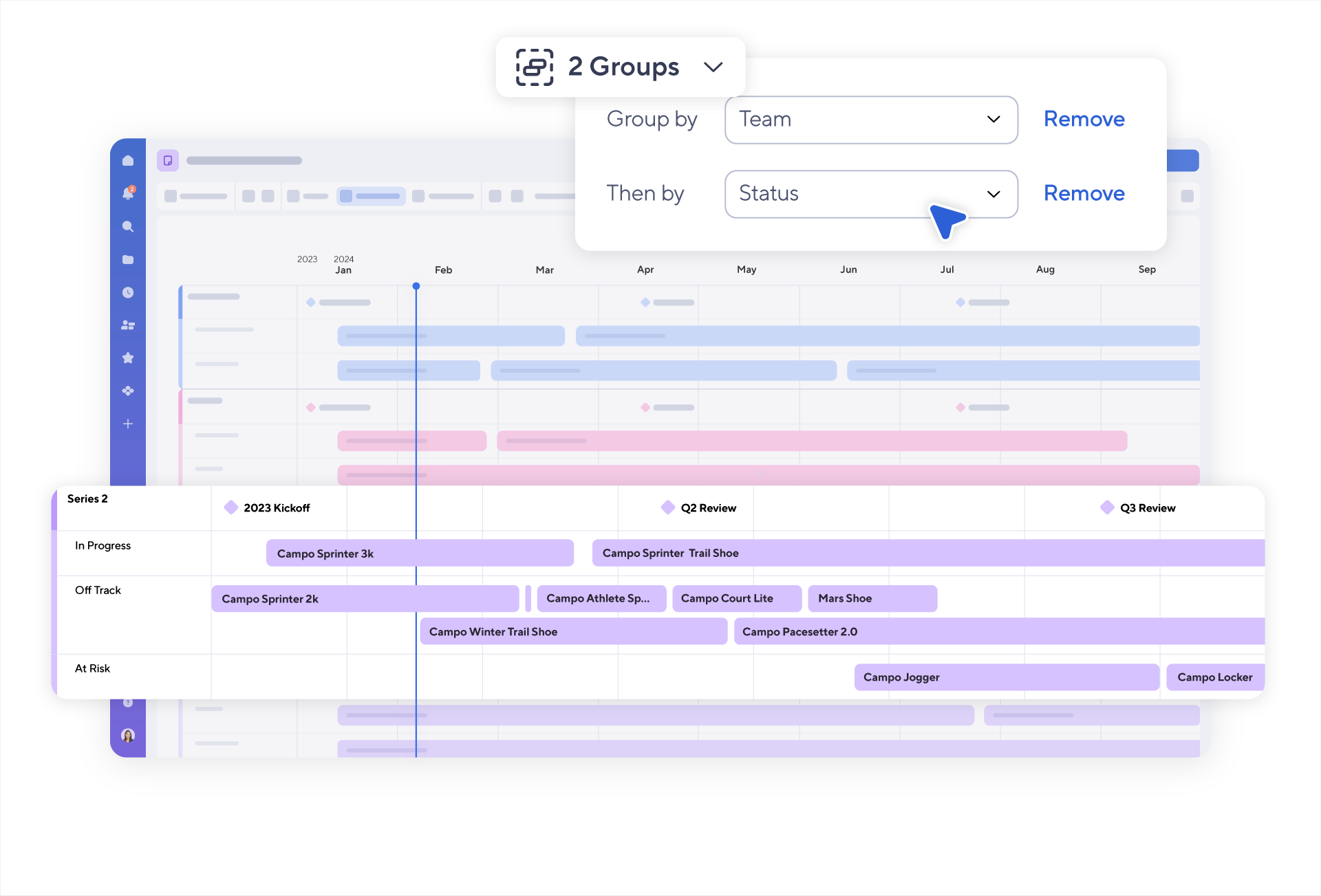
- Group data into horizontal lanes and filter down to specific items
- View and edit milestone and bar details
- Zoom in or out to see more or less data
- Scroll to see future or past work
- You can select the rectangle and drag the cursor across the interactive minimap to quickly navigate across the timeline:
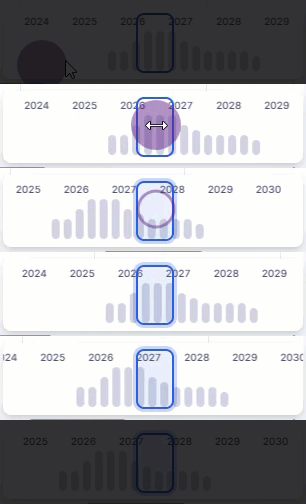
Selecting the bars on the minimap takes you to the location where the data is displayed on the timeline.
When to use timeline view
You should use timeline view when you need a visual representation of your project’s key dates and phases without the clutter of unnecessary details. Use timeline view to:
- Highlight key milestones and ensure that critical dates and deliverables stand out.
- Provide a high-level overview of a project or multiple projects for stakeholders.
- Focus on date-based work management to ensure alignment and clarity.
Timeline vs Gantt view
Timeline view differs from Gantt view in that it maximizes page density – putting items side by side when possible – and allows you to visually group items thematically into horizontal lanes.
Use timeline view when planning and managing roadmaps, portfolios, projects, and communicating their progress to stakeholders. Use Gantt view to break complex projects into simple tasks, define and track dependencies, work with baselines, and identify critical paths.
