Modify your column links by mapping new columns or editing and removing your existing mappings.
USM Content
When you work with column links, you can:
- View column links.
- Map new columns.
- Edit existing column mappings.
- Remove existing column mappings.
- Delete a column link configuration.
- Duplicate a column link configuration.
View column links
To view a list of your column link configurations sorted from newest to oldest created, access the data links panel from either the source or target sheet while in table view. In the panel, you can see:
- Type of link: Includes the inbound (target sheet) or outbound (source sheet) icon.
- How many columns are being mapped to or from.
- The name of the target or source sheet.
- The column link status.

If a user without access to the source sheet opens the data links panel in the target sheet, they see Sheet name hidden in the source sheet information.
Add a column mapping to a column link configuration
- From the toolbar in the target sheet, go to table view and select More tools > Link column data.
- Go to the column link configuration you want to modify and select the configuration’s three-dot menu.
- Select Edit.
- Choose one of the empty mapping rows or select + Link new column at the bottom.
- Fill in the data column for the source and target sheets, then select Link.
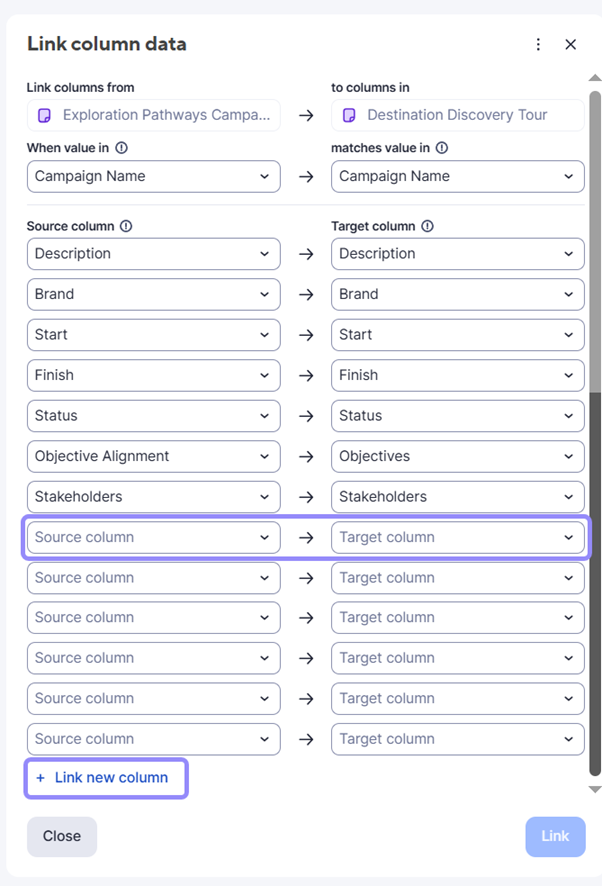
You don't receive any prior warning when making changes that could disrupt a column link configuration.
Modify an existing column mapping
To modify an existing column mapping in the target sheet, go to table view and select More tools > Link column data.
Change a column mapping
- Once in the column links panel, select the configuration you want to modify, then select the three-dot menu > Edit.
- Choose the mapping row you want to change and select the new column you want to map.
- Once you fill out the source and target mapping rows, select Link.
Mapping columns in your column link configuration overwrites any pre-existing data found in those columns once you've selected Link.
Modify a custom value in a column mapping
- Once in the column links panel, go to the configuration you want to modify, and select the three-dot menu > Edit
- In the mapping row you want to change, choose the
 pencil icon, and change the custom value in the Custom value when no match is found box.
 - Select Link.
Remove a column mapping
- Once in the column links panel, select the configuration you want to modify, and then select the three-dot menu > Edit.
- Choose the mapping row you want to unmap and select Unmap field.
- Once you unmap the source and target columns rows, select Link.
Delete a column link configuration
- From the toolbar in the target sheet, go to table view and select More tools > Link column data.
- Go to the column link configuration you want to delete and select the configuration’s three-dot menu.
- Select Delete.
Deactivating or deleting a column link configuration removes the links, and the data becomes static.
Duplicate a column link configuration
You can duplicate column links by copying a sheet with Save as New… You can do this from:
Target sheets
When you copy a sheet, and it serves as a target for one or more column links, the system preserves those connections. This ensures the newly created sheet continues to link to the original source sheets, keeping the data consistent.
If the target sheet lives within a copied folder or workspace, and its source sheet exists elsewhere, Smartsheet automatically re-establishes the column links to that original source, regardless of its location.
Source sheets
When you copy a sheet that acts as a source for one or many column links, the system creates a brand-new sheet. This new sheet is independent and doesn’t inherit any pre-existing column links. The original source sheet retains all its connections and continues to feed data to its linked target sheets.
If you copy a folder or workspace containing a source sheet, and the target sheet is located elsewhere, the newly copied source sheet remains unlinked. All original connections persist with the original source sheet, regardless of its location.
Workspace or folder
When you create a project by copying a folder or a workspace that already includes both source and target sheets for an existing column link configuration, the system automatically replicates that configuration. This ensures the newly copied sheets maintain their column links, establishing connections within the new project without requiring manual setup.
Congratulations! You now know how to modify your column links to ensure they remain accurate and aligned with your evolving data needs.