When you copy a sheet with Save as New, the new copy saves the original sheet's columns and conditional formatting rules.
Users with access to the sheet can copy a sheet as new.
Create a copy of a sheet
- Select File > Save as New to display the Save as New window.
- Type a name for the new sheet in the Name your sheet field.
- Under Save in, select the folder or workspace where you’d like to save the copied sheet.
- Under Sharing Options, you can enable the sharing option.
- Under Automated Workflow & Alert Options, choose the options you want to save with the copy of your sheet.
- Under Data & Formatting Options, select the options you want to save with the copy of your sheet.
- Choose Save.
Brandfolder Image
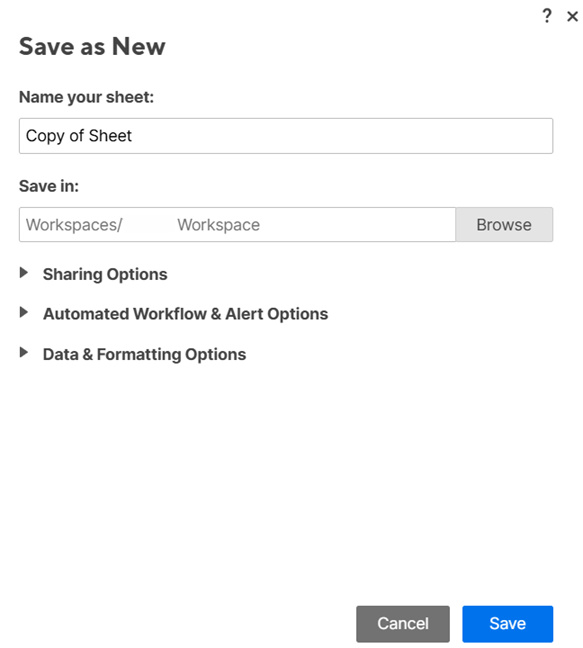
Save as options
- Sharing Options: Preserve any sheet sharing that you've set up.
- Automated Workflow & Alert Options: Retains any associated automation rules and notifications with the save as copy of the sheet.
Workflow recipients and Alerts settings: Retains permission settings for the rules.
If a rule for the new sheet has no valid recipients, the sheet owner receives an email notification. This means no one can receive notifications based on the account's permission settings or the approved domain-sharing list, as the automation rule on your sheet has become invalid, and the sheet’s permissions settings are currently preventing recipients from getting notifications.
To modify rule permission settings for the sheet:
- Select Automation > Manage automation workflows... on the menu bar
- In the Saved Automation Workflows window, select the Settings
Brandfolder Image
 icon in the upper right to modify automation permission levels.
- Data & Formatting Options: Retains any associated sheet data and formatting options with the save as copy of the sheet.
- Sheet data and formatting: Includes information typed into cells and formatting manually applied to them. If unchecked, copied sheets retain column names and types, but all rows are blank.
- Comments: This includes all row and sheet-level comments.
- Attachments: Includes all row and sheet-level attachments.
- Cell links and cross-sheet references: Preserves inbound cell links only. The sheet copy retains the cell data but creates no links if unchecked.
- Sheet hyperlinks: Maintains hyperlinks to other sheets. If you don't check it, the sheet copy retains the cell data but doesn't hyperlink.
- Shared sheet filters: Includes sheet filters.
- Forms: Includes any forms that you add to the sheet.
- Sheet data and formatting: Includes information typed into cells and formatting manually applied to them. If unchecked, copied sheets retain column names and types, but all rows are blank.


