USM Content

Feel free to switch views at any time. Switching to table view from any other view doesn’t change data, ensuring consistency across all views.
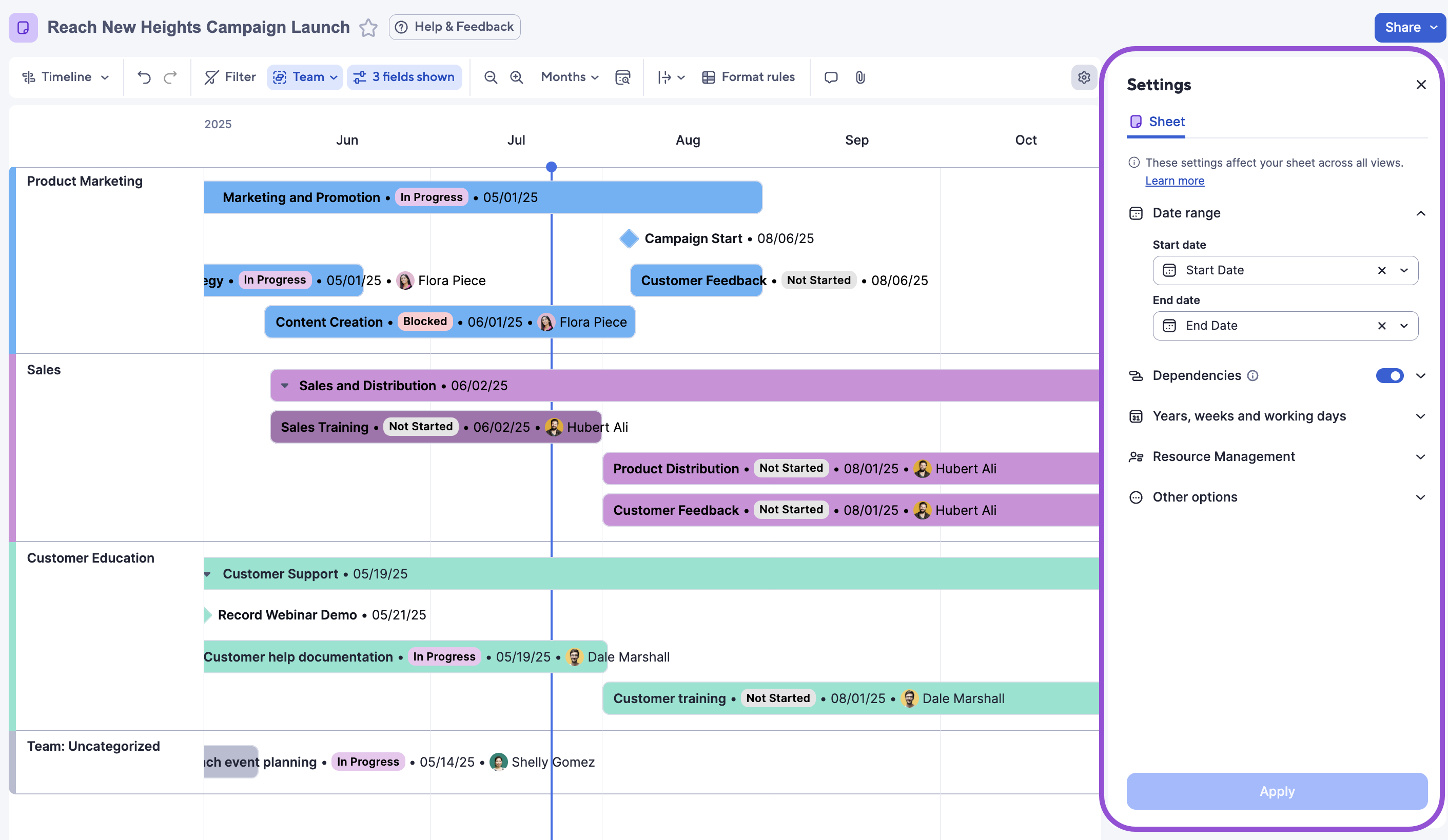
With sheet settings, you can customize aspects of your sheet, such as dependencies, working and non-working days, and more.
To access the sheet settings panel, select the settings icon
 in the top right corner of the toolbar.
Date range
Use the drop-down menus to select the start date and end date columns or create a new column. If selecting from an existing date type column, you can only select columns without column formulas.
You can use the timeline view with only one date column, but you need both a start and end date to change and apply settings for all views.

Dependencies
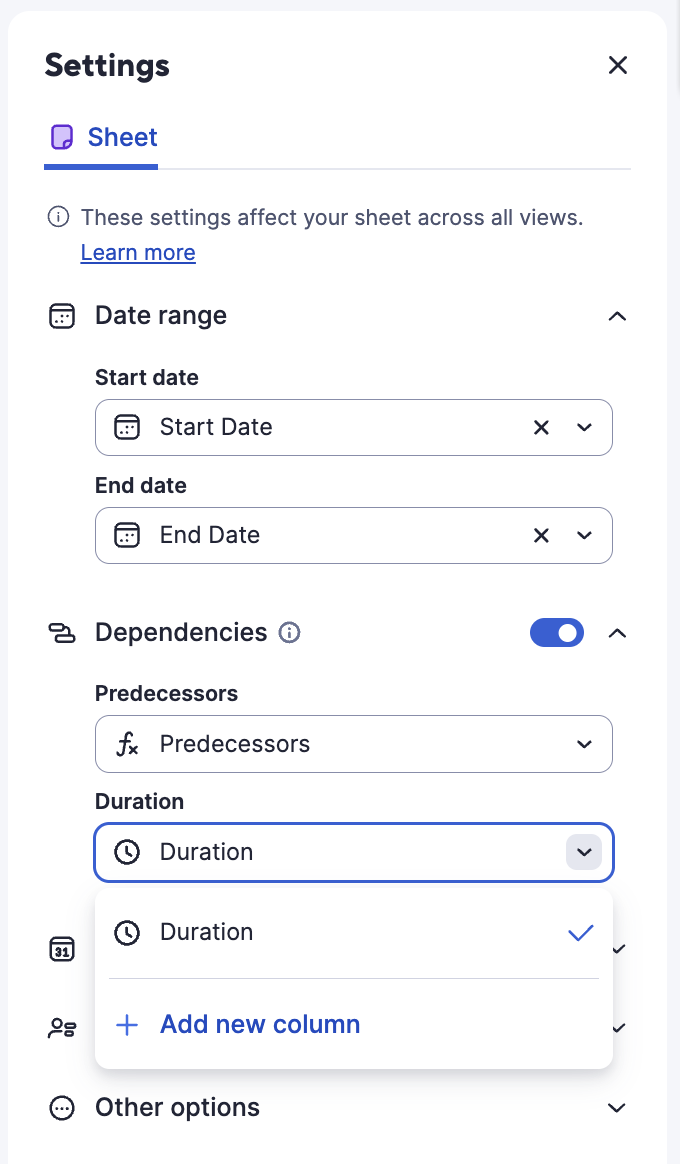
If your sheet has start date and end date columns, you can toggle dependencies on or off in sheet settings. If activated, the duration and predecessor columns are required. You can map duration and predecessors to existing applicable columns or create new ones.
- Predecessor: This column creates dependencies between tasks in the schedule.
- Duration: This column automates scheduling a task's start and end dates. It represents the number of working days the task must take to complete.
Once dependencies are activated:
- Rows with duration and/or predecessor values have their start and end dates calculated automatically.
- The system automatically adds the given duration to the start date to calculate end dates (considering non-working days).
- If a predecessor drives a task's start or end date, you can manually change it by clicking the cell in table view and selecting a new date. This overrides the association with the predecessor and removes the predecessor value from the row.
- If a parent row has a predecessor value listed, this dependency relationship drives the start dates for each child row. Removing the predecessor value on the parent row makes child rows editable, so you can change dates manually.
- The start and end dates of tasks that depend on a predecessor aren’t editable from a report, a row update request, or any mobile app. To work around this, manually update a task's start date or duration to update the end date automatically.
Learn more about dependencies, duration, and predecessors.
Edit dependencies
These fields are editable in table view directly on the sheet, but they're not editable in the details panel.
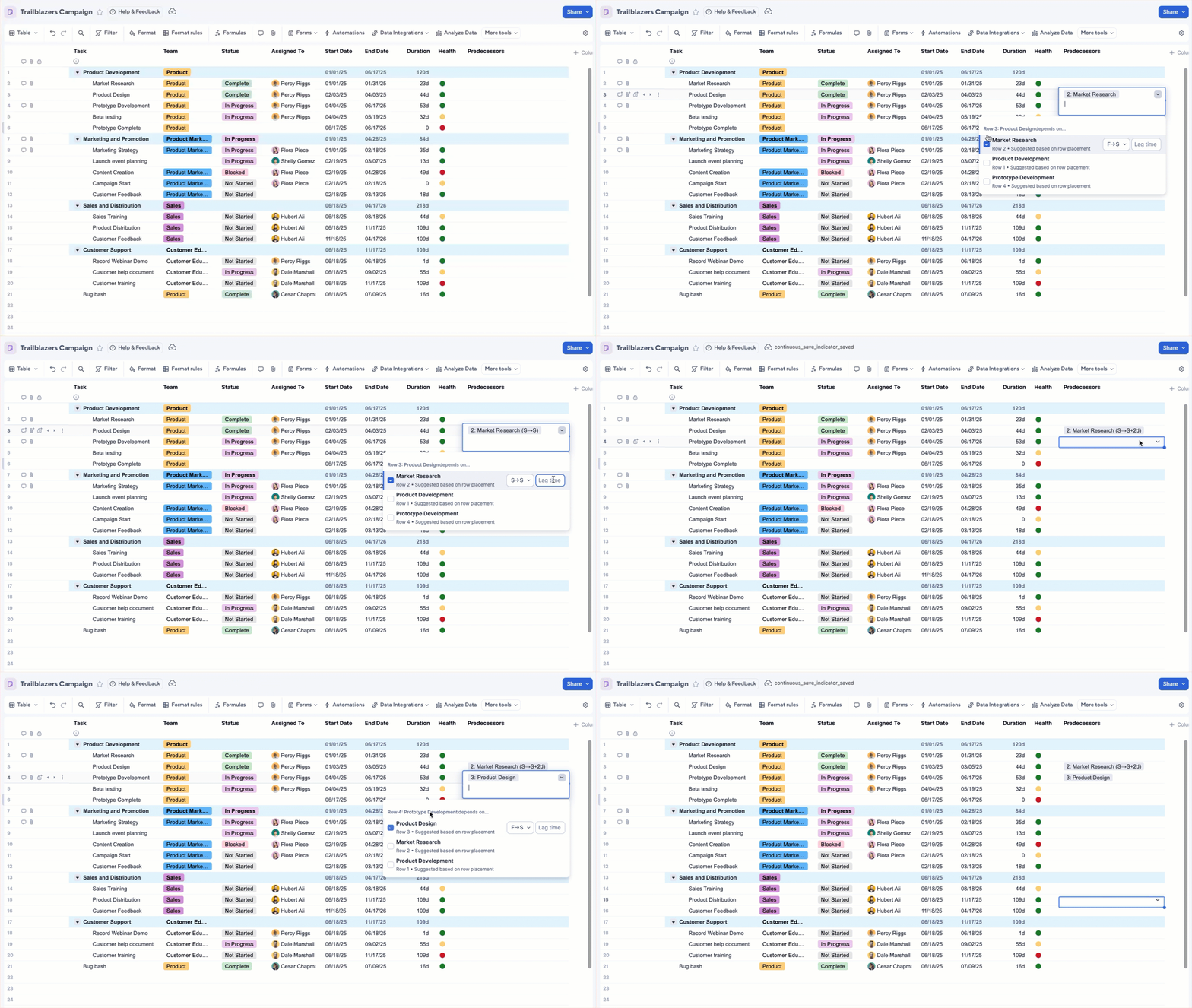
To edit predecessors, begin typing in the cell. Other row options appear based on syntax. Select the option you need as the predecessor for the row, and use the dropdown menu to change the dependency relationship as needed.
- Finish to Start - the predecessor task needs to be finished in order to start the one on the row
- Start to Start - the predecessor task needs to be started in order to start the one on the row
- Start to Finish - the predecessor task needs to be started in order to finish the one on the row
- Finish to Finish- the predecessor task needs to be finished in order to finish the one on the row
- Add lag time (in working days) if needed
As you assign predecessors, start dates, end dates, and duration values update automatically. You can have multiple dependencies for each row if needed.
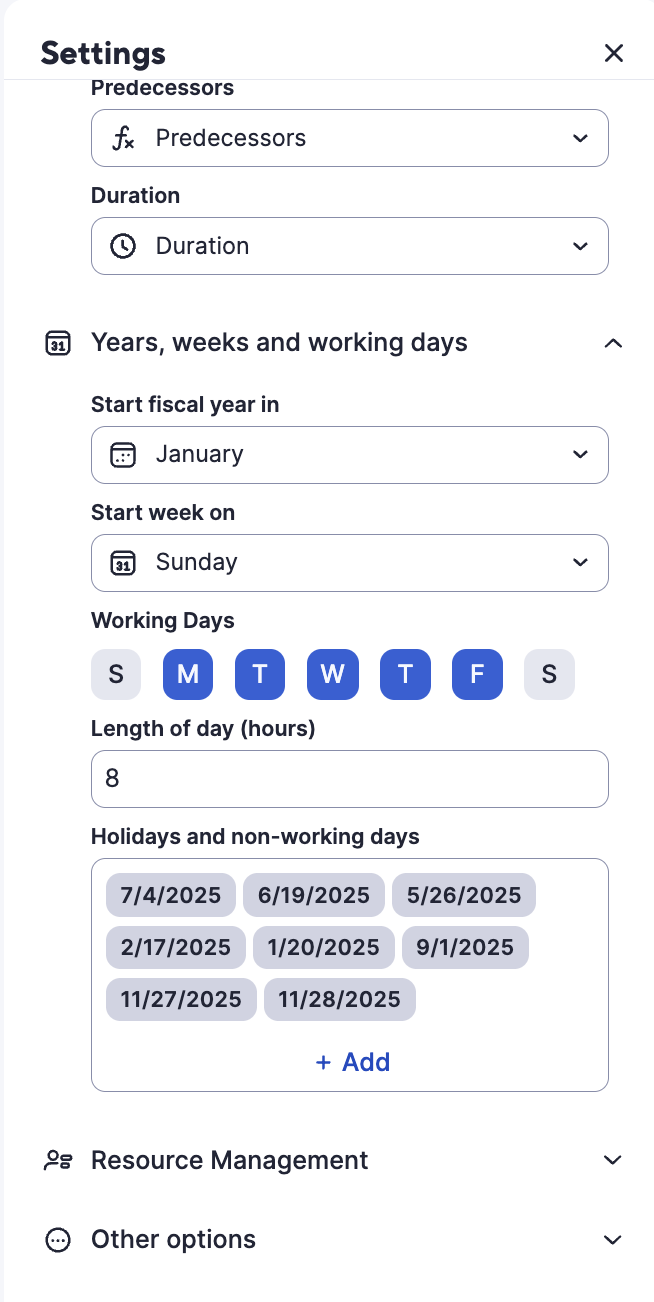
Years, weeks, and working days
In this tab, you can set:
- The month that the fiscal year starts
- The day the week starts
- Working hours in a day
- Working days and non-working days (including company holidays)
If you set any of the above for the sheet, they're only true on this sheet and do not override the plan-level settings. If you don't set any, then the sheet defaults to what is set at your plan level.
If dependencies are activated in a sheet, non-working days do affect duration calculations in the sheet. If dependencies aren't activated in a sheet, then non-working days do NOT affect duration calculations in the sheet.
You can manually schedule tasks and milestones to start on a non-working or holiday, but their end dates can’t occur on these days. If a task's start date is a non-working day or holiday, the task considers that day a working day regardless of the settings.
If you set any month besides January as the start of the fiscal year, then the fiscal year appears in the timescale header above the starting month.
Learn more about how to manage these settings at the plan-level.
Resource management
To edit Resource Management settings, switch to grid or Gantt view. Learn more about workload tracking.
Other options
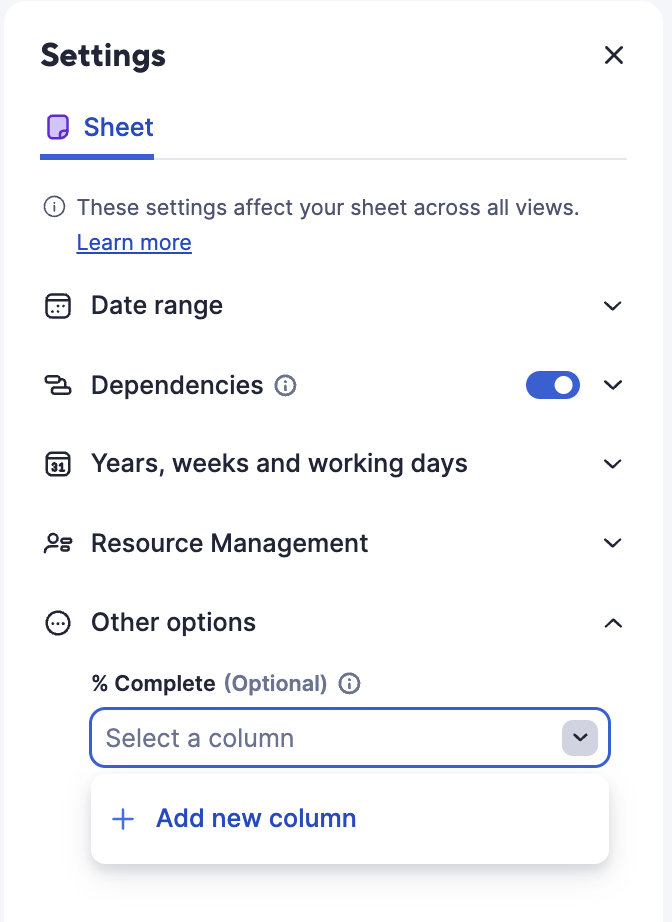
The % Complete calculations are optional. Select the column you want to assign as your % Complete column.
To format values in this column as percentages in table view,
- Select the column header.
- Select Format to open the formatting menu
- Select the % icon to format the column data as percentages.
If you switch to Gantt view, you can see a % complete indicator within the task bars.
When dependencies are activated and you're using hierarchy in your sheet, Smartsheet automatically calculates the % complete in parent rows based on the child rows' duration and % complete values.