You can insert images directly into cells in your sheets.
Images in the grid can be useful for many types of sheets, including team contact lists, manufacturer parts lists, and real estate lists.
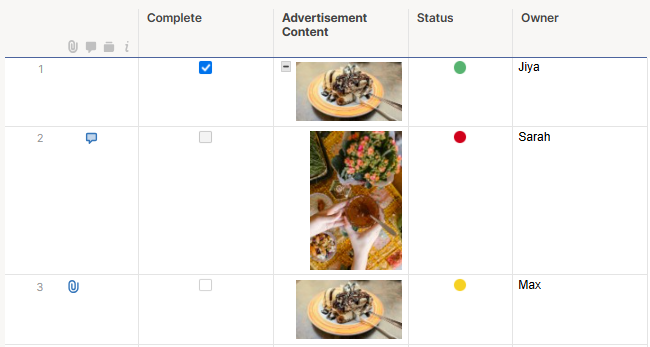
Insert an image in a cell
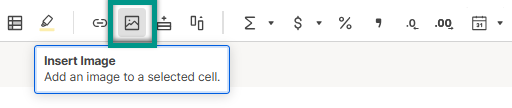
- Select the cell in which you want to place your image.
- Click the Insert Image button on the toolbar.
- Choose the location of the image and click Open.
After placing an image in a cell, any text that previously existed becomes the alt text that appears when you hover over the image. The image name becomes the alt text if no text exists in the cell.
There can only be one image per cell. If you insert a new image, the previous image will be replaced.
You can also use keyboard shortcuts to copy an image from your computer (Ctrl + C, or Cmd + C on a Mac) and then paste it into the desired cell (Ctrl + V, or Cmd + V on a Mac). This method works only in Chrome or Firefox Internet browsers.
Remove an image from a cell
- Right-click on the cell that contains the image.
- Click Clear Contents.
Work with images in cells
Images expand as a column expands. However, an image never scales to larger than its original size, and it won't expand past 1000 pixels in height.
To zoom in to the image, to change the alt text for the image, or to download the image, double-click it to display the zoom view window.
Compatible file formats
| Format | Notes |
|---|---|
| Format PNG | Notes All PNGs are supported. |
| Format GIF | Notes Animated GIFs can be uploaded but will not play in the grid. The initial frame is used as the preview. The animation plays after you double-click the image in the grid. |
| Format JPG | Notes JPGs in the RGB color space are supported (this includes your camera phone photos). Images in a CMYK color space targeted for print are currently not supported. |
Tips for working with images
As you work with images in your sheet, keep the following in mind:
- The maximum file size for images is 30 MB.
- Cell history doesn’t show the image, but it shows the alt text associated with it, such as Image: house.jpg.
- When you download a backup, images are contained in a folder separate from other backup items. For details, see About Smartsheet data backups.
- When you export data to Microsoft Excel, Microsoft Project, or Google Sheets, images are not included. Instead, the alt text appears in the cell.
- If you print to PDF, only the first 100 images are included in the PDF.
- Images are view-only in Update Request and Edit Row forms.