Use an existing workspace as a portfolio template
USM Content
Why use an existing workspace as a template?
If your team already has a workspace with sheets, dashboards, reports, and other items that reflect how you run projects, you can save that workspace as a template and add it to a portfolio.
Every project you activate from that template provisions a new workspace with the same structure and items.
This approach works well when:
- You already have a workspace that represents your ideal project setup.
- You've been using the Save as New option to duplicate workspaces manually and want to automate the process.
- You want to bring a proven structure into a portfolio without rebuilding it.
Save a workspace as a template
- Open the workspace containing the items you want to use as a template.
- Select the workspace name to open the workspace panel on the left.
- Select the three-dot menu at the top of the workspace panel.
- Select Save as template.
- In the prompt that appears, select Save to portfolio.
- In the Save as template window, enter a name in the Template name field.
- In the Save in portfolio section, select whether to save the template to a new portfolio or an existing one.
- Select Ok.
Brandfolder Image
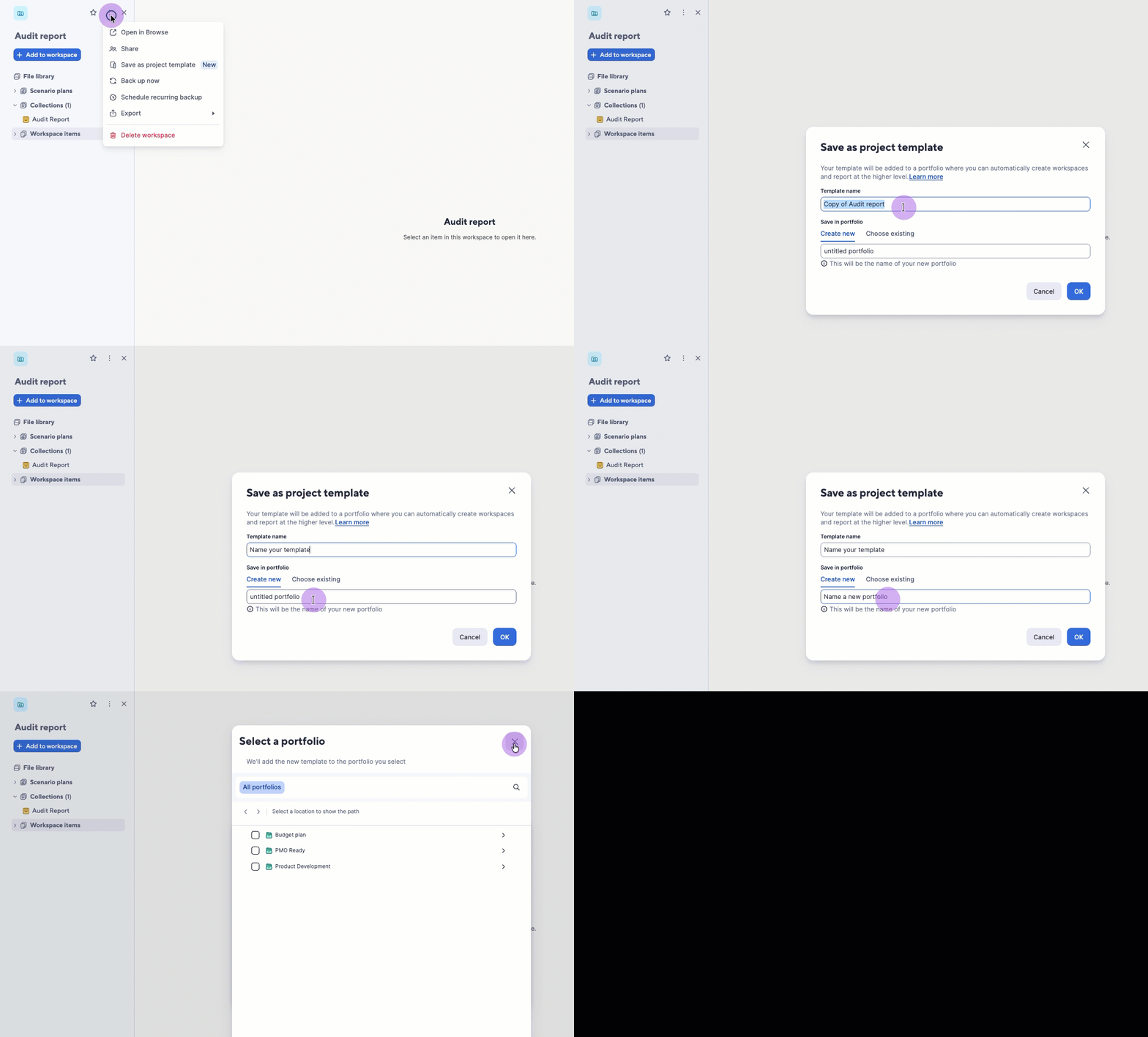
Smartsheet duplicates the workspace as a template and adds it to your selected portfolio. From there, you can create projects based on your template, share them with your team, and report across all projects in the portfolio.
Things to consider
- Saving a workspace as a template creates a duplicate. Changes you make to the original workspace don't affect the template, and changes to the template don't affect the original.
- Column links within template items replicate when you provision new projects.
- Template workspaces can contain up to 100 items.
- File library items in the workspace don't carry over to the template or its provisioned projects.
- Changes you make to a template only apply to projects you activate after the change. Existing project workspaces don't update automatically.