With Project Settings, you can customize aspects of your sheet, such as dependency and timescale settings, working and non-working days, and resource management.
USM Content
Project settings are now sheet settings in table, board, and timeline views. Learn more about working with sheet settings.
You can access Project Settings from legacy Gantt view or grid view:
From legacy Gantt view: Right-select any column header in the Gantt view and select Project Settings, or select the Project Settings
 icon in the top right corner of the sheet.
Gantt Timescale Settings only appear when editing Project Settings from Gantt view.
- From grid view: Right-click any column header in the sheet and select Edit Project Settings.
Dependency settings
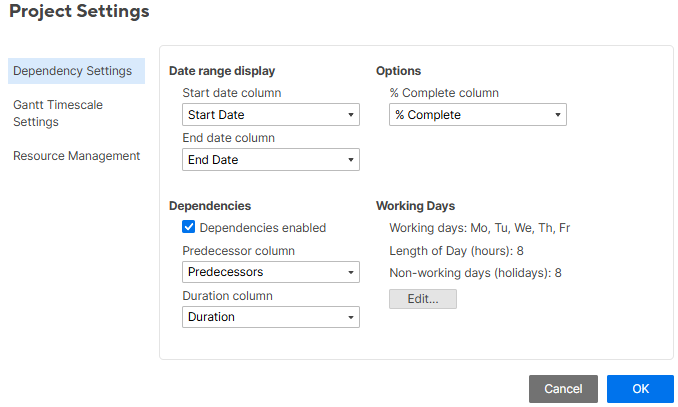
The following image shows a project's dependency settings.
Date range display
Use the Start date and End date columns to track the start and end dates.
To use Gantt view, your sheet must have both a start date and an end date — and those dates can’t be calculated with formulas. If your sheet has more than one date column, you must set both a start date and an end date in Project Settings for Gantt view to work.
Timeline view is more flexible — it only needs one date column to display, as long as you're not using Project Settings.
% Complete column
The % Complete automation is optional. Select the column you want to assign as your % Complete column to opt in. This column overlays a % complete indicator within the task bars only for the Gantt chart, allowing you to see automated % complete calculations. Learn more about this option in Show task progress in Gantt view with % Complete.
Dependencies
To enable dependencies, you must assign Predecessor and Duration columns. If your sheet doesn’t already have these columns, Smartsheet automatically creates them for you.
- Predecessor: This column creates dependencies between tasks in the schedule.
- Duration: This column automates scheduling task start and end dates. It represents the number of working days the task must take to complete.
See Activate dependencies and use predecessors for more details.
Enabling dependencies affects a row's start and end dates, as it automatically calculates and adjusts these dates based on changes to the row's Duration and Predecessor values.
Gantt timescale settings
The following image shows the Gantt timescale settings.
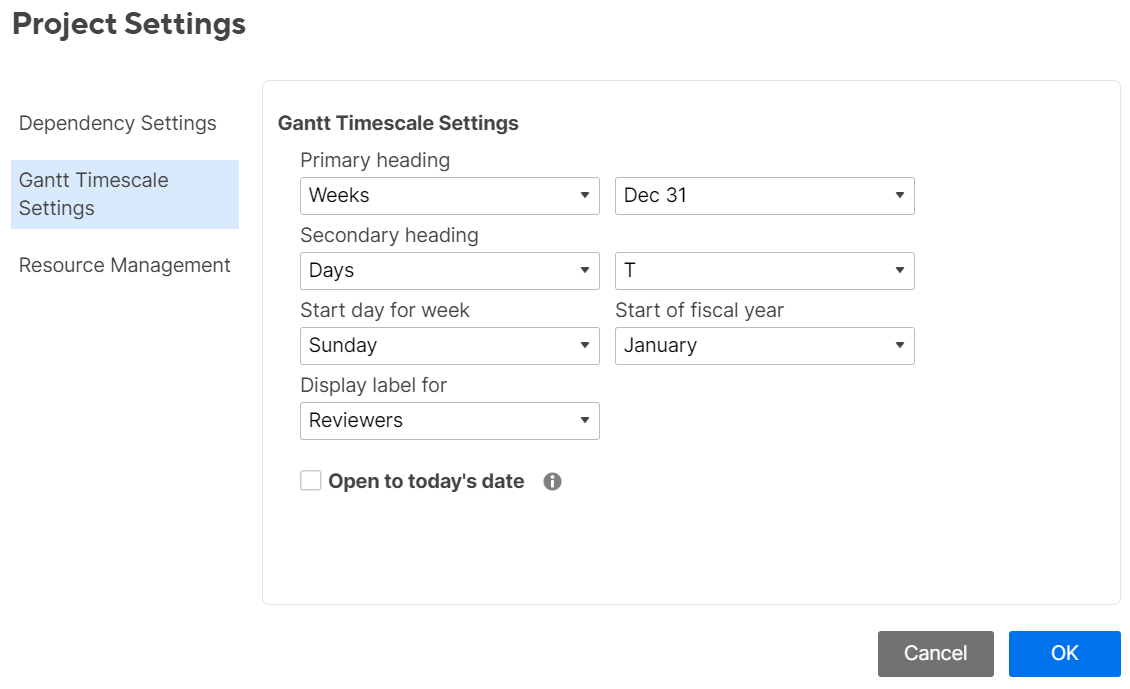
Edit the following timescale settings used in Gantt view:
- Configure the appearance of the Primary and Secondary headings. These appear along the timescale at the top of the Gantt view. Switch between days, weeks, months, quarters, and years, and select the styling of dates.
- Select a day as the Start day for week and a month for Start of fiscal year.
- Choose any column to Display as the label to the right of the Gantt bar. For example, select a contact list column as the display label to see a list of the people assigned to each task next to the Gantt bar.
- Choose whether Gantt view Opens to today’s date.
- This option is only available to the sheet’s Owner and Admins.
- This setting is your preference and doesn't influence how your collaborators view the Gantt view.
- If someone with Editor or Viewer permissions wants the Gantt view to open to today, you can create a report from your sheet. Any user who has access to the report can access the Gantt Timescale Settings to enable the option Open to today's date.
Resource Management settings
The Resource Management section is only available for Business or Enterprise plans.
You can learn about Resource Management settings at Resource Management project settings.