When you've identified the best path forward, apply that winning scenario to push your changes back to your live project sheets. When applying your edits, the workflow walks you through previewing your changes, resolving any conflicts, and confirming before anything updates.
USM Content
You need to be an Admin on the scenario plan and all sheets to preview changes, download the change list, resolve conflicts, and apply the scenario. Editors can review changes, but can’t resolve conflicts or apply scenarios.
Preview your changes
Before applying, review what's about to change.
Use the Overview tab to go over a summary of the changes you’re about to apply.
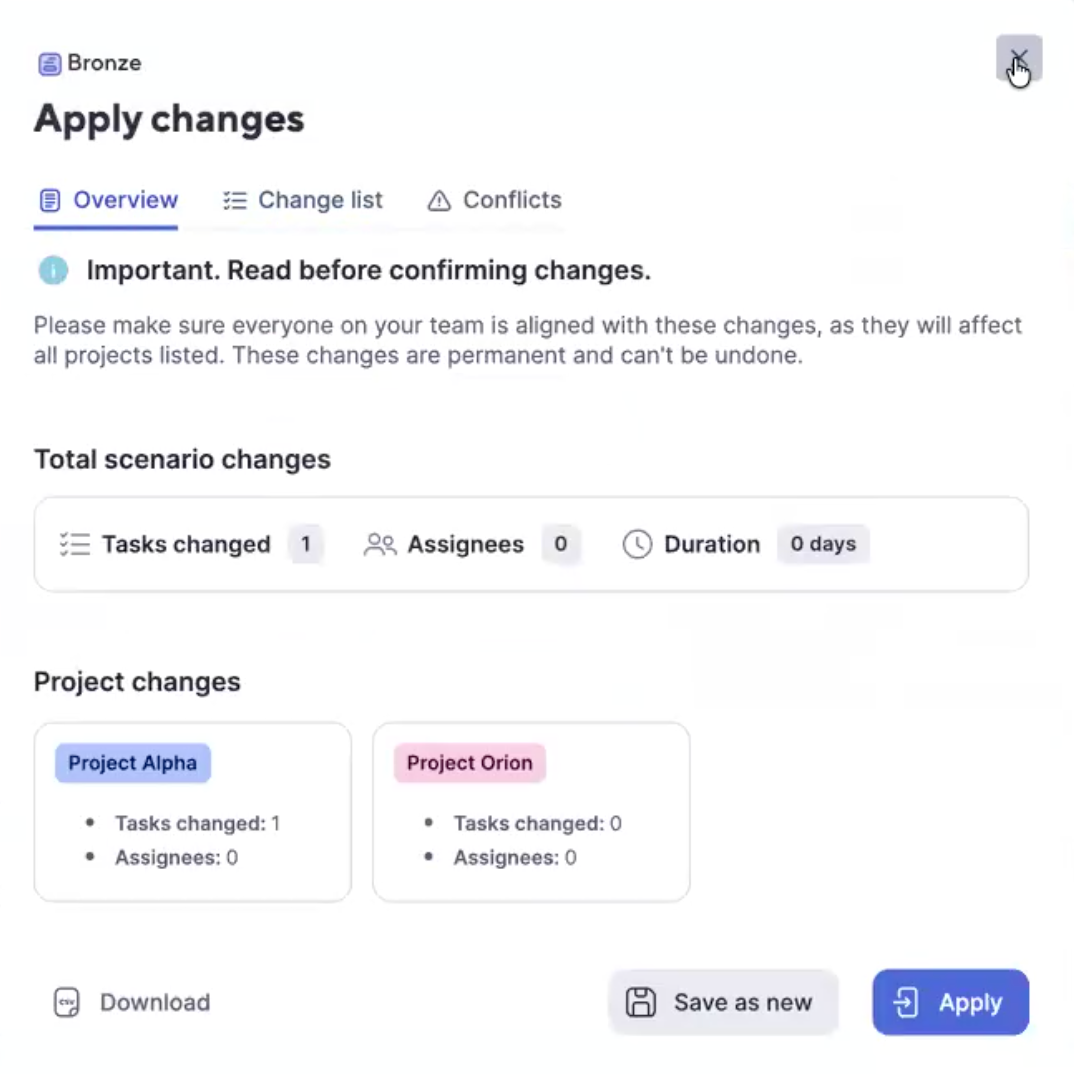
The Change list tab shows you the total number of project sheets, rows, and resource assignments that you’re changing. It also allows you to see all timeline shifts.
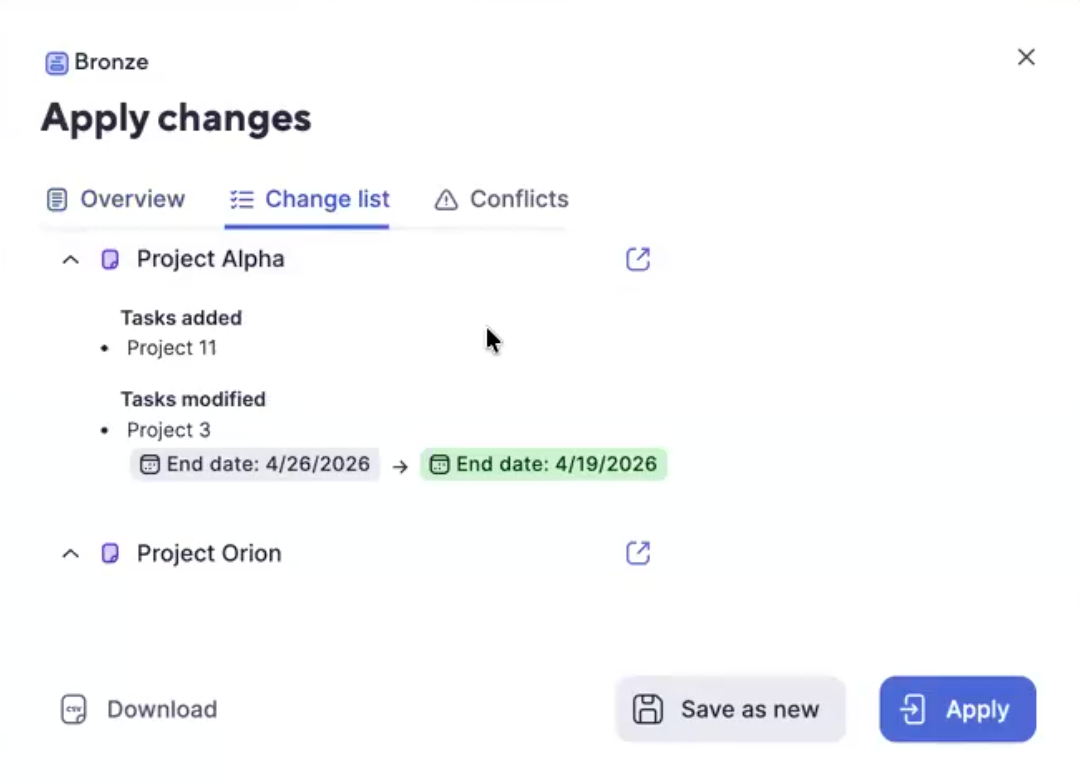
Use the Download button to download an image version of your change list.
Resolve conflicts
If your live project sheets have changed since you created the scenario plan, and you’ve added rows or columns, or you’ve edited any column properties, then the Conflicts tab flags those conflicts.
If a conflict is critical, you can't apply the scenario. Select Save as new to save your scenario as a standalone sheet, then manually apply your changes to the original project sheets.
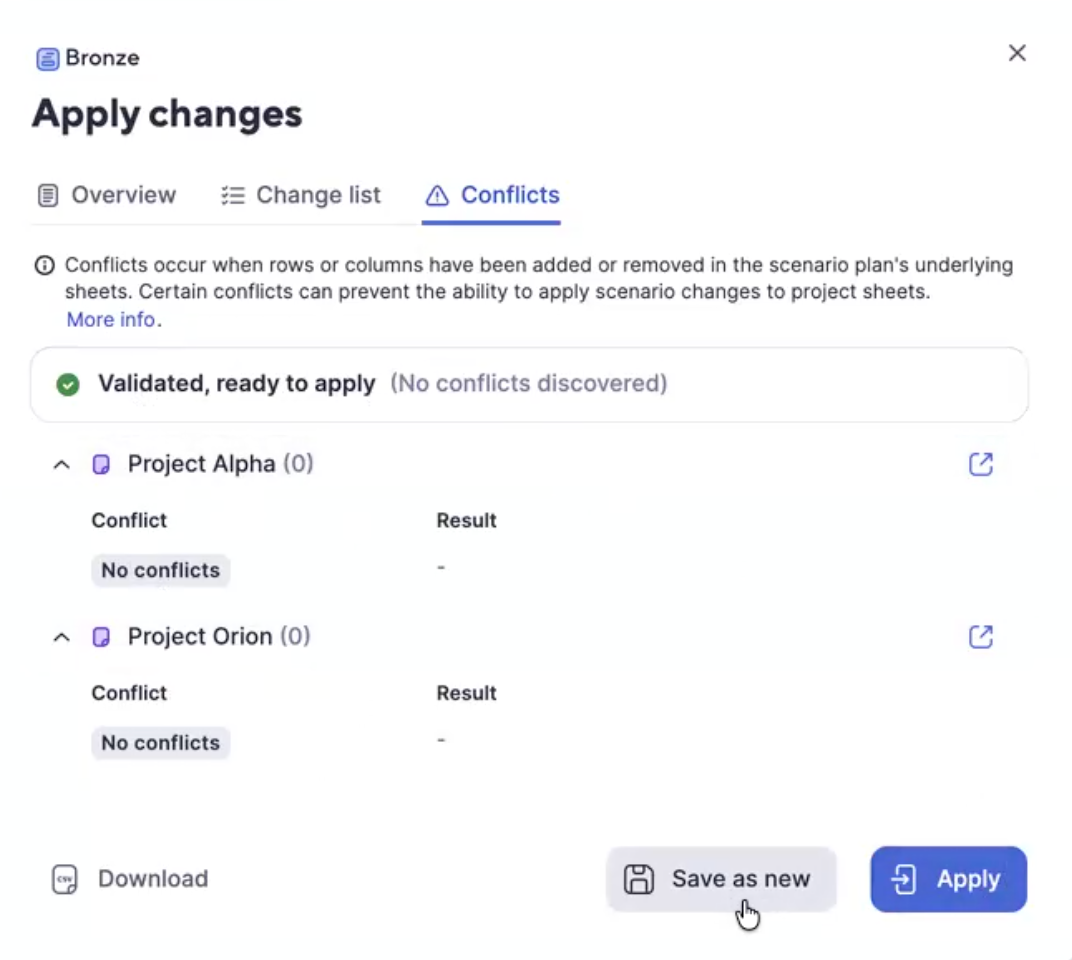
The following changes to your project sheets are considered critical conflicts and prevent you from applying a scenario:
- Adding a new row
- Deleting a row
- Deleting a column
- Changing the column type for any column (Gantt included)
- Adding a formula or cell link to a column
- Deleting a Gantt column without recreating it
Certain changes to your project sheets are acceptable conflicts:
- Adding a new column or making it a required column
- Deleting a formula or cell link from a column
- Deleting and recreating a Gantt column
Apply your changes
When you're ready to proceed, select Apply.
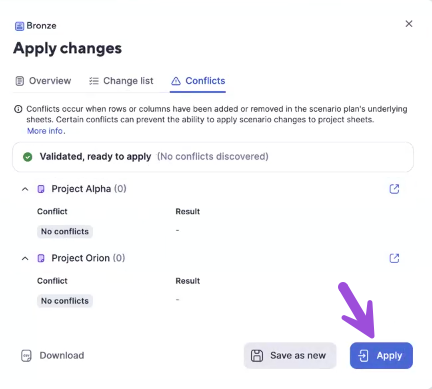
Before updating your project sheets, the system automatically creates a backup of each affected sheet.
If a sheet update fails during the apply process, changes that were already applied to other sheets remain in place. You can use the auto-generated backup sheets to restore any affected project sheets manually.
Backup sheets live in the same workspace as your scenario plan in a folder with the scenario plan name. Backup sheets are accessible to the Admin who applied the scenario.
Best practices before applying a scenario
- Confirm you can access backup files.
- Save the scenario as a new sheet and manually apply changes if you’re unsure of the impact of your changes, or if you’re not the owner of all the plans.
- Don’t apply a scenario without first reviewing it with the right audience, as applying the scenario locks it, and it becomes read-only.
After applying
Once you apply a scenario, the entire scenario plan becomes read-only. That means all scenarios in the plan are locked, not just the one you applied. You can't make further edits to any scenario in the plan. To continue planning with the same project sheets, create a new scenario plan.
To revert your changes, select Save as new on the auto-generated backup to save your original plan of record as a new file, then manually restore from it.
Things to consider
- Formula cells are preserved. If a cell in your live project sheet contains a formula, the system doesn't overwrite it.
- All changes are logged in the sheet activity log for each affected project sheet. The log includes what changed, who changed it, and when.
- No partial apply. You can't apply changes to a subset of sheets, as the update applies to all project sheets in the plan.